Minecraft safety for kids starts with one clear choice: who can play with your child, and what can they say to each other. That choice matters more than any single setting, because Minecraft is open, creative, and social at the same time.
- What is Minecraft and why do kids love it?
- Bedrock vs Java: which version does my child have?
- Realms vs public servers vs private family server: what is the difference?
- How do I set up a safe Minecraft account?
- How do I control chat and multiplayer?
- What about mods and downloads?
- How do I handle screen time and spending?
- How do I deal with griefing and strangers?
- What server choice suits my child’s age?
- How do I talk to my child about Minecraft?
- Key takeaways
- Final verdict: what should you do next?
- Frequently asked questions
Your child can build a house, explore a cave, and chat with friends in the same session. With the right setup, that mix stays fun and safe. This guide walks you through it step by step, in plain language.
Last updated: October 2026
Quick answer: Start with a private Realm or a private family server for younger kids. Use a Microsoft family group for a child account, turn chat access to the safest level you are comfortable with, and keep the profanity filter on. Check friends, worlds, and spending together on a regular basis.
What is Minecraft and why do kids love it?
Minecraft is a building and adventure game where players place blocks, gather resources, and create worlds. Kids love it because they can build anything, explore with friends, and make their own rules in a world they shape.
That freedom is also why parents need a plan. A single-player world is very different from a large public server with strangers. The safest setup depends on how your child plays, not only on their age.
Start by watching one session with your child. Ask what they built, who they played with, and which parts they enjoy most. Your answers will guide every setting that follows.
Bedrock vs Java: which version does my child have?
Bedrock Edition runs on consoles, phones, tablets, Windows, and other common devices, and it lets players on different devices play together. Java Edition runs on Windows, Mac, and Linux computers, and it is the version many older players and mod makers use.
Check the device and the store listing with your child to confirm the edition. The name on the game screen or in the store usually makes it clear. Do not guess, because chat, servers, and mods work a little differently in each edition.
Bedrock Edition has a Filter Profanity toggle under Settings, then General. Minecraft support says this filter is on by default and cannot be turned off when a child account is signed in. On Java Edition, the profanity filter is only active on Realms, so family rules and server choice matter even more there.
Both editions can use Realms, and both can reach multiplayer worlds. The controls in this guide focus on the account, the server, and the chat, because those three choices shape safety in either edition.
Realms vs public servers vs private family server: what is the difference?
A Realm is a server run by Minecraft, just for you and your friends. A public server is a large shared world run by someone else, often with many strangers. A private family server is a world you control, with access limited to people you invite.
Think of it this way. A Realm is a small private room. A public server is a busy public park. A private family server is your own backyard, where you set the guest list.
For younger kids, the private room or the backyard is the safer start. For older kids, a supervised public server can work, but only with clear rules and regular checks.
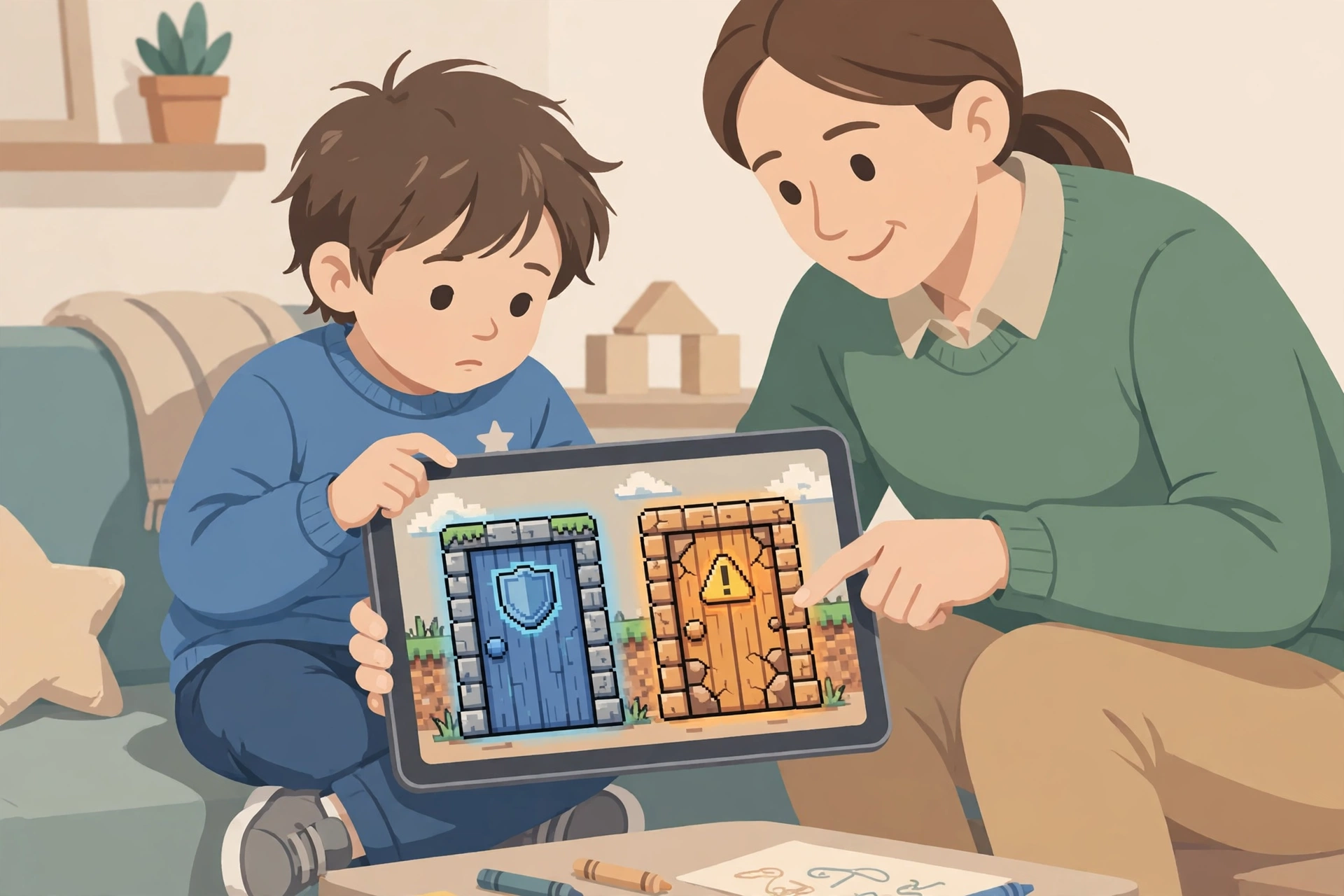
| Server type | Who can join | Best for | Watch out for |
|---|---|---|---|
| Private Realm | Invited friends and family only | Younger kids and family play | Still check chat and invited players |
| Private family server | Only people you invite | Families who want full control | The owner must set and enforce rules |
| Public server | Many players, including strangers | Older kids with supervision | Strangers, chat, and griefing need active checks |
| Single-player world | Only your child | First steps and creative play | No online chat, but screen time still needs limits |
Use the table with your child. Ask them which type of play they want, then match it to the safest option. If they want a public server, agree on the server, the rules, and a trial period first.
Also read our family online safety guide before you change settings. It covers the wider habits that support every game, not only Minecraft.
How do I set up a safe Minecraft account?
Set up a Microsoft family group first, then add your child as a child account. Minecraft support says family groups let you control the chat and social features allowed for a child account, and which groups can see the account information.
Use your child’s real birthdate when you create the account. A correct birthdate helps the right child protections apply. Do not use an adult birthdate to skip a limit, because that also removes the protections that come with a child account.
Turn on two-step sign-in for the parent account, and keep the password private. Your child should never need your password to play. If they ask for it, that is a good time to talk about why account details stay private.
Check the account on the device your child actually uses. Settings can look different on a console, a phone, and a computer, so confirm the setup where play happens.
Our guide to Roblox safety for kids uses the same parent-first idea: link the parent account, set limits, then review them together.
How do I control chat and multiplayer?
Chat is the main way strangers can reach your child in Minecraft. Players can type messages in the Chat screen, and they can also write on signs and banners, and in books made with Book and Quill. Those messages can be seen by other players in the same world.
Manage chat access for a child account through Xbox settings online or through the Xbox Family app. Choose the most restrictive option that still lets your child play with trusted friends. Test it together, so your child sees what changes.
Keep the profanity filter on in Bedrock Edition. When a message contains an inappropriate word, the filter replaces it with hashtags or hides the message. Remember that the filter is a help, not a guarantee, so kind and clear family rules still matter.
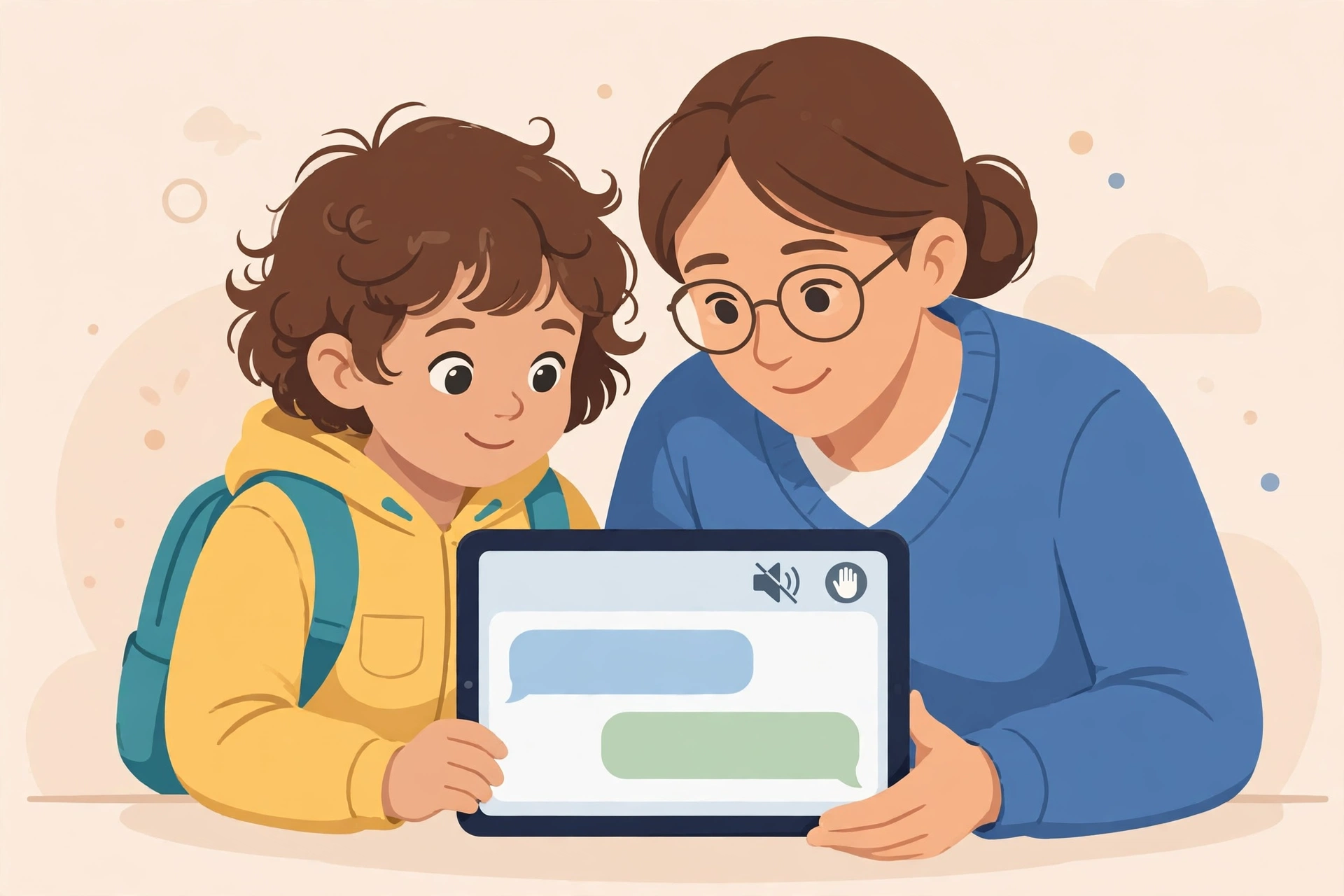
Talk about reporting early. Minecraft has player reporting tools, and in Bedrock Edition you can report a player. In Java Edition you can also report a player, and you can report a server that breaks the rules. Show your child the steps before they need them, not after a problem.
Moderation works differently by place. In a Realm, text chat is monitored in both Java and Bedrock Edition. Moderation also applies to Bedrock partner servers in the game. On a private server, the server owner controls moderation, so choose an owner you trust.
| Setting | Where to check | Safer choice for younger kids |
|---|---|---|
| Chat access | Xbox settings or Xbox Family app | Friends only, or off if unsure |
| Profanity filter | Bedrock Settings, then General | On, and leave it on for child accounts |
| Signs, banners, and books | In-world play | Talk about them, and review worlds together |
| Friend requests and invites | Family and Xbox settings | Only known friends and family |
| Reporting | In-game reporting tools | Show your child how to report and block |
| Multiplayer access | Family and Xbox settings | Private Realm or family server first |
Review the list once a month. Friends change, servers change, and a setting that fit last term may not fit now.
What about mods and downloads?
Mods can add or remove content in Minecraft, and they come from several third-party websites. That variety is fun for older players, but it also brings risk, because a download from an unknown site can hide malware or unwanted content.
Keep downloads simple for younger kids. Use only official stores and sources you trust, and check every download with your child before it is installed. If a site promises free premium content or asks for a password, close it and talk about it together.
For Java Edition, mods need extra care, because they often come from outside the game. Agree on a rule: no download without a parent check. That one rule prevents most download problems.
If your child plays on Android, our parental controls for Android guide can help you limit installs and purchases on that device.
How do I handle screen time and spending?
Minecraft does not need a built-in timer to stay balanced. Use Microsoft Family Safety for device, app, and game screen time limits on Windows, Xbox, and Android. Set a daily limit that fits school, sleep, and family time, and agree on it with your child.
Put play sessions on a simple routine. A clear start and stop time works better than a vague rule. When time ends, save the world together, so your child does not lose a build they care about.
For spending, keep payment details off your child’s device where possible. Agree on a rule for any purchase, even a small one, and check it before you approve it. A short pause before buying stops most impulse spending.
Our best free parental control apps list can help if you want extra device controls beyond Family Safety.
How do I deal with griefing and strangers?
Griefing means another player damages or spoils your child’s build on purpose. It is upsetting, and it is common on shared servers. On a private Realm or family server, griefing is much less likely, because everyone there is invited.
Teach your child a calm response. Stop playing with that person, save the world if you can, and tell a parent. Do not argue in chat, and do not try to get revenge in the game, because that often makes the problem worse.
For strangers, use the same rule as other online games. Your child should not share their real name, school, address, or photos with players they do not know in real life. A username and a skin should not reveal personal details, and Minecraft support notes that skins and usernames must follow Community Standards.
If a player keeps causing problems, report them and remove them from the world or server where you can. You can also read our Discord safety for teens guide if your child chats about games outside Minecraft, because the same stranger rules apply there.
What server choice suits my child’s age?
Use this simple framework, then adjust it for your own child. Age is a guide, not a rule, and maturity, friends, and the specific server all matter.
For younger kids, choose a private Realm or a private family server. Keep chat limited, keep the profanity filter on, and play together often. This gives them the fun of building with people they know, without strangers in chat.
For kids around 9 to 12, a private Realm still works well, with a few trusted friends added. Let them try a supervised public server only if they can follow the rules, report problems, and stop when you ask. Review the server together after the first week.
For teens, a supervised public server can work, with chat controls still in place and regular checks. Talk about griefing, scams, and peer pressure in advance. Teens need room to learn, but they still need a parent who checks in.
Ask three questions before any change: Who can join? Who can chat? Who can I ask for help? If you cannot answer all three, keep the safer option for now.
If your child asks for a new server, visit it together first. Watch the chat for a few minutes, check who runs it, and look for clear rules. A server with no rules, no moderators, or rude chat is not a good fit, even if friends play there.
How do I talk to my child about Minecraft?
Keep the talk short, calm, and regular. Ask what they built this week, who they played with, and whether anything felt strange or unfair. Praise them when they tell you about a problem, even a small one.
Agree on three family rules together. First, no personal details for strangers. Second, no downloads without a parent check. Third, tell a parent about unkind chat or a damaged build, without fear of losing the game.
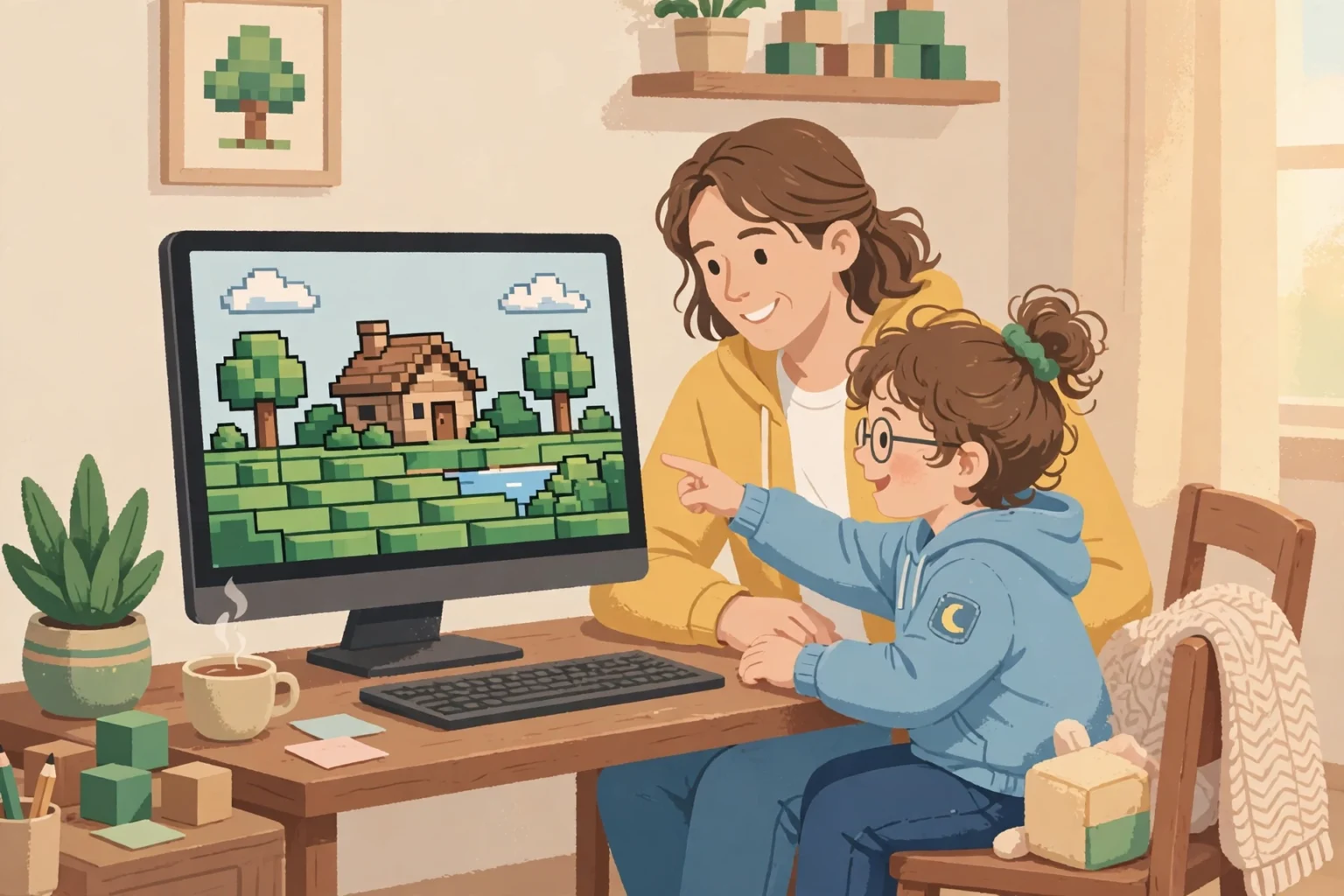
Play together when you can, even for ten minutes. You will learn the game, and your child will see that safety is part of play, not a punishment.
Keep a short note of each server your child uses, with the name and the friends who play there. That note makes monthly checks quick, and it helps you spot a new server your child has not mentioned yet.
For a wider plan, see our social media safety for kids guide and our how to secure your home Wi-Fi guide, because a safe network supports safe play on every device.
Key takeaways
- Choose a private Realm or family server first for younger kids.
- Use a Microsoft family group and a child account with the correct birthdate.
- Limit chat, keep the profanity filter on, and show your child how to report.
- Check downloads with a parent, and keep spending under a clear family rule.
- Set screen time with Microsoft Family Safety, and review settings every month.
Final verdict: what should you do next?
Start today with three steps. Set up the family group and child account, choose a private Realm or family server, and set chat to the safest level that fits your child.
Then play one session together. Check the world, the friends list, and the chat, and agree on the three family rules above.
That is the core of Minecraft safety for kids: a private place to play, a protected account, clear chat limits, and regular checks.
Frequently asked questions
Is Minecraft safe for kids?
Minecraft can be safe for kids with a private Realm or family server, a child account in a Microsoft family group, and chat limits. Open public servers with strangers and no limits are less safe for younger kids.
Which is safer, Bedrock or Java?
Neither edition is safe on its own. Bedrock has a profanity filter that stays on for child accounts, while Java only uses that filter on Realms. In both editions, the server choice and chat controls matter most.
What is a Minecraft Realm?
A Realm is a server run by Minecraft, just for you and your friends. Only invited players can join, which makes it a good private option for family play.
How do I turn off chat in Minecraft?
Manage chat access for a child account through Xbox settings online or the Xbox Family app, and choose the safest level for your child. Test the change together so your child understands what changed.
Are Minecraft mods safe?
Mods can be safe from trusted official sources, but mods from unknown third-party sites can hide malware or unwanted content. Check every download with your child before you install it.