Last updated: October 2026
- Why online gaming safety for kids matters
- Start with the basics before the first game
- Platform settings at a glance
- Voice chat: set it up before your child plays
- Strangers: keep the boundary clear and kind
- In-game spending: stop surprise charges
- Screen time and breaks that actually work
- Age ratings and game choices made simple
- What to do if something goes wrong
- Family gaming agreement: write it together
- Key takeaways and safety checklist
- Final verdict: safe gaming is a system, not a single setting
- Frequently asked questions
Quick answer: Online gaming safety for kids starts with three controls. Set voice chat to friends only or off. Keep strangers out of private chats and friend lists. Turn on purchase approval so no money leaves your account without your say so. Do those three things first, then agree on time limits and check in often.
Games are fun, social, and creative. They can also bring your child into contact with strangers, loud voice chat, and tempting purchases. This guide helps you set up safe gaming on your own devices, with your own child, and with clear consent from everyone in your family.
You do not need to ban games to keep them safe. You need a simple plan, the right settings, and a calm way to talk about problems. Start with one device and one game. Then repeat the same steps on the next device.
This guide covers voice chat, strangers, spending, screen time, and age ratings. It also links to the wider family online safety guide so you can build one set of rules for home, school, and play.
Why online gaming safety for kids matters
Many games now mix play with chat, video, friends lists, and shops. A child may start a game alone and end up talking with people they have never met. That shift happens fast, and it can feel normal to a young player.
Voice chat adds a new layer of risk. Players can hear tone, age, and background sounds. They may share personal details without thinking. A short chat can reveal a school, a routine, or a real name.
Spending is also built into many games. Skins, coins, passes, and loot boxes look small and fun. They can add up quickly when a card is saved on a device. A clear spending rule protects both your child and your budget.
Screen time matters too. Long sessions can crowd out sleep, homework, and outdoor play. A break plan works better than a sudden stop. Children accept limits more easily when they know the plan in advance.
The goal is not fear. The goal is confidence. When your child knows what is safe, what is not, and who to tell, gaming becomes a healthier part of family life.
Start with the basics before the first game
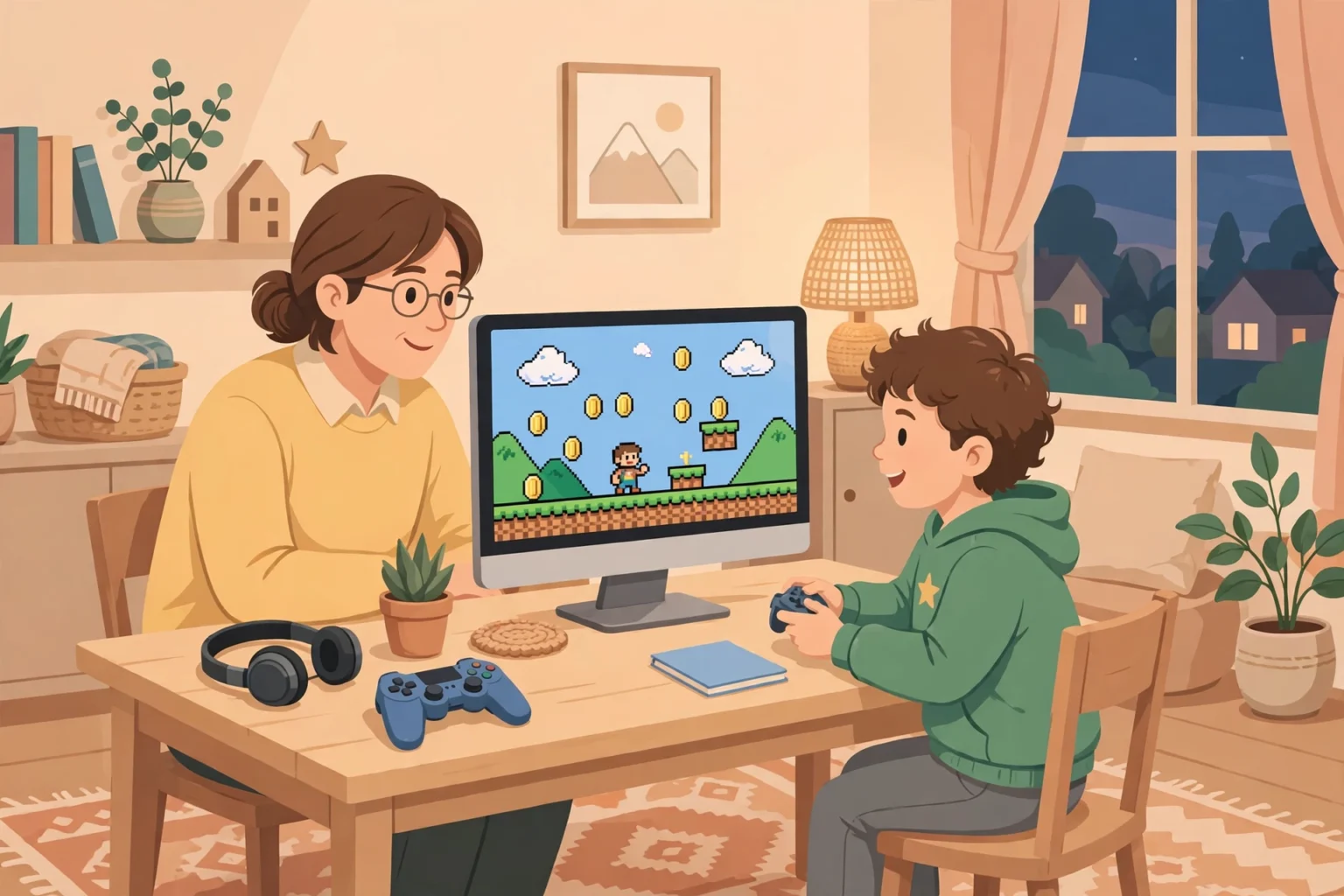
Set up the device together. Sit with your child and talk through each choice. Explain that settings protect privacy, not punish play. That tone makes later talks much easier.
Use a child account where the platform offers one. Child accounts often give parents more control over chat, friends, and purchases. Use a strong password and keep account recovery details private.
Check the age rating before you install a game. The ESRB in North America and PEGI in Europe rate games for age and content. Ratings help you judge if a game fits your child. They do not replace your own judgment.
Turn off saved payment details where you can. If a card must stay on file, require a password or approval for every purchase. Never share your store password with your child.
Review privacy settings on the console, the game, and any linked app. Set profiles to private or friends only. Limit who can see play history, send messages, or join a game.
Platform settings at a glance
Each platform has its own parental controls. The names differ, but the core choices are the same. Use this table to find the right area on your device.
| Platform | Where to start | Key controls to set |
|---|---|---|
| PlayStation | Family management and parental controls | Chat, friends, spending limit, age filter |
| Xbox | Family settings | Communication, multiplayer, purchase approval |
| Nintendo Switch | Parental Controls app | Play time, age restriction, spending |
| Roblox | Account settings and parental controls | Chat filter, privacy, monthly spend limit |
| Minecraft | Microsoft family and game settings | Multiplayer, chat, realms access |
Official pages from PlayStation, Xbox, Nintendo, Roblox, and Minecraft explain the latest steps for each system. Check the official page for your device after a major update. Menus can move, but the control areas stay similar.
For game specific help, read our Roblox safety guide for kids and our Minecraft safety guide for kids. Both explain chat and server choices in plain language.
Voice chat: set it up before your child plays
Voice chat can help friends play together. It can also expose a child to swearing, pressure, and strangers. The safest default for a young child is voice chat off or friends only.
Open the platform family settings first. Look for communication, chat, or voice. Change the setting from everyone to friends only. For a younger child, turn voice chat off for public games.
Then check the game itself. Some games have a separate chat setting. Set in game chat to team only or off. Turn off open microphones so your child is not heard by strangers by accident.
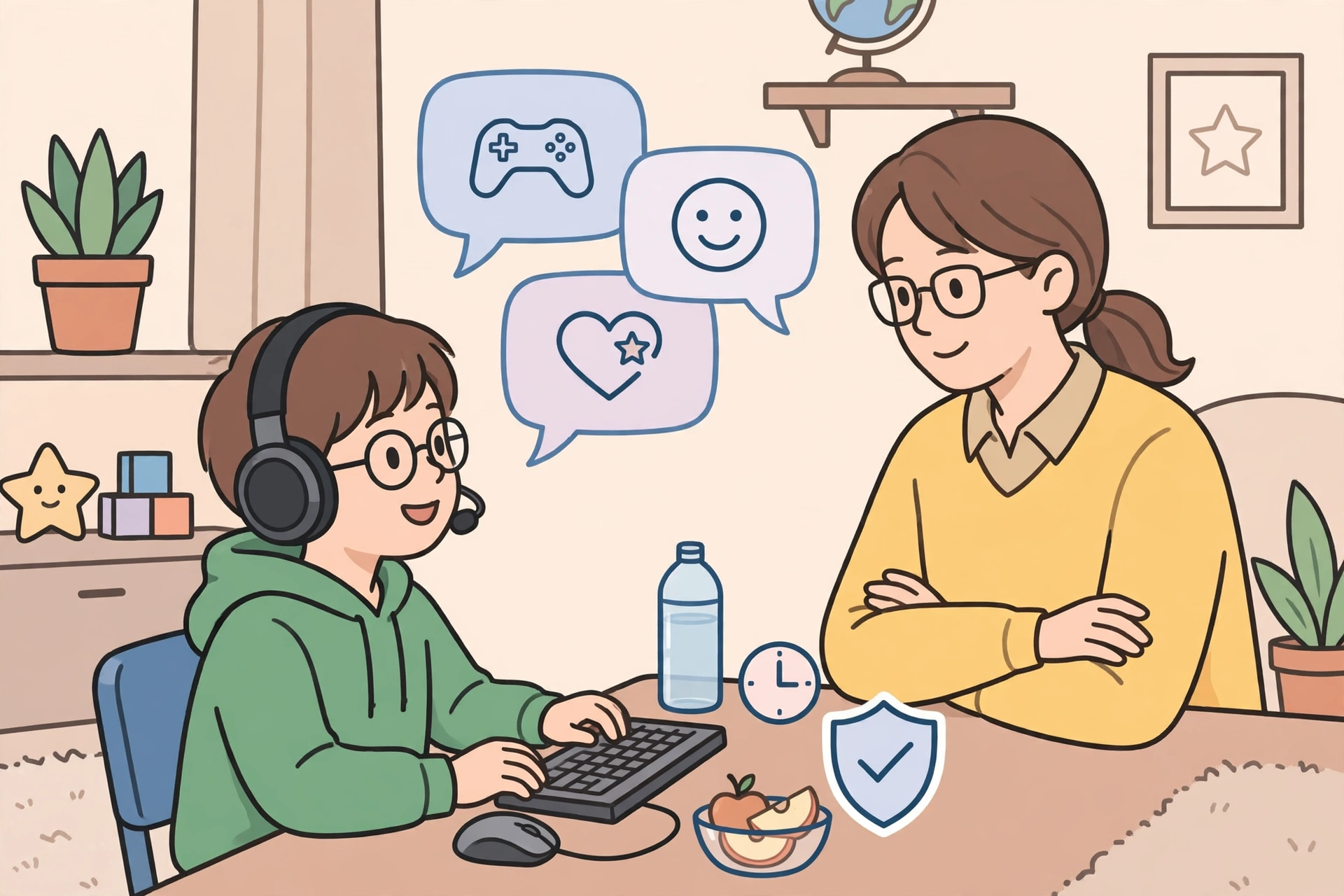
Teach a simple voice chat rule. Talk only with people you know in real life, unless a parent has agreed to a wider group. Never share your real name, school, address, or daily routine in voice chat.
Agree on what to do if chat turns rude. Your child can mute, leave the match, and tell you. Praise that choice. A child who fears punishment may hide problems instead of reporting them.
Voice chat choices, compared
| Setting | Who can hear your child | Best for |
|---|---|---|
| Off | No one in voice chat | Younger children and new games |
| Friends only | Approved friends only | Children who play with known friends |
| Team only | Current team in a match | Older children with clear rules |
| Everyone | Any player in the game | Not recommended for children |
Review the setting again after your child adds a new friend. A friend today may invite others tomorrow. Keep the approved list small and known to you.
Headsets deserve a quick check too. Set volume to a safe level. Encourage breaks so ears rest. If your child plays in a shared room, you can hear the tone of chat without listening to every word.
Strangers: keep the boundary clear and kind
Strangers in games are not always dangerous. Many are simply other players. The risk comes when a stranger moves from public play to private contact. That is the line to protect.
Teach your child this rule. Play in public games, but keep private chats and friend requests for people you know offline. A stranger should not become a private friend just because they were good at a game.
Watch for grooming style behaviour. Warning signs include requests to keep secrets, move to another app, share photos, or meet in person. Any request to keep a chat secret from a parent is a red flag.
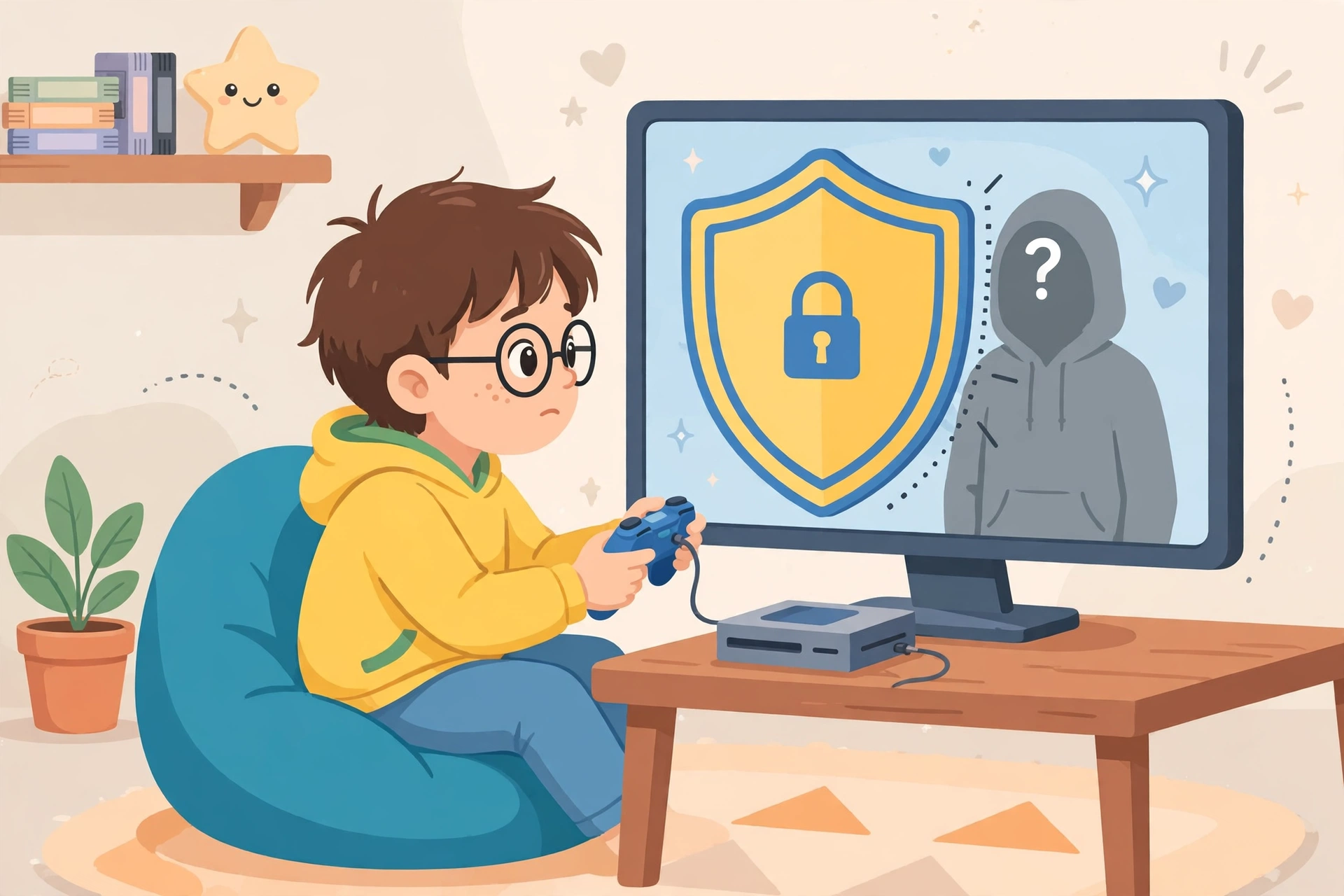
Use friend requests as a teaching moment. Ask your child who the person is, how they met, and why they want to connect. If the answer is unclear, decline the request together. No explanation to the stranger is needed.
Set profiles to private. Avoid real names, photos, school names, and birthdays in usernames and bios. A neutral username protects privacy without stopping play.
Our Discord safety guide for teens is useful if an older child moves from games to chat servers. Server rules, roles, and direct messages need the same friends only mindset.
Safe play versus risky contact
| Situation | Safe response | Why it helps |
|---|---|---|
| Public match with strangers | Play, stay polite, no private details | Play stays public and visible |
| Friend request from a stranger | Decline or ask a parent first | Private access stays controlled |
| Ask to move to another app | Say no and tell a parent | Private apps are harder to monitor |
| Ask to keep a secret | Stop and tell a trusted adult | Secrets hide unsafe behaviour |
| Rude or scary messages | Mute, block, report, save evidence | Stops contact and creates a record |
Reassure your child often. Telling you about a stranger is brave, not tattling. A calm response keeps the door open for the next talk.
In-game spending: stop surprise charges
In-game shops are designed to feel quick and exciting. A tap can buy coins, outfits, or a battle pass. Children may not connect a virtual coin with real money. That gap causes most surprise bills.
Start with one rule. No purchase happens without a parent check. Put that rule in the device settings, not only in words. Require approval for every purchase, even free downloads where the platform allows it.
Remove saved cards where possible. Use gift cards or a set allowance instead. A gift card gives a clear limit. When the balance ends, spending stops. That lesson is clear and fair.
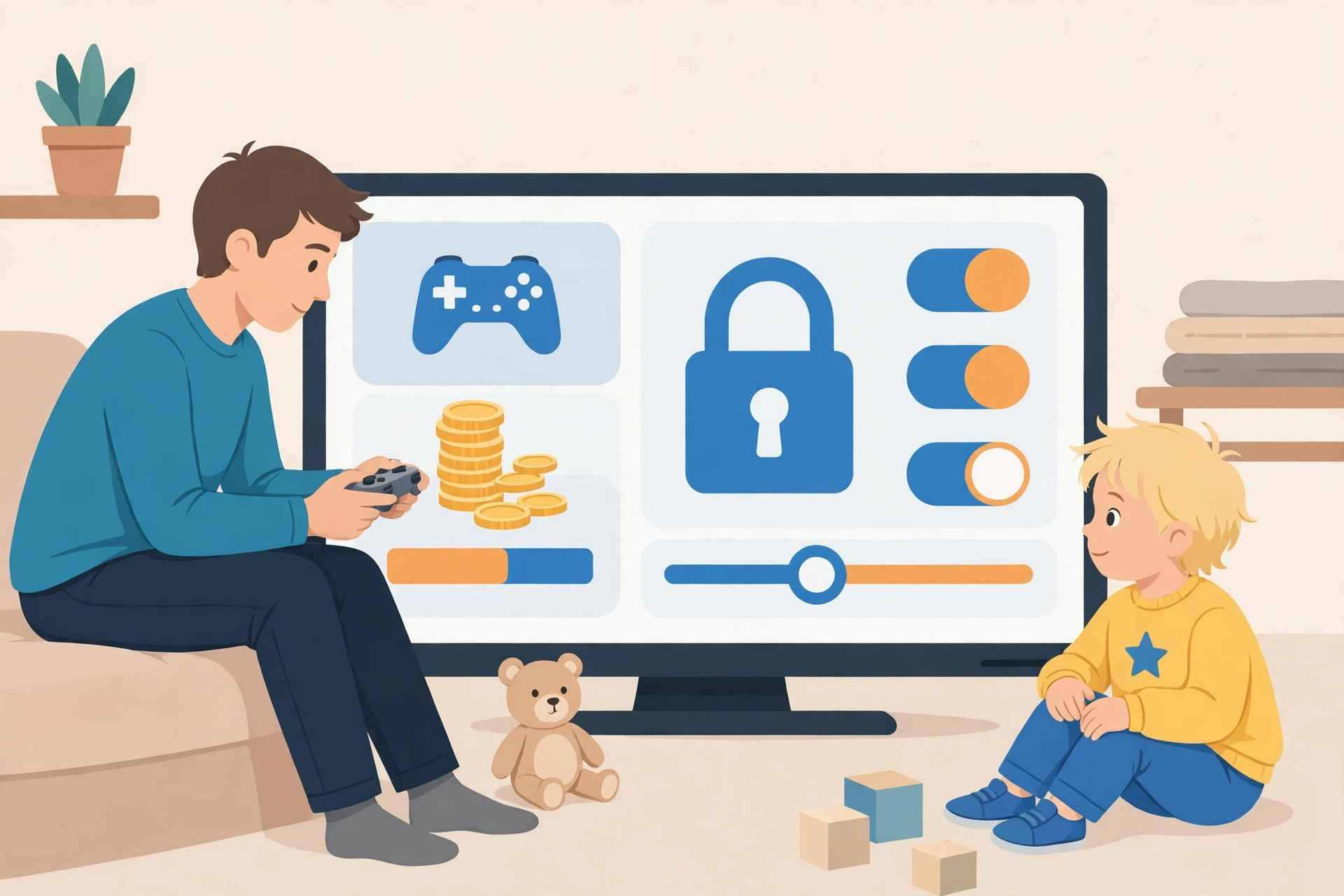
Talk about loot boxes and random rewards. Explain that the outcome is random and that more spending does not guarantee a rare item. Help your child wait before buying. A 24 hour pause often removes the urge.
Check purchase history together each week. Look for small charges and subscriptions. Cancel any pass your child no longer uses. A short weekly check prevents a long surprise at month end.
Spending controls checklist
- Require a password or approval for every purchase.
- Remove saved cards, or set a low spending limit.
- Use gift cards for a clear allowance.
- Turn off one tap buying where the store allows it.
- Review receipts and purchase history weekly.
- Cancel unused passes and subscriptions.
If a charge already happened, stay calm. Contact the store support page for the platform. Explain the account, the charge, and the parental control setting. Keep receipts and dates ready. Acting early gives you the best chance of help.
Screen time and breaks that actually work
Time limits work best when they are predictable. Agree on a daily play window and a clear end time. Use a timer or the platform play time tool. A warning five minutes before the end helps a child finish a match.
Protect sleep first. Keep devices out of bedrooms at night where possible. Stop play at least an hour before bed on school nights. Tired children find it harder to manage chat and spending choices.
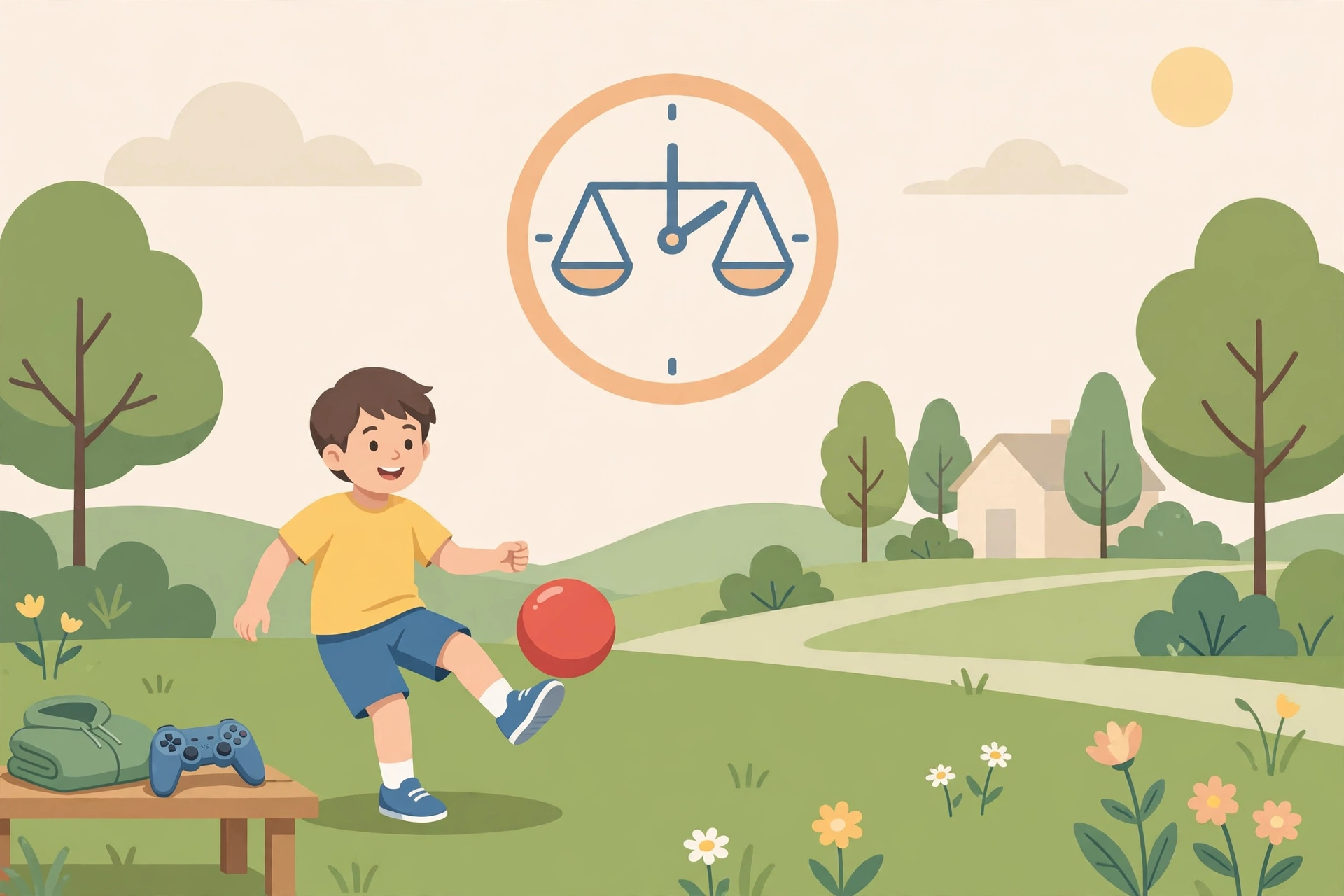
Build breaks into play. A short break after each match helps eyes, posture, and mood. Encourage water, a snack, and movement. A child who returns refreshed plays better and argues less about limits.
Balance games with other activities. Offer choices, not only bans. Sport, reading, cooking, and time with friends all compete for attention. When a child has good options, games feel less urgent.
Watch for signs that play is becoming a problem. Signs include anger at limits, lying about play time, falling grades, and loss of interest in other activities. If you see a pattern, talk calmly and seek advice from a teacher, doctor, or family support service.
Age ratings and game choices made simple
Age ratings are a starting point, not a full review. The ESRB uses letters for age groups and content descriptors for violence, language, and in game purchases. PEGI uses age numbers and pictograms for content such as violence and online chat.
Read the rating and the content notes together. A game rated for older children may still allow open chat. A game rated for younger children may still include purchases. Settings matter as much as the rating.
Try a new game together first. Play the first session with your child. Check chat, friends, and shop options in real play. You will learn more in ten minutes of play than in a long store description.
Keep a short approved list. Add games only after a rating check and a settings check. Remove games that break the family rules. A small approved list reduces daily arguments.
What to do if something goes wrong
Problems can still happen with good settings. Your response matters more than the problem. Stay calm, thank your child for telling you, and act step by step.
- Stop the chat or game. Mute and block the account involved.
- Save evidence. Take screenshots and note dates, usernames, and game names.
- Report in the game and on the platform. Use the built in report tool.
- Talk with your child about what happened and how they feel.
- Contact the school if the other player is a classmate or the issue spreads to school.
- Seek help from a trusted professional if threats, sexual content, or self harm are involved.
Do not delete evidence before you report. Screenshots help moderators act. Do not reply to threats or try to contact the other player yourself. Let the platform and, if needed, the school handle the next step.
After a problem, review settings together. Change passwords if an account may be shared. Tighten chat or friends settings for a while. Return to wider access slowly, with clear rules.
Family gaming agreement: write it together
A short written agreement prevents most arguments. Keep it to one page. Let your child help write it. Children follow rules they helped create.
Include play times, approved games, chat rules, and spending rules. Add what happens if a rule breaks. Use a calm consequence, such as a shorter session next time. Avoid taking away all play for a small mistake.
Review the agreement each month. Games change, friends change, and children grow. A monthly review keeps rules fair and current. Praise good choices during the review, not only mistakes.
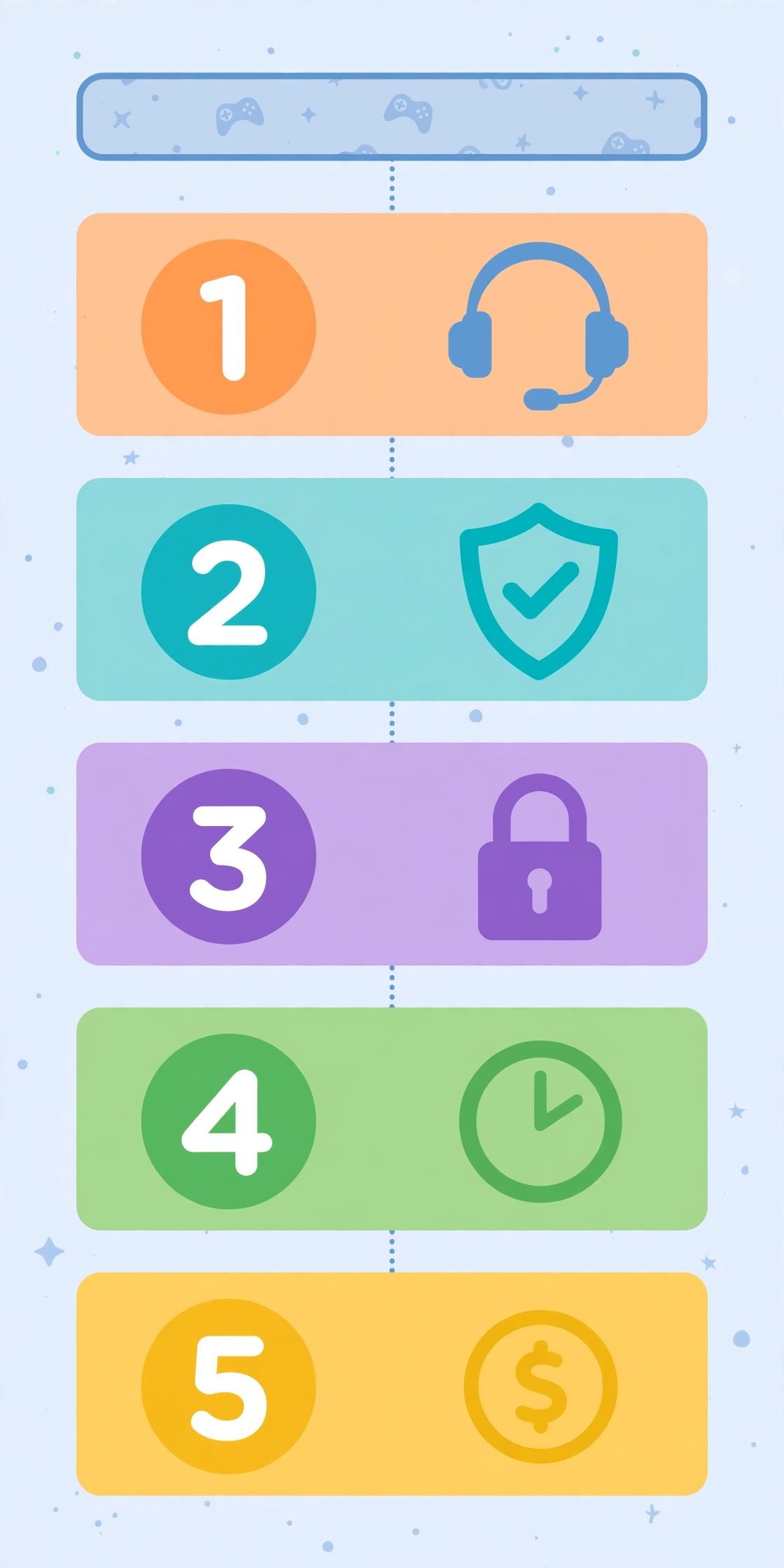
Key takeaways and safety checklist
- Set voice chat to friends only or off for younger children.
- Keep private chats and friend lists for people known offline.
- Require parent approval for every purchase.
- Use a child account, a private profile, and a neutral username.
- Check ESRB or PEGI ratings and game settings before install.
- Agree on play times, breaks, and a clear end time.
- Save evidence, block, and report if a problem happens.
- Review settings and the family agreement each month.
Start today with three quick checks. Open voice chat settings, open friends settings, and open purchase settings. Those three checks take less than ten minutes on most devices. They also give the biggest safety gain.
Final verdict: safe gaming is a system, not a single setting
Online gaming safety for kids works when settings, rules, and talks work together. No single control covers every game. A friends only voice setting, a private profile, and purchase approval form a strong base.
Your next step is simple. Pick one device, set it up with your child, and agree on play times and spending rules. Then repeat the steps on the next device. For a wider family plan, return to the complete family online safety guide and add chat, video, and school device rules.
Frequently asked questions
What is the safest voice chat setting for a young child?
Voice chat off or friends only is safest for a young child. Public voice chat exposes a child to strangers and rude language. Friends only still needs a small, known friend list.
Should my child accept friend requests from strangers in games?
No. Your child should decline stranger friend requests or ask a parent first. Private access should stay limited to people known offline.
How can I stop in-game spending on my child’s device?
Require purchase approval, remove saved cards where possible, and use a gift card allowance. Review purchase history each week and cancel unused passes.
Are age ratings enough to judge a game?
No. Ratings help, but chat and purchases can change the risk. Always check the rating, the content notes, and the in game settings together.
What should my child do if a stranger asks for a secret chat?
Your child should stop, save evidence if safe, block the account, and tell a trusted adult at once. A request to keep a chat secret is a clear warning sign.