Last updated: October 2026
- Key takeaways
- Real signs vs myths
- How to check an Android phone
- Start with the app list and Accessibility services
- Check Device admin apps, battery and data
- Run a Play Protect scan and test Safe Mode
- How to check an iPhone
- How to check a Windows PC
- How to check a Mac
- Do not skip the hardware check
- The checks at a glance
- Found one? What to do next
- Frequently Asked Questions
Quick answer: Start with the places a keylogger must use. On Android, check Accessibility services and Device admin apps for names you do not know. On iPhone, check for jailbreak apps and unknown profiles under VPN and Device Management. On Windows and Mac, check the startup lists and run a full scan with the built in security tool.
Read this first: this guide covers checking a device you own, your own child’s device where local law allows, or a work device covered by clear written notice and consent. Do not use these checks to watch a partner, a roommate, or any other adult without consent. If you find a logger on your own device, treat your passwords as exposed, because a keylogger records passwords and bank details.
People rarely find a keylogger by luck. They find it because something small feels wrong, like a password that someone else seems to know. This guide turns that uneasy feeling into a short list of checks you can finish today.
A keylogger is a tool that records what you type and sends the record to someone else. It can be an app, a program, or a small hardware plug. For the full background, read our explainer on what a keylogger is and how it works. Here we skip the history and go straight to detection.
This guide explains how to detect a keylogger in plain steps. Work through the signs first, then run the check list for your device. Each check uses only the settings and tools that come with the device.
Key takeaways
- The strongest sign is an Accessibility service or a device admin app that you do not recognise.
- A warm phone or one slow day proves nothing on its own.
- Every platform has a built in place where a logger must register, and this guide shows each one.
- A full scan with the built in security tool is one check, not the whole answer.
- Hardware loggers exist, and only a physical check finds them.
- If you find one, change passwords from a clean device, not from the suspect device.
Real signs vs myths
Most detection advice online mixes real signs with folklore. A real sign points to a setting or a fact that you can verify. A myth is a feeling that a busy, old, or cheap device can explain on its own.
| What you notice | Real sign or myth | What to check next |
|---|---|---|
| An Accessibility service runs under a name you do not know | Real sign | Open the app list, find the app behind the service, and check its permissions. |
| Someone knows a password you only ever typed on this device | Real sign | Run every check on this page, then change passwords from a clean device. |
| Battery and data use jump, and you installed no new app | Real sign | Compare per app battery and data use, and look for an app you do not recall adding. |
| The phone feels warm | Myth on its own | Check battery use first. Games, video calls, and a weak signal heat a phone too. |
| The device feels slow for one day | Myth on its own | Restart it, then watch for a pattern over a week, not a single bad day. |
| Pop up ads appear in the browser | Myth on its own | Clear the browser cache and check recent apps. Ads alone do not prove a logger. |
One real sign is enough reason to run the full check list for your device. Myths only matter when they appear next to a real sign. Keep notes as you go, because dates and app names help if you later need support or evidence.
Passwords deserve a special note. If someone quotes a password, a private note, or a search that you only typed on one device, treat that device as compromised until your checks prove otherwise. Do not explain it away as a guess.
Also watch for changes you did not make. A new keyboard app set as the default, a lock setting that changed on its own, or a sign in alert you did not trigger all deserve a look. None of these proves a logger alone, but next to one real sign they make the case for a full check.
How to check an Android phone
Android loggers need deep access to record typing, and Android makes that access visible. Most spy apps read keystrokes through an Accessibility service. Many also ask for device admin rights, so you cannot uninstall them easily. Our guide to detecting spyware on Android covers the wider spyware picture.
Start with the app list and Accessibility services
Open Settings, then Apps, then See all apps, and read the full list slowly. Look for names you do not recall installing, and for bland names like System Service or Update Service. A logger often hides its icon, so the app list matters more than the home screen.
Next, open Settings, then Accessibility, then Installed apps. Any service that is switched on should belong to an app you know and use. An unknown service that is on is the single strongest Android sign, because that switch lets an app read what you type.

Check Device admin apps, battery and data
Open Settings, then Security, then Device admin apps. On some phones this sits under Security and privacy instead. The list should be short, and most phones show only find my device tools. Remove admin rights from any app you do not trust, then uninstall it from the app list.
Then open Settings, then Battery, then Battery usage, and compare it with the data use shown inside each app page. A logger sends data in the background, so look for an unknown app with steady battery or data use. Our guide on how to check app permissions shows how to audit what each app may access.
Run a Play Protect scan and test Safe Mode
Open the Play Store, tap your profile icon, then Play Protect, then Scan. Google Play Protect checks apps for harmful behaviour, including known spy tools. Treat a clean scan as a good sign, not as proof that nothing is there.
Finally, test Safe Mode. On most phones, press and hold the power button, then press and hold Power off until the Safe Mode prompt appears, and tap OK. In Safe Mode, downloaded apps do not run. If strange behaviour stops in Safe Mode and returns after a normal restart, a downloaded app is the likely cause.
Write down what you find before you change any setting. Note the app names, the dates you first saw them, and which switches were on. Those notes help a support technician later, and they matter if the logging becomes part of a dispute or a police report.
How to check an iPhone
A standard iPhone does not let apps record typing across the system. Most iPhone keyloggers need a jailbroken phone or a managed profile instead. Your checks focus on those two doors, plus any VPN you do not know.
Look for jailbreak signs
Search your home screens and the App Library for apps like Cydia or Sileo, which come with common jailbreaks. Also look for any app you do not recall installing. If you find a jailbreak app you did not add, someone likely had deep access to the phone.
A quick restart test helps too. Most modern jailbreaks fade after a restart until someone runs them again. Strange behaviour that vanishes after a restart and returns later is a pattern worth noting.
Check profiles, device management and VPN settings
Open Settings, then General, then VPN and Device Management. Under Configuration Profile, you should see only profiles you expect, such as one from your employer or school. An unknown profile can force settings, install a root certificate, and route traffic, so remove any profile you do not recognise.
On the same screen, check the VPN list. A VPN you did not set up can watch network traffic from the device. Our guide on whether your phone is tapped covers the wider checks, including call forwarding codes.
Finish by keeping iOS current. Apple removes jailbreak methods and closes holes in updates, so an old version is easier to attack. Open Settings, then General, then Software Update, and install the latest version.
How to check a Windows PC
Windows loggers run as normal programs or as startup tasks, so the built in tools see most of them. You need two places: Task Manager for what runs now and what starts with Windows, and Windows Security for a full scan.
Task Manager: processes and the Startup tab
Press Ctrl, Shift and Esc together to open Task Manager, then open the Processes tab. Sort by name and look for programs you do not know. Search the exact name online before you act, because many odd names belong to normal drivers and updaters.

Then open the Startup apps tab in Task Manager. A logger needs to start with Windows, so this list is prime ground. Disable any entry you do not recognise, note its publisher name, and restart the PC to see whether the entry returns.
Installed programs and a full security scan
Open Settings, then Apps, then Installed apps, and sort by install date. Programs added around the time the strange behaviour began deserve a close look. Uninstall anything you cannot identify as yours, and restart when the uninstall asks.
Also check the extensions in each browser you use. A bad extension can record what you type into web forms, even though it is not a full system logger. Remove any extension you do not recognise, and keep only the ones you installed on purpose.
Now run a full scan. Open Windows Security, then Virus and threat protection, then Scan options, then Full scan, then Scan now. A full scan checks every file and running program, unlike a quick scan. If the full scan finds nothing but a real sign stays, treat the PC as suspect and get expert help.
How to check a Mac
Mac loggers face the same problem as Windows ones: they must start at login and hold accessibility access to read typing. macOS lists both in System Settings, so the checks are short.
Login Items and Device Management
Open System Settings, then General, then Login Items. Read both the Open at Login list and the Allow in the Background list. Remove any item you do not know, and write down its name first in case you need it later.
Still in General, open Device Management. This is where configuration profiles live on a Mac. A personal Mac often has none. An unknown profile can control settings and security, so question any profile you did not add or accept at work.
Accessibility access in Privacy and Security
Open System Settings, then Privacy and Security, then Accessibility. Only apps you trust should appear here, because this switch lets an app control the Mac and read input. Turn off any app you do not recognise, then check the Input Monitoring list in the same panel.
While you are in Privacy and Security, glance at Screen Recording and Full Disk Access too. A monitoring tool may hold more than one of these switches. Each unknown entry is one more reason to treat the Mac as suspect.
Do not skip the hardware check
Software checks miss one whole class of logger: the hardware plug. A hardware keylogger sits between a keyboard and the computer, often as a small adapter on the cable or a short extension at the port. It records typing before the computer ever sees it, so no scan can find it.
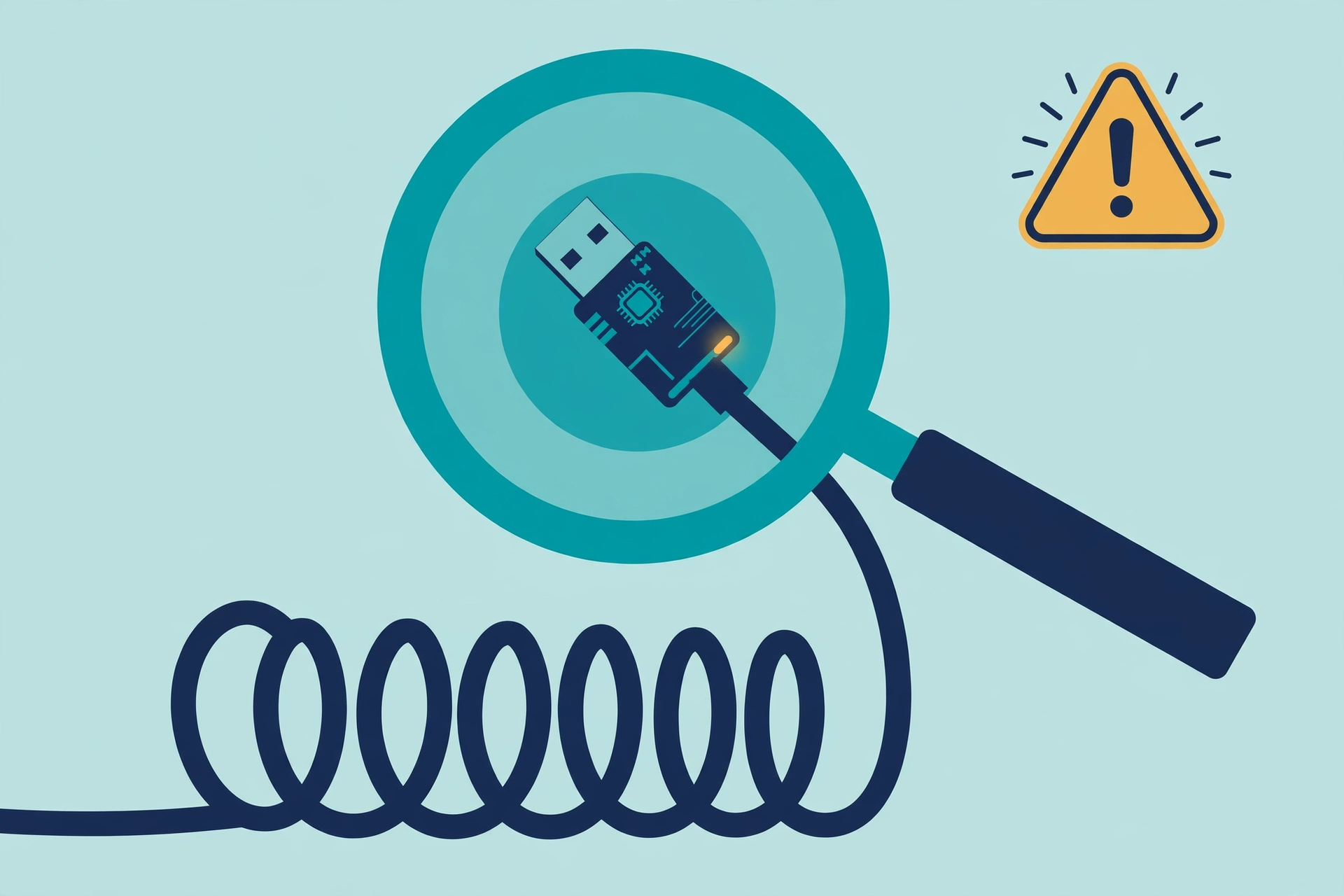
Follow the keyboard cable from the keyboard to the PC with your hand. Any adapter, dongle, or box you did not add is a red flag, and so is a swapped keyboard. This check takes one minute on a desktop, and it is the only way to rule this risk out.
The checks at a glance
Use this table as your run order. Finish the row for your device before you move on.
| Platform | First place to check | What a bad sign looks like |
|---|---|---|
| Android | Accessibility, then Installed apps | A service switched on for an app you do not know |
| iPhone | General, then VPN and Device Management | A configuration profile or VPN you did not add |
| Windows | Task Manager, then Startup apps | An unknown program set to start with Windows |
| Mac | Privacy and Security, then Accessibility | An unknown app allowed to control the Mac |

If every check is clean and no real sign stays, your device is probably fine. Keep the notes you made. Repeat the checks after any month in which a real sign appears.
Found one? What to do next
Stop typing sensitive things on the device at once. Do not change passwords on the suspect device, because the logger would record the new ones too. Use a clean device to change your email password first, then banking, then the rest, and turn on two factor sign in.
Removal depends on the platform and on your safety. Our step by step guide on how to remove stalkerware covers safe removal, evidence, and the cases where you should not remove the tool at once. If the device is a work one, report it to your IT team instead of removing anything yourself.
One last point for buyers. Tools sold as the best keylogger for Android are the same tools this guide hunts for. Install one only on a device you own, or on your own child’s device where the law allows, and never on another adult’s device without consent.
Detection is a habit, not a one time event. Run these checks when you lend a device, after a repair, or when a relationship ends badly. Ten minutes of checks beats months of quiet logging.
Frequently Asked Questions
What is the most reliable sign of a keylogger?
An Accessibility service on Android, or accessibility access on a Mac, that belongs to an app you do not know. Someone knowing a password you only typed on that device is also a strong sign. A warm phone or one slow day proves nothing on its own.
Can a keylogger hide from the app list?
Yes. Some loggers hide their icon or use a system style name. That is why this guide checks Accessibility services, device admin apps, startup lists, and Safe Mode behaviour instead of relying on icon screens.
Will a factory reset remove a keylogger?
On a phone, a factory reset removes app based loggers in almost all cases. Back up your photos and files first, and change passwords from a clean device after the reset. A reset does not help if the other person can install the tool again, so fix the access problem too.
Can antivirus software find a keylogger?
Scans catch many known loggers. Google Play Protect scans and Windows Security full scans are worth running on every suspect device. They do not catch every tool, so a clean scan plus a real sign still means you should finish the manual checks.
Is it legal to check someone else’s device for a keylogger?
Check only a device you own, your own child’s device where local law allows, or a work device under a written policy with consent. Checking a partner’s or roommate’s device without consent can break the law. If you fear for your safety, contact local support services or the police.