Last updated: October 2026
- Before You Remove Anything, Make a Safety Plan
- What Stalkerware Is and How It Gets on a Phone
- Key Takeaways
- Signs That Point to Stalkerware
- Preserve Evidence Before You Delete Anything
- Android and iPhone Removal Steps at a Glance
- How to Remove Stalkerware From Android
- Run a Google Play Protect Scan
- Turn Off Device Admin Access
- Restart in Safe Mode and Uninstall the App
- How to Check and Clean an iPhone
- Check for Unknown Configuration Profiles
- Update iOS and Remove Unknown Apps
- Consider Reset Options on iPhone
- Factory Reset: The Strongest Option
- Change Every Password From a Safe Device
- If the App Will Not Uninstall
- Recheck Permissions After Removal
- Protect the Clean Phone
- Get Help and Stay Safe
- Frequently Asked Questions
Quick answer: Do not delete anything until you are safe. Make a safety plan first, save evidence, and use a safe device for help. Then scan with Play Protect on Android or check profiles on iPhone, remove the app, and change your passwords from a safe device.
Stalkerware is software that watches a phone without the clear consent of the person who uses it. It can share messages, location, calls, and photos with another person. This guide shows you how to remove stalkerware from your own phone safely.
The order of the steps matters as much as the steps themselves. Deleting the app too fast can alert the person who installed it. It can also destroy evidence that you may need later. Work through this guide in order, and pause whenever you need support.
Before You Remove Anything, Make a Safety Plan
Removing stalkerware can alert the person who installed it. That person may see the app stop reporting, and they may react badly. If you live with that person, or you fear them, treat removal as a safety issue first and a tech issue second.
Use a safe device for every call, search, and message about this plan. A safe device is one the other person has never touched or monitored. It could belong to a trusted friend, a family member, a library, or a support service.
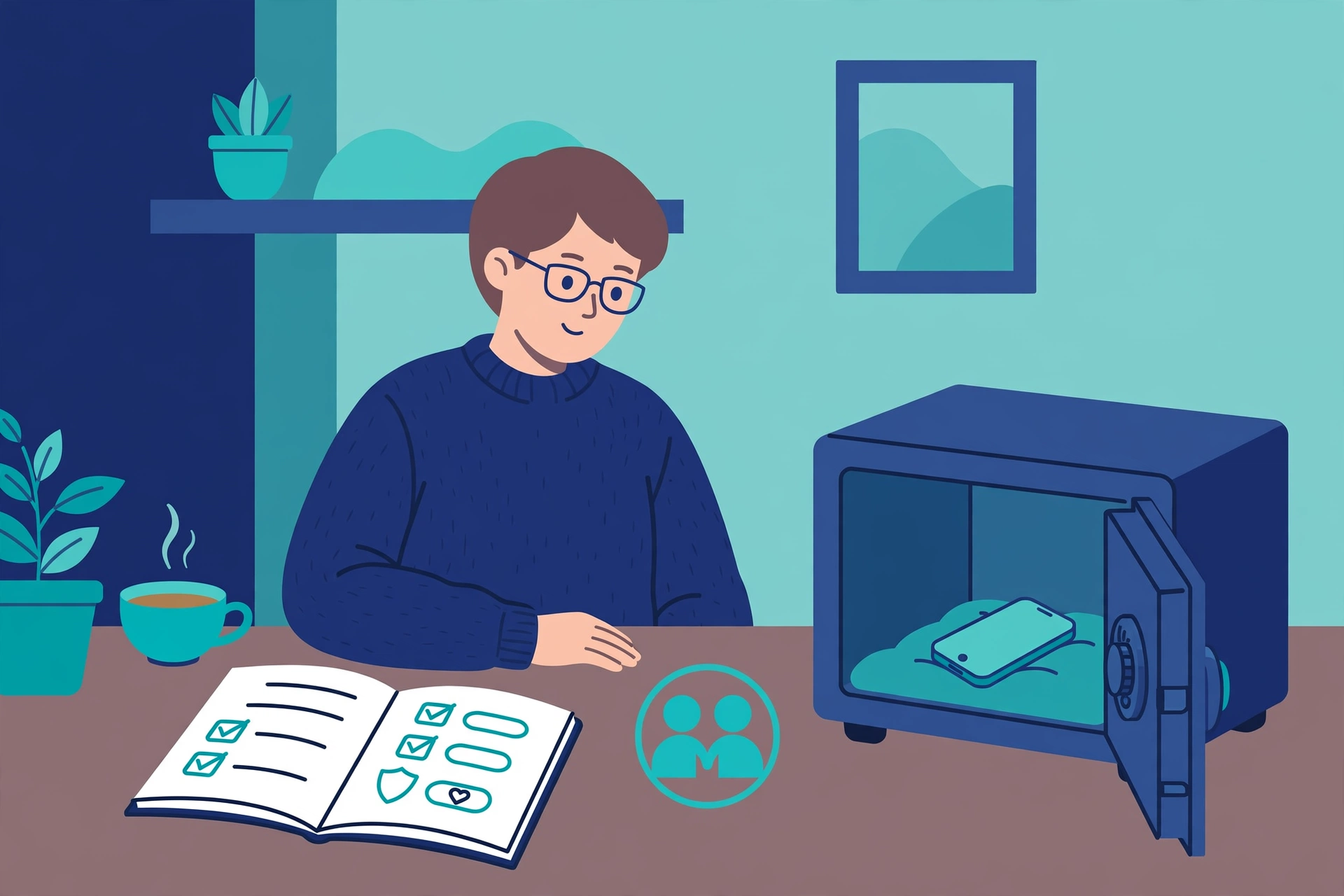
Write down who you will contact if things feel unsafe. Decide where you can go, and keep key documents, money, and chargers within reach. If you are in immediate danger, call your local emergency number first.
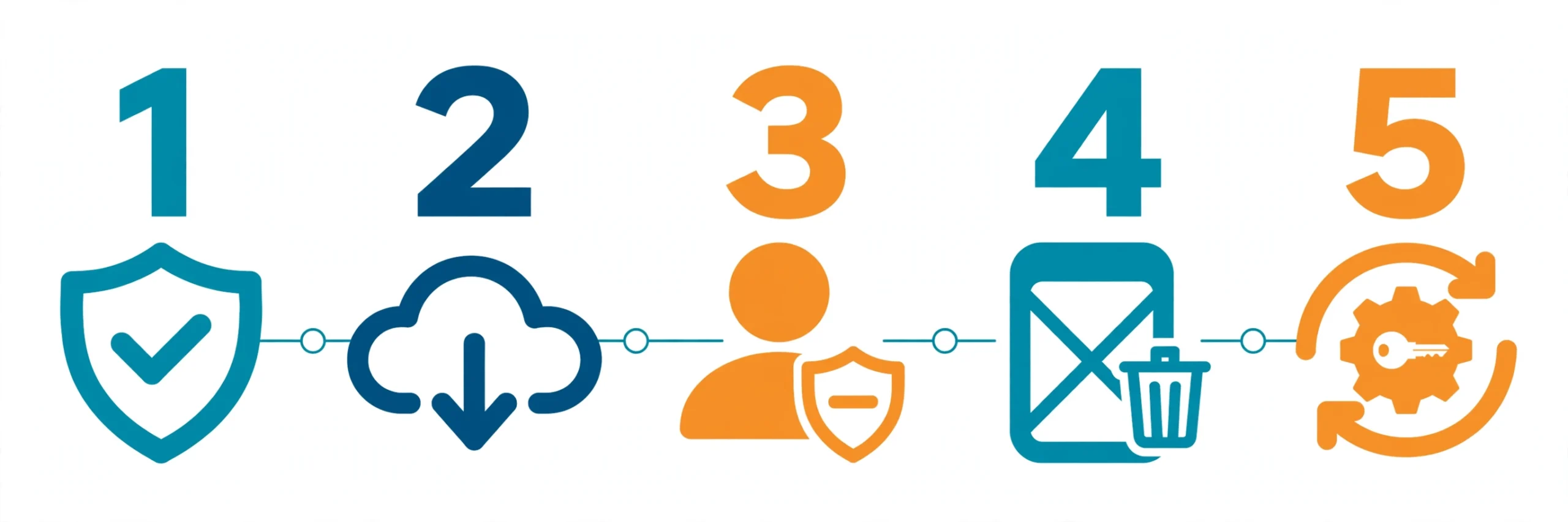
A simple safety plan covers five points.
- A safe device for calls and searches
- A trusted person who knows what is happening
- A safe place you can reach quickly
- Copies of key documents stored safely
- A plan for children, pets, and transport
Support groups that fight stalkerware can help you plan each step. Many offer free and private advice by phone or live chat. You do not have to handle this alone, and asking for help is not a failure.
What Stalkerware Is and How It Gets on a Phone
Stalkerware is a type of spyware sold as a monitoring or parental control tool. Our guide on what spyware is and how it works explains the wider category in plain words. The key point is consent. Software that tracks an adult in secret crosses a clear line.
Most consumer stalkerware needs physical access to an unlocked phone to install. The installer often disables warnings, hides the app icon, and grants wide permissions. That is why a normal scroll through your app list may not reveal it.
Some monitoring also happens without any app at all. A person who knows your account password can read cloud backups or follow your location through shared accounts. Removal therefore includes account checks, not just deleting one app.
Key Takeaways
- Safety comes before removal, always.
- Removal can alert the person who installed the app.
- Save evidence before you delete anything.
- Play Protect and safe mode help on Android.
- Profiles and device management are key checks on iPhone.
- Change passwords from a safe device, never from the suspect phone.
- A factory reset is the strongest fix when other steps fail.
Keep these points in mind as you work through the steps below. You can stop at any point and return later. A slow and safe removal beats a fast and risky one.
Signs That Point to Stalkerware
Stalkerware rarely announces itself, so the signs tend to be small. Your battery may drain fast, or your data use may climb without a clear reason. The phone may feel warm while it sits idle.
The strongest sign is knowledge, not hardware. Someone repeats private details from chats they should never have seen. Our list of signs your phone is being tracked helps you sort real warnings from normal faults. One weak sign alone proves nothing, so look for a pattern.
Preserve Evidence Before You Delete Anything
Evidence helps if you later speak to the police, a lawyer, or a support service. It can also help a technician confirm what was on the phone. Save it before any scan, uninstall, or reset wipes the record.
Use a safe device to store copies whenever you can. Photograph screens instead of sending files from the suspect phone. Note dates, times, and anything the other person said that showed private knowledge.
Useful evidence includes these items.
- Screenshots of unknown apps and their permissions
- Battery and data screens that name an unknown app
- Messages that reveal secret monitoring
- Receipts or emails about a monitoring service
- A simple written timeline of events
Do not edit your screenshots or notes. Originals carry dates and details that edited copies may lose. Store the files in a place the other person cannot open or delete.
Only collect evidence when it is safe to do so. If gathering proof raises your risk, skip this step and speak to support first. Your safety matters more than any screenshot.
Android and iPhone Removal Steps at a Glance
The two systems hide monitoring tools in different places. This table sums up the main route for each phone before the detailed steps. Use it as a map, then follow the full sections below.
| Phone | First checks | Main removal step | Strongest step |
|---|---|---|---|
| Android | Play Protect scan and full app list | Turn off device admin, then uninstall in safe mode | Factory reset |
| iPhone | Profiles and device management check | Delete the profile and unknown apps, then update iOS | Erase all content and settings |
Neither route needs paid removal software. The built in tools from Google and Apple cover almost every consumer case. Be wary of sites that ask for payment to unlock a scan result.
How to Remove Stalkerware From Android
Android gives stalkerware more room to hide than iPhone does. Work through the three checks below in order. Together they cover scanning, permissions, and removal.
Keep the phone charged and note each app you remove. Stop and seek help if any step feels unsafe at home.
Run a Google Play Protect Scan
Google Play Protect checks apps for harmful behaviour, including apps installed outside the Play Store. Open the Google Play Store app and tap your profile icon. Tap Play Protect, then tap Scan, and follow any advice it gives.
If Play Protect names an app you do not know, do not open that app. Write down its name for your evidence file. Then move to the device admin check before you try to delete it.
Turn Off Device Admin Access
Stalkerware often takes device admin rights so a normal uninstall fails. Open Settings and search for device admin apps. The exact path varies by brand, but it usually sits under Security or Privacy.
Turn off admin rights for any app you do not recognise or trust. System tools and work apps from your employer can be normal. If an entry looks vague or has no clear purpose, treat it as suspect.
Restart in Safe Mode and Uninstall the App
Safe mode runs only system apps, so hidden tools cannot block you. Press and hold the power button, then touch and hold Power off on the screen. Tap the safe mode prompt when it appears, and let the phone restart.
In safe mode, open Settings, then Apps, and review the full list. Uninstall any app you did not install and cannot explain. Restart the phone normally afterwards to leave safe mode.
Our guide to finding spyware on Android goes deeper on hidden apps and odd permissions if you want a second sweep. Run the Play Protect scan once more after the restart. A clean result is a good sign, but it is not the final check.
How to Check and Clean an iPhone
Apple blocks classic stalkerware apps on a standard iPhone. Most iPhone monitoring instead uses profiles, shared accounts, or a jailbreak. These checks target those routes.
Work through them even if the first check finds nothing. Each one takes only a few minutes, and together they give a clear picture.
Check for Unknown Configuration Profiles
A configuration profile can control settings, mail, and network traffic on an iPhone. Open Settings, then General, then VPN and Device Management. Review every profile and management entry listed there.
Delete any profile you did not add and do not need. A profile from your school or employer can be normal, so check with them if you are unsure. Never keep a profile that nobody can explain.
Update iOS and Remove Unknown Apps
Updates close security holes that monitoring tools abuse. Open Settings, then General, then Software Update, and install the latest version of iOS. Then scan your home screens and the App Library for apps you do not know.
Delete unknown apps by touching and holding the icon, then tapping Remove App. Our full guide to detecting spyware on iPhone covers these screens in more depth. Also check location sharing in Find My, and remove anyone who should not follow you.
Consider Reset Options on iPhone
If profiles or settings keep coming back, a reset may be the clean answer. Simple settings changes cannot remove a jailbreak or deep profile control. The erase option later in this guide covers that full step.
Before any reset, check which Apple Account is signed in. Change that account password from a safe device if someone else may know it. Do the same for the email account tied to it.
Factory Reset: The Strongest Option
A factory reset wipes apps, settings, and accounts from the phone. It is the most reliable way to remove stalkerware on both systems. It is also the step with the biggest cost, so plan it well.
Backups can carry the problem back if you restore everything blindly. A backup made while stalkerware was active may hold the bad app or its settings. The safer route is to set the phone up as new and reinstall trusted apps by hand.
| Option | What it removes | What you lose | Best for |
|---|---|---|---|
| Normal uninstall | The app you found and its data | Very little, if the app is truly gone | One known app and no other warning signs |
| Factory reset | Apps, settings, and hidden tools | Local data you did not save elsewhere | Deep, hidden, or repeated infections |
On Android, the reset sits in Settings under System or General management, then Reset. On iPhone, use Settings, then General, then Transfer or Reset iPhone, then Erase All Content and Settings. Menu names vary a little by model and version.
After the reset, do not restore the old backup on day one. Watch the phone for a few days first. If odd behaviour returns, the problem may sit in an account, not on the phone itself.
Change Every Password From a Safe Device
Removal fails if the other person can simply log back in. Change passwords from a safe device, never from the phone you just cleaned. Start with email, since email resets almost every other account.
Work through these accounts in order.
- Email account
- Apple Account or Google Account
- Banking and payment apps
- Social media and messaging apps
- Cloud storage and photo accounts
Turn on two factor authentication for each account as you go. Use an authenticator app or a security key where you can. Avoid text codes if the other person may still see your messages.
Also sign out other sessions inside each account security settings. A changed password does not always end old sessions at once. Check linked devices in messaging apps too, and learn the signs someone is reading your WhatsApp in our companion guide.
If the App Will Not Uninstall
Sometimes an uninstall button stays grey or the app returns after a restart. That pattern points to admin rights, accessibility control, or a second hidden app. Repeat the device admin check, then repeat safe mode once.
If the app still returns, stop repeating the same step. Move to a factory reset, which removes the app and its helpers together. Do not root or jailbreak the phone to chase it, since that opens new security holes.
Recheck Permissions After Removal
Wait a few days, then review the phone again with fresh eyes. Open the permission manager on Android or the Privacy and Security settings on iPhone. Check location, microphone, camera, and accessibility access app by app.
Turn off any permission an app does not truly need. A torch app does not need your location. A game does not need your microphone around the clock.
Repeat the Play Protect scan on Android and the profile check on iPhone. Review the battery and data use screens as well. A clean phone should show only apps you know in those lists.
Protect the Clean Phone
Set a strong lock screen code that nobody else knows. Turn on automatic updates for the system and your apps. Install apps only from the Play Store or the App Store.
Review location sharing once a month, in maps, chat apps, and family groups. Sharing you agreed to in a safer time may no longer suit your life. Remove access without guilt, since your location is yours to share.
Get Help and Stay Safe
If you feel watched even after a full reset, talk to a support group or the police before you act again. They can check your wider situation, including cars, home devices, and shared accounts. Stalkerware is often one part of a wider pattern of control.
You deserve privacy on your own phone. Work at a pace that keeps you safe, save proof before you delete, and use clean accounts after removal. With a safety plan, a careful removal, and new passwords, most people can take their phone back for good.
Frequently Asked Questions
These short answers cover the questions people ask most during removal. Each answer matches the steps in this guide.
Is it safe to remove stalkerware right away?
Not always. Removal can alert the person who installed it. Make a safety plan first, use a safe device, and consider support or law enforcement before you delete anything. Your safety plan comes first.
Will a factory reset remove stalkerware?
Yes, in almost all cases. A reset wipes apps and their settings. Set the phone up as new, and do not restore a backup made while the app was active. Change your passwords after the reset.
Can Play Protect find all stalkerware?
No scan finds everything. Play Protect is a strong first check for harmful apps. Combine it with the device admin check, safe mode, and a permission review. A clean scan is a good sign, not a guarantee.
How do I remove stalkerware from an iPhone?
Check Settings, then General, then VPN and Device Management for unknown profiles. Delete unknown profiles and apps, update iOS, and erase the phone if signs return.
Why must I change passwords from a safe device?
The suspect phone may still share its screen or codes. A safe device keeps your new passwords private. Change email first, then turn on two factor authentication everywhere. Also sign out old sessions in each account.