Last updated: October 2026
- Key Takeaways
- What App Permissions Actually Control
- How to Check App Permissions on Android
- Path 1: Use the Permission Manager
- Path 2: Use the Per-App Screen
- Allow, Ask Every Time, or Don’t Allow
- Location: While Using, Approximate, and Precise
- The Privacy Dashboard Shows Real Use
- Auto Reset for Apps You Stop Using
- How to Check App Permissions on iPhone
- Start With Privacy and Security Categories
- The Per-App Settings Screen
- Location Services: Never, Ask, or While Using
- Photos: Limited Access Beats Full Access
- The App Privacy Report Shows Seven Days
- Safety Check for a Fast Reset
- The Risk Table: Which Permissions Matter Most
- Special Access: The Rights Above the Rest
- Android vs iPhone: The Audit Side by Side
- Your 10 Minute Audit Checklist
- When a Permission Points to Something Worse
- Frequently Asked Questions
Quick answer: On Android, open Settings, then Security and privacy, then Privacy, then Permission manager, and review each right in turn. On iPhone, open Settings, then Privacy and Security, and tap each category. Set location to While Using with Precise off, and treat accessibility and device admin rights as high risk.
Every app on your phone runs on rights that you grant. Those rights cover your location, camera, microphone, photos, contacts, and files. A permission decides what an app can see and what it can do in the background.
Most people tap Allow once and never look again. A flashlight app with microphone access shows how fast that habit turns risky.
This guide shows you how to check app permissions on both systems, step by step. You only need your own phone and about ten minutes. If you want the bigger picture first, read our guide on what spyware is and how it works.
Key Takeaways
- Permission manager and Privacy and Security list every right in one place.
- Location, camera, and microphone carry the most day to day risk.
- Accessibility and device admin rights sit above all normal permissions.
- While Using plus approximate location covers most apps.
- Privacy dashboard and App Privacy Report show real use.
- A ten minute monthly audit stops rights from piling up.
What App Permissions Actually Control
A permission works like a gate between an app and your data. The app can only pass through gates that you open. Close a gate, and the app loses that path at once.
Modern phones split permissions into two kinds. Runtime permissions cover sensitive data and need your tap each time an app asks. Normal permissions, such as network access, apply at install and stay quiet.
How to Check App Permissions on Android
Android gives you two views of the same rights. One view groups apps by permission, and the other groups permissions by app.
Path 1: Use the Permission Manager
Open Settings and tap Security and privacy. Tap Privacy, then tap Permission manager. Some brands place the same screen under Apps or under Privacy in a slightly different spot.
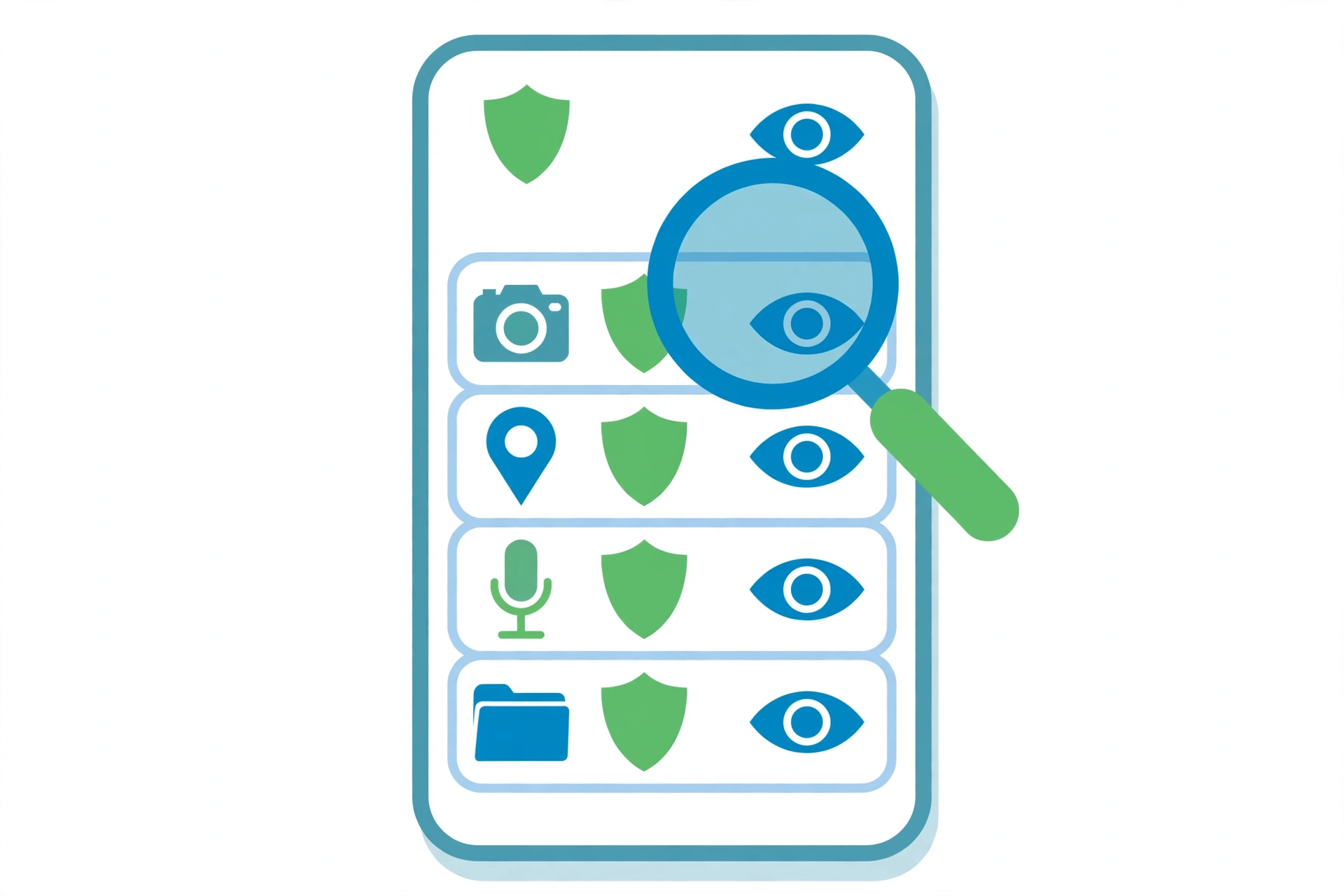
The list shows each right with a count of apps that hold it. Tap a right, such as Location, to see three groups. The groups sort apps into all the time, while in use, and no access.
Tap any app in the list to change its setting on the spot. The change applies at once, with no restart. Work down the sensitive rights first: location, camera, microphone, contacts, and files.
Path 2: Use the Per-App Screen
Open Settings and tap Apps, then tap See all apps. Pick the app you want to review and tap Permissions. This screen lists every right that the app holds in one place.
Allow, Ask Every Time, or Don’t Allow
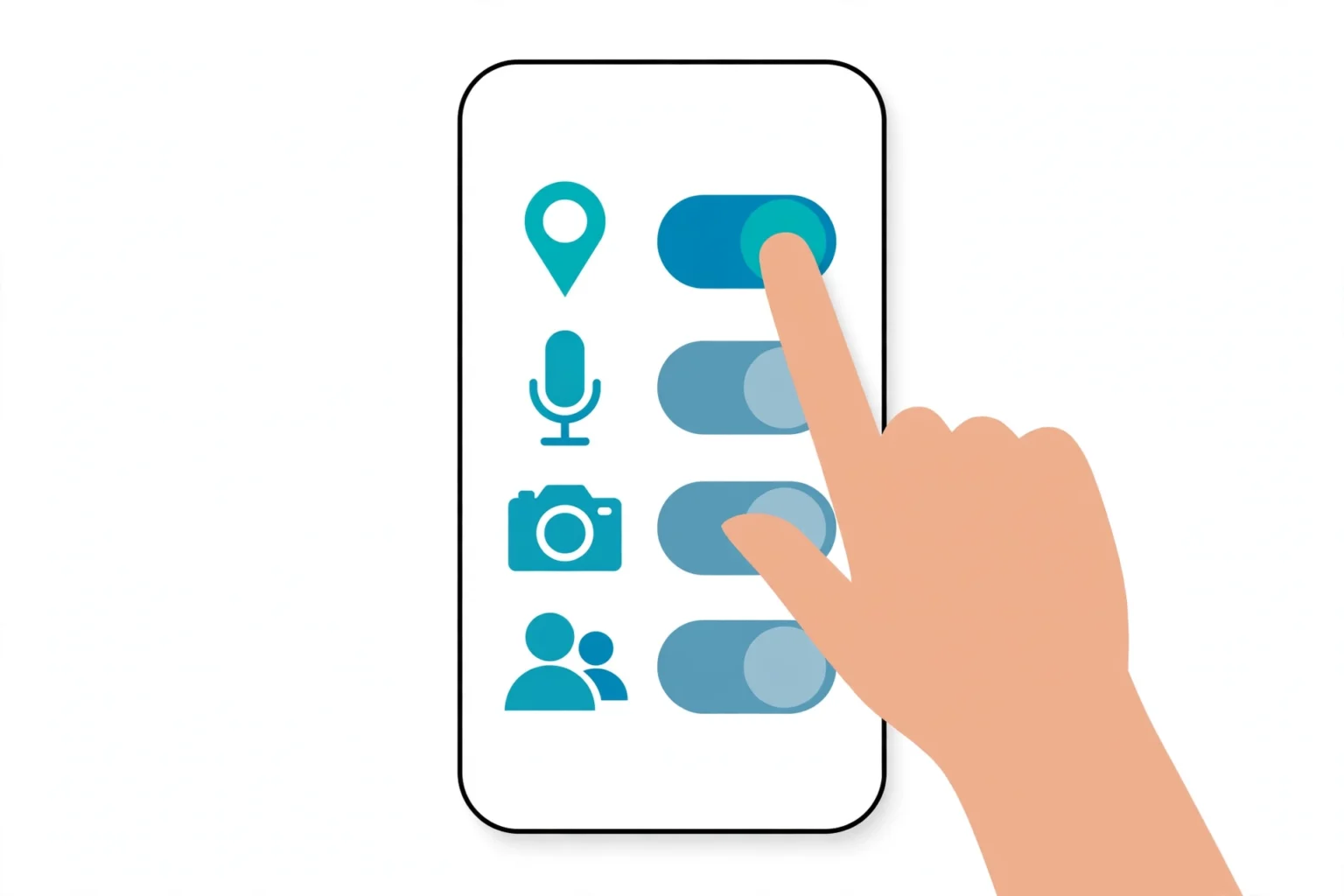
Most Android rights offer three choices. Allow grants the right at all times or while the app runs, based on the right. Ask every time makes the app request the right again at each use.
Don’t allow blocks the right in full. Pick Ask every time for rights that an app needs only now and then. Pick Don’t allow for rights that the app cannot justify with its main job.
Location: While Using, Approximate, and Precise
Location offers finer control than most rights. You can allow it all the time, only while using the app, or not at all. Most apps work fine with the while using choice.
A second toggle picks how exact the fix can be. Precise location points to your exact spot on the street. Approximate location shares a wide area of about a few city blocks instead.
Turn Precise off for weather, news, and shopping apps. Keep it on only for maps and ride apps while a trip runs. No social app needs your exact spot at all hours.
The Privacy Dashboard Shows Real Use
Settings hide one more tool that many people miss. Open Security and privacy, then Privacy, then Privacy dashboard. The dashboard shows which apps used location, camera, and microphone in the last day or week.
A chart sits at the top and a timeline sits below it. Tap any entry to jump to that app and its settings. Look for apps that used a right at odd hours or far too often.
Odd use does not prove abuse on its own. It does tell you where to dig next. Compare what you see with our full list of signs your phone is being tracked before you panic.
Auto Reset for Apps You Stop Using
Android can clean up after you on its own. Open the per-app screen and find the toggle named Remove permissions if app is unused. Some phones label it Pause app activity if unused.
Turn the toggle on for apps that you open once in a blue moon. After a few months of no use, the system pulls back their sensitive rights. The app asks again the next time you open it.
How to Check App Permissions on iPhone
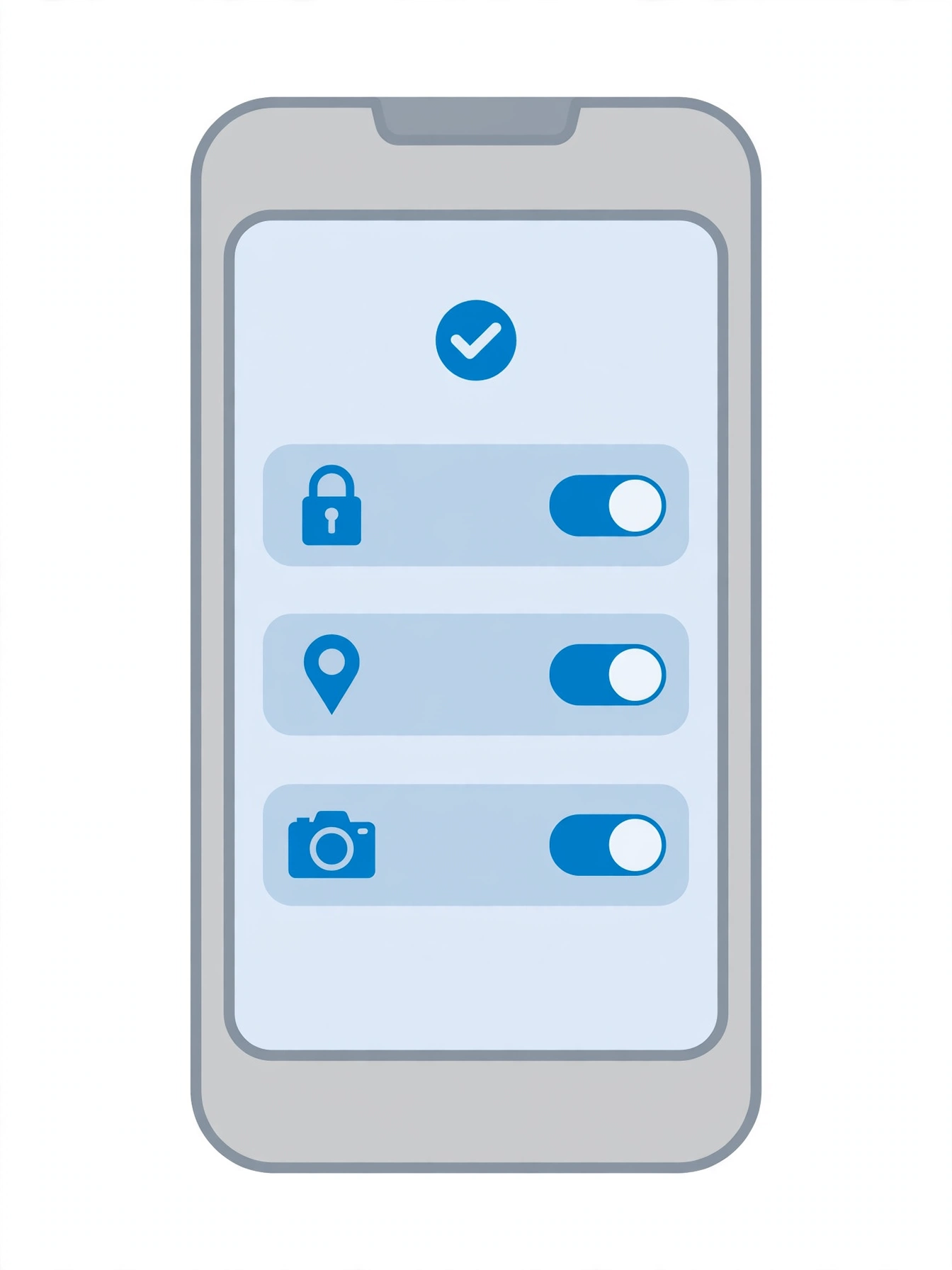
Start With Privacy and Security Categories
Open Settings and tap Privacy and Security. The screen lists categories such as Location Services, Camera, Microphone, Photos, and Contacts. Each row shows a count of apps that hold that right.
Tap a category to see every app that asked for it. A switch sits next to each app name. Flip the switch off, and the app loses that right at once.
Work through the categories in risk order. Start with Location Services, then Camera and Microphone. End with lower risk rows such as Bluetooth and Local Network.
The Per-App Settings Screen
You can also review one app in full. Open Settings and scroll to the app name in the main list. Tap it to see every right that the app holds on one screen.
This view suits a fast check after an install. Flip off any right that the app does not need for its main job. The change saves at once, with nothing else to tap.
Location Services: Never, Ask, or While Using
Location Services sits at the top of Privacy and Security. Tap an app to pick Never, Ask Next Time Or When I Share, While Using the App, or Always. While Using fits most apps well.
A Precise Location toggle sits on the same screen. Turn it off, and the app sees only your rough area. Leave it on only for maps, fitness, and ride apps during real use.
Photos: Limited Access Beats Full Access
Open the Photos row in Privacy and Security. Each app offers None, Limited Access, or Full Access. Full Access hands over your whole library, old shots and all.
Limited Access lets you pick a small set of photos by hand. Social and editing apps work fine with that small set. Tap Edit Selected Photos any time you want to change the picks.
The App Privacy Report Shows Seven Days
Scroll to the bottom of Privacy and Security and tap App Privacy Report. Turn it on if the screen asks you to. The report logs how apps used your data over the last seven days.
One part lists each use of location, camera, microphone, photos, and contacts. Another part lists the network contacts that each app reached out to. An app that phones home all night stands out fast.
Check the report once a week if a right worries you. Pair each odd entry with a settings change on the spot. Small cuts now beat a big clean up later.
Safety Check for a Fast Reset
Safety Check lives in Privacy and Security for urgent moments. Tap Manage Sharing and Access to review who and what can reach your data. The walk through lists people, apps, and devices step by step.
A second choice, Emergency Reset, cuts shared access at once. Use it when you fear that someone set up your phone in secret. It stops shares fast without a full phone wipe.
Apple built Safety Check so no notice goes to the other person. Changes apply quietly in the background. Take your time and read each screen before you tap through.
The Risk Table: Which Permissions Matter Most
Not all rights carry the same weight. The table below ranks the ones that matter most. Use the safer setting column as your default target for each row.
Treat the top rows as urgent and the lower rows as routine. A single fix in the top rows removes more risk than ten small tweaks below.
| Permission | Why it is risky | Safer setting |
|---|---|---|
| Location at all times | It tracks your home, work, and daily routes | While Using, Precise off |
| Microphone | It can record talks and room sound | Ask every time or off |
| Camera | It can take photos and video in secret | Ask every time or off |
| Contacts | It exposes your whole social circle | Off unless a mail or chat app |
| Full photo access | It opens years of private photos | Limited Access |
| Accessibility | It can read your screen and tap for you | Off unless a fully trusted tool |
| Device admin | It can block removal and set password rules | Off for any app not set up for work |
One rule covers most rows in the table. If an app cannot explain a right with its main job, turn the right off. You can grant it back in seconds if a real feature needs it.
Review the table again after you install a batch of new apps. Fresh installs set most of their rights in the first week. Early cuts stick best, so act while the install is new.
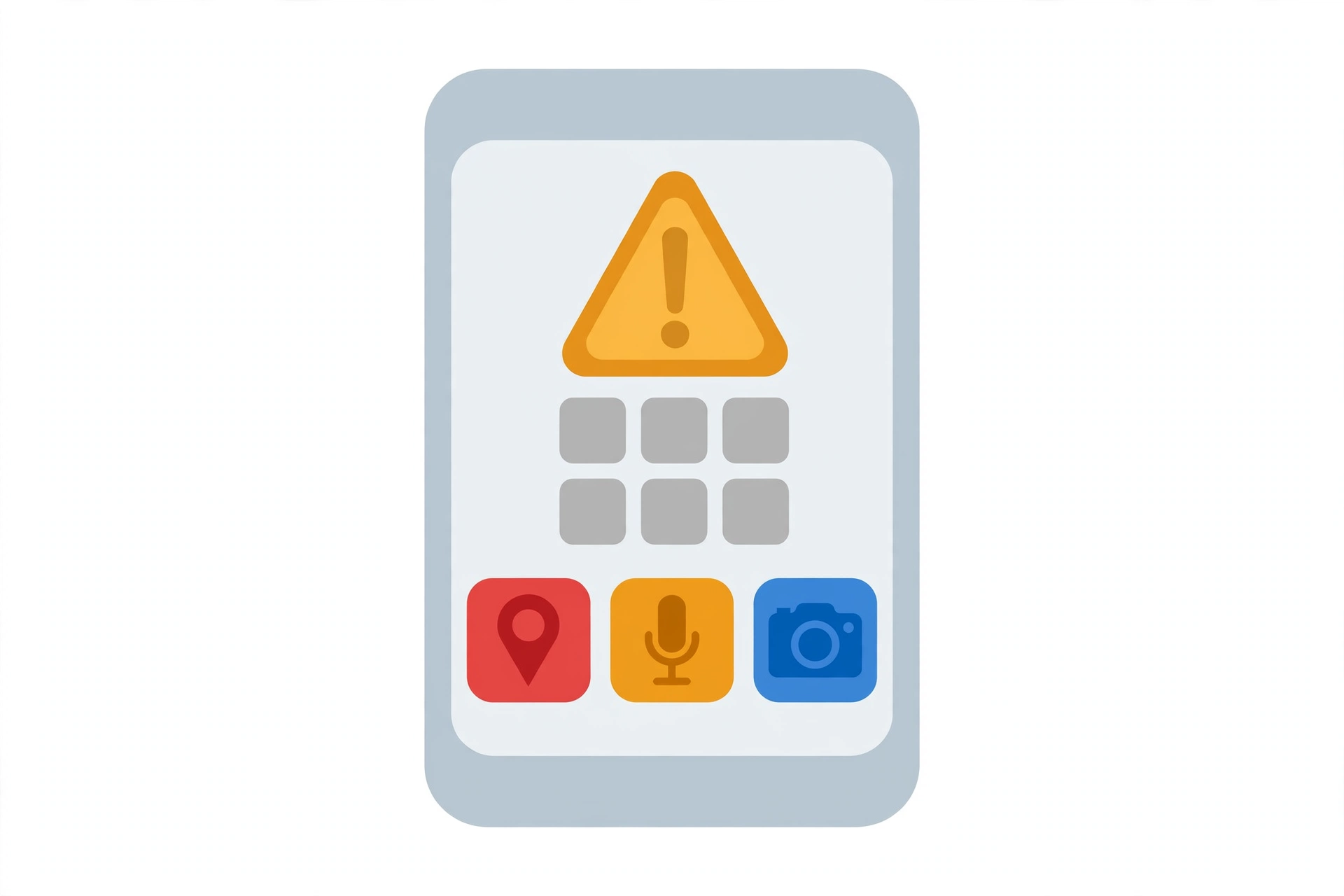
Special Access: The Rights Above the Rest
A few powers sit above normal permissions on Android. You find most of them under Settings, then Apps, then Special app access. These lists matter more than any single permission row.
Accessibility access lets an app read your screen content. It can also tap and type as if it were you. Only tools for users with vision or motor needs should ever hold it.
Device admin apps can set password rules and lock the phone. A bad one can resist removal and fight your taps. Display over other apps can place fake login prompts on top of real apps.
All files access opens every folder on the phone, not just one app folder. Clear each of these lists down to names that you know and trust in full. When a name looks odd, remove it and watch the phone for a day.
Android vs iPhone: The Audit Side by Side
Both systems cover the same ground with different names. The table below lines the steps up side by side. Keep it open while you run your audit.
| Step | Android | iPhone |
|---|---|---|
| See all rights in one place | Permission manager | Privacy and Security list |
| Check one app in full | App info, then Permissions | Settings, then the app name |
| Limit location | While using, Precise off | While Using, Precise Location off |
| See real use history | Privacy dashboard, last day or week | App Privacy Report, last seven days |
| Cut rights for idle apps | Auto reset | Offload unused apps, then review rights |
| Review top level powers | Special app access and Accessibility lists | Safety Check and installed profiles |
Names differ, but the habit stays the same on both phones. Check the lists, cut what an app cannot justify, and recheck after big updates.
Your 10 Minute Audit Checklist
Run this list from top to bottom in one sitting. It starts with the highest risk items on the phone. Most people finish the full pass in about ten minutes.
Keep your phone charged and your settings app open. Close each screen as you finish it so nothing slips past you.
- Remove unknown apps from the Accessibility list.
- Clear the device admin list down to apps you trust.
- Remove all files access and display over other apps from unknown names.
- Set location to While Using and turn Precise off for most apps.
- Cut all the time location access for every app that holds it.
- Set camera and microphone to Ask every time or off.
- Switch Photos to Limited Access for social and editing apps.
- Turn on auto reset, or review rights for apps you rarely open.
- Read the Privacy dashboard or App Privacy Report for odd entries.
- Update the system and your apps, then restart the phone once.
Repeat the pass once a month to keep rights lean. New apps and big updates can add rights back. A short recheck pays off each time.
When a Permission Points to Something Worse
Most odd permissions trace back to a sloppy app or an old tap on Allow. A few point to something worse. Spy apps fight the off switch and turn rights back on by themselves after you cut them.
Treat that pattern as a red flag, not a glitch. Our guides walk you through detecting spyware on Android and detecting spyware on iPhone, step by step.
Plan before you remove anything if another person set the app up. Save proof first, and pick a safe time to act. Our walkthrough on how to remove stalkerware covers the safe order of steps.
Odd phone behavior can raise a second fear in parallel. If call sounds or battery drain worry you, read is my phone tapped for the real signs and the common myths.
Stay calm and work in a clear order. Fix the settings you can prove, and save proof of the rest. Notes help if you later talk to your carrier, a repair shop, or the police.
Start with proof, not with the delete button. Screenshots of the app list and the permission screens take one minute. They back you up if the app owner denies the setup later.
Check your linked accounts while you are at it. A shared account can grant access that no permission screen shows. Sign out of old sessions and turn on two step verification for the accounts that matter most.
You do not need to solve the whole case in one night. Secure the phone first, then decide the next step with a clear head.
Frequently Asked Questions
These short answers cover the questions readers ask most about permissions. Each answer matches the steps in this guide.
How often should I check app permissions?
Run the full audit once a month. Also check a new app right after you install it, since the first week sets most of its rights.
Will denying a permission break the app?
Rarely. Most apps hide the one feature that needs the right and keep the rest running. You can grant the right again in seconds if you miss the feature.
Which permission is the most risky?
Accessibility is the top risk on Android, since it can read your screen and act for you. Device admin rights come next, since they can block removal of the app.
Can an app use my camera or mic without a sign?
Modern phones show a small dot or icon when the camera or microphone runs. Both systems also log recent use in the Privacy dashboard or App Privacy Report.
What is the safest location setting?
While Using with Precise Location off suits most apps. Maps and ride apps can earn precise access while you use them, and no app needs your exact spot all day.