Last updated: October 2026
- What WhatsApp Spying Really Means
- Key Takeaways
- The Strongest Sign: An Unknown Linked Device
- More Signs, With the Innocent Cause and the Check
- Chats Marked Read, Answered, or Deleted
- Archived Chats Moved or Settings Changed
- A Verification Code You Did Not Request
- An Active WhatsApp Web Session You Did Not Open
- Someone Knows Private Chat Details
- Sign, Innocent Cause, and Check: The Full Table
- Signs That Usually Mean Nothing
- How to Stop WhatsApp Spying and Lock Your Account
- Log Out Unknown Linked Devices
- Turn On Two Step Verification
- Never Share Your Registration Code
- Lock the App and Tighten Privacy Settings
- Protection Settings at a Glance
- Check Your Phone for Spyware Too
- If Someone Close to You Is Reading Your Chats
- Final Thoughts
- Frequently Asked Questions
Quick answer: Check Linked Devices first. An unknown device there is the strongest sign that someone can read your WhatsApp chats. Log that device out, turn on two step verification, and never share your six digit registration code with anyone.
WhatsApp feels private, so a hint that someone else can read it is unsettling. A chat marked read in error can start a long worry. This guide helps you check your own account with calm, clear steps.
Every sign in this guide comes with an honest second look. Most signs have a simple and innocent cause. A few checks will tell you which case you face, and how to lock the account down.
What WhatsApp Spying Really Means
WhatsApp protects chats with end to end encryption in transit. That design blocks strangers who try to tap the network. It does not stop a person who uses your own signed in account on another device.
Almost all real cases use Linked Devices, WhatsApp Web, or a shared registration code. Each route needs brief access to your phone or your trust at the wrong moment. It is closer to account sharing than to movie style hacking.
General phone spyware can also capture screens and notifications. Our explainer on what spyware is and how it works covers that wider risk. This guide stays focused on your WhatsApp account itself.
Key Takeaways
- An unknown linked device is the strongest sign.
- Most odd chat signs have an innocent cause.
- One check settles almost every sign in this guide.
- Log out devices you do not know, right away.
- Two step verification blocks most account takeovers.
- Never share your six digit registration code.
- Scan the phone itself if signs keep coming back.
Work through the signs in order, starting with linked devices. That single screen answers the main question for most readers. The rest of this guide then helps you secure every other door.
The Strongest Sign: An Unknown Linked Device
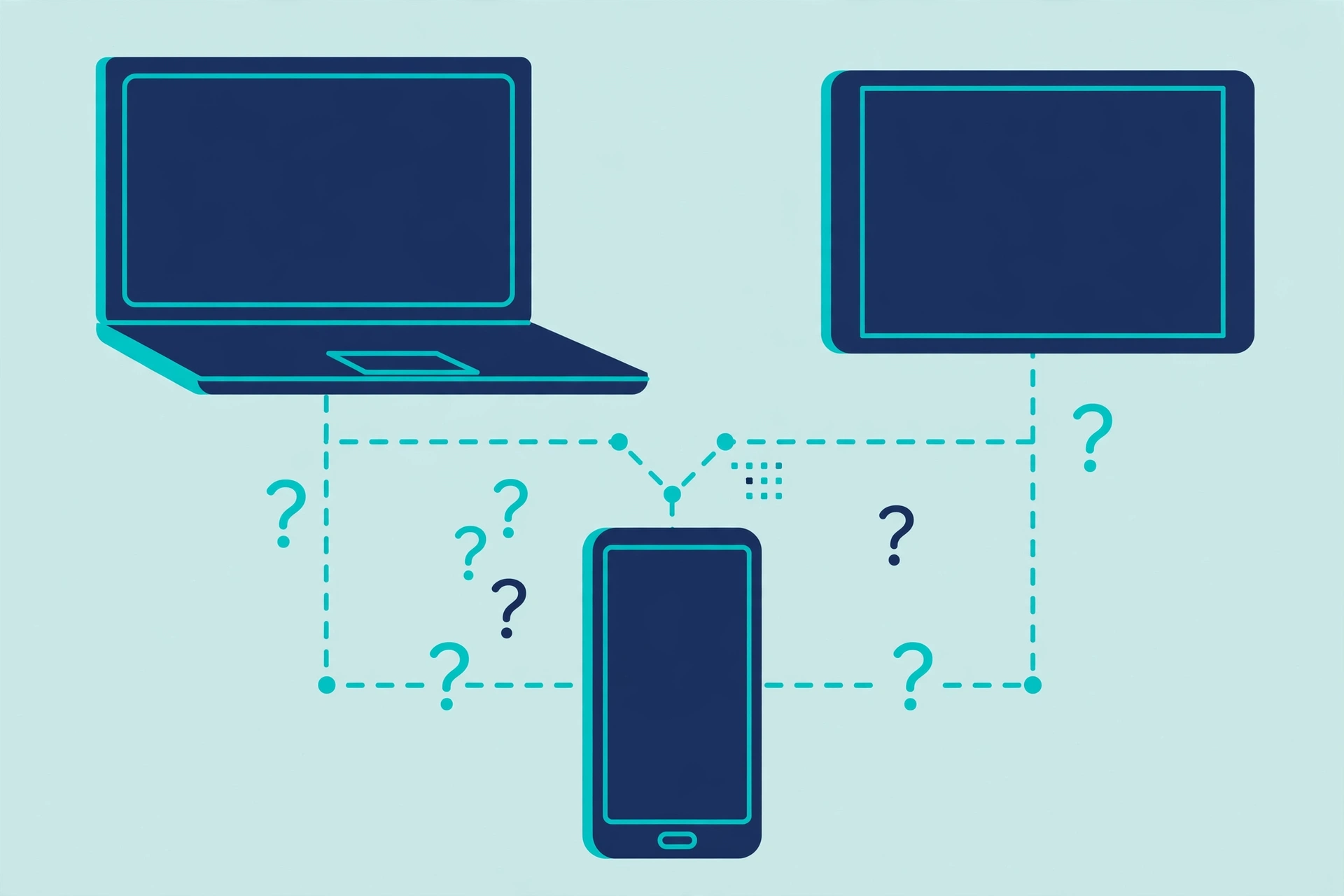
WhatsApp lets you use your account on other phones, tablets, and computers. Each one appears in a list called Linked Devices. If a device there is not yours, someone may read and send messages as you.
This sign beats all others because it is direct proof of access. It is not a guess based on battery life or timing. Either you linked that device yourself, or you did not.
How to Check Linked Devices
On iPhone, open WhatsApp, then Settings, then Linked Devices. On Android, tap the three dots, then Linked Devices. The list shows each device type and when it was last active.
Think back before you panic. A work laptop, a tablet at home, or an old browser session can explain an entry. If the device type or last active time makes no sense, treat it as unknown and log it out.
More Signs, With the Innocent Cause and the Check
The signs below worry people the most, and each one cuts both ways. Read the innocent cause before you draw a firm verdict. Then run the check, because the check gives you facts.
Keep notes as you go, with dates and times. A clear pattern across days means more than one odd moment. Notes also help if you later ask a support group or the police for advice.
Chats Marked Read, Answered, or Deleted
You open WhatsApp and find chats already marked as read. A reply sits in a thread that you never typed. A message you wanted to keep has vanished.
The innocent causes are common. You may have opened the chat from a notification preview or a linked tablet. Pocket touches can also mark chats as read while the phone is unlocked.
The check is the Linked Devices list, again. If no unknown device appears, watch the chat for a day and note any new change. A reply in your name, with no linked device, points to someone using your phone itself.
Archived Chats Moved or Settings Changed
Archived chats may move back to your main list. Your profile photo, name, or status may look different from how you left them. Privacy settings may show values you did not choose.
New messages in an archived chat can move it back, based on your archive settings. Updates and sync across your own devices can also shift how things look. The check is simple: fix the setting, note the time, and see if it changes again.
A Verification Code You Did Not Request
WhatsApp sends a six digit registration code when someone tries to register your number. A text with that code, out of the blue, means someone entered your number somewhere. It does not prove they got into your account.
An innocent cause is a typing error by a stranger with a similar number. The check is to do nothing with the code and tell nobody what it says. If codes keep arriving, turn on two step verification the same day.
An Active WhatsApp Web Session You Did Not Open
WhatsApp Web runs your account in a browser tab. A session you did not open works just like an unknown linked device. The browser session appears in the same Linked Devices list, with its last active time.
Your own old session at work or school is the usual cause. Browsers can stay signed in for weeks. Log out every session you cannot place, then check the list again the next day.
Someone Knows Private Chat Details
A person repeats exact words or photos from a private chat. This sign feels like proof, and it can shake your trust at once. It still has more than one possible source.
The other person in the chat may have shared screenshots. Group members may pass things on, and cloud backups can leak through shared accounts. The check is to ask who else had the same content, then review linked devices and account sharing.
Sign, Innocent Cause, and Check: The Full Table
This table pulls the signs into one place. Use it as a quick worksheet while you check your account. Tick off each check instead of relying on memory.
| Sign | Innocent cause | Check that settles it |
|---|---|---|
| Unknown linked device | Your own laptop, tablet, or old session | Review Linked Devices and log out anything you cannot place |
| Chats marked read | Notification preview or pocket touch | Check linked devices, then watch the chat for a day |
| Replies you did not send | A linked device of your own still active | Log out all devices and see if replies stop |
| Archived chats moved | New message rules for archived chats | Reset the archive setting and watch for a repeat change |
| Profile or status changed | Sync from your own second device | Change it back, note the time, and monitor |
| Code text you did not request | A stranger typed a similar number in error | Ignore the code, share it with nobody, and watch for repeats |
If several checks point the same way, act on the fix section next. If every check comes back clean, your account is most likely safe. Our wider list of signs your phone is being tracked can help if the worry spreads beyond WhatsApp.
Signs That Usually Mean Nothing
A warm phone, a fast battery drain, or a slow app proves very little. Updates, weak signal, and media heavy chats cause all three every day. WhatsApp also shows you online when a linked tablet or a backup job wakes the app.
Green dots, typing signs, and last seen times can mislead too. These features react to normal app use on your own devices. Judge your account by the device list and the code checks, not by small glitches.
Think about how each real route into an account starts. A linked device begins with one QR scan on your unlocked phone, often in a moment of trust or distraction. A code attack begins when a fake message talks you into sharing six digits. Both routes leave the same trace in your settings, which is why the device list matters so much.
Shared cloud backups are a quieter route worth a thought. If your chats back up to a Google or Apple account that someone else can open, they may read copies without touching WhatsApp at all. Check which account holds your backup, and secure that account with a new password and two factor checks.
How to Stop WhatsApp Spying and Lock Your Account
Work through these fixes even if your checks found nothing. Each one takes minutes, and together they close the real routes into your account. Start with linked devices, since that step cuts live access at once.
Log Out Unknown Linked Devices
Open Linked Devices and tap any entry you do not know. Tap Log Out to end that session at once. When in doubt, log out every device and link your own again one by one.
Check the list again the next day and the next week. A device that returns on its own is a serious sign. That pattern means someone can reach your phone or your code again.
Turn On Two Step Verification
Two step verification adds a six digit PIN to your account. WhatsApp will ask for that PIN when your number is registered on a new phone. Open Settings, then Account, then Two step verification, and follow the steps.
Add an email address for PIN resets when WhatsApp offers it. Pick a PIN that nobody can guess from your life. Never use your birth year or a code you reuse elsewhere.
WhatsApp may ask for this PIN from time to time as a reminder. That prompt inside your own app is normal and safe. The danger sign is a person or a message asking you to share the PIN or a code.
Never Share Your Registration Code
Your six digit registration code is a key to your account. WhatsApp staff will never ask you for it in a chat. A message that begs for the code is a scam, even if it wears a trusted name or photo.
The same care applies to calls. End any call that steers you to read out a code. Then report the number inside WhatsApp and warn the friend whose account may have been taken.
Lock the App and Tighten Privacy Settings
Turn on app lock so WhatsApp asks for your face, fingerprint, or passcode. On Android, find it in Settings, then Privacy, then App lock. On iPhone, use Settings, then Privacy, then Screen Lock.
In Privacy settings, limit who sees your profile photo, last seen, and status. Set them to contacts, or hide them from specific people. Turn on security notifications so WhatsApp alerts you when a contact security code changes.
Protection Settings at a Glance
Use this table as your final checklist. Every row is a setting inside WhatsApp itself. None of them needs a paid app or outside tool.
| Setting | Where to find it | What it protects |
|---|---|---|
| Linked Devices review | Settings, then Linked Devices | Ends unknown sessions that can read chats |
| Two step verification | Settings, then Account | Blocks registration of your number without your PIN |
| App lock | Settings, then Privacy | Keeps a borrowed phone out of your chats |
| Profile and last seen limits | Settings, then Privacy | Shares less of your activity with strangers |
| Security notifications | Settings, then Account, then Security | Warns when a contact security code changes |
| Passkey or screen lock on the phone | Phone settings | Guards the device that guards every app |
Review this list once a month. Settings can reset after updates or a phone change. A two minute review keeps the whole system honest.
Make this review a habit you can keep in two minutes, perhaps on the first day of each month. Open Linked Devices, glance at the list, and then confirm your privacy page still shows the limits you chose. Small habits like this catch new sessions early, long before a chat goes missing or a reply appears that you never sent.
Check Your Phone for Spyware Too
Account fixes do not remove apps that watch the phone itself. If signs survive a full logout and a new PIN, scan the device. Follow our guide on how to remove stalkerware safely before you delete anything, since removal can alert an installer.
Android users can work through the checks for spyware on Android, including Play Protect, in a few minutes. iPhone users should review profiles and sharing with our iPhone spyware detection guide. Change your phone passcode after any clean up.
If Someone Close to You Is Reading Your Chats
Sometimes the person reading your chats shares your home. Logging out a device can alert them, just like removing stalkerware can. If that risk feels real, plan first and use a safe device for support.
Save proof of odd sessions before you log anything out. Screenshots of the device list, with dates, can help later. A support group can help you time each step so you stay in control.
You can also move sensitive chats to a safer pattern while you plan. Use a different app or a safe device for talks about housing, money, or legal help. Keep the normal account calm and ordinary until your plan is ready.
Final Thoughts
WhatsApp spying sounds high tech, but the real routes are simple. A linked device, a web session, or a shared code explains almost every case. Each route leaves a trace you can check in minutes.
Check the device list, run the honest checks, and then lock the doors. Two step verification, app lock, and tight privacy settings do most of the work. Your chats belong to you, and now you know how to keep them that way.
If your checks found a real unknown device, do not feel foolish. These tricks rely on trust and on rushed moments, and they catch careful people every day. You found the trace, you closed the door, and you now hold the keys again.
Frequently Asked Questions
These short answers cover the questions readers ask most about WhatsApp privacy. Each one matches the checks and fixes in this guide.
Can someone read my WhatsApp without my phone in their hand?
Once a device is linked, yes, that device can read chats from anywhere. Linking needs one QR scan with your phone, or your registration code in a takeover. Log out any device you do not know.
How do I check WhatsApp linked devices?
On iPhone, open Settings, then Linked Devices inside WhatsApp. On Android, tap the three dots, then Linked Devices. Tap any unknown entry, then tap Log Out at once.
What does a WhatsApp verification code text mean?
Someone tried to register your number, by error or on purpose. The code alone does not give them your chats. Never share it, and turn on two step verification for real protection.
Can WhatsApp tell me who is reading my chats?
No. WhatsApp shows device types and last active times, not a person name. Use those clues with your own knowledge of who could reach your phone or your code.
Does two step verification stop WhatsApp spying?
It blocks new registrations of your number without your PIN. It does not log out devices that are already linked. Use it together with a Linked Devices review and app lock.