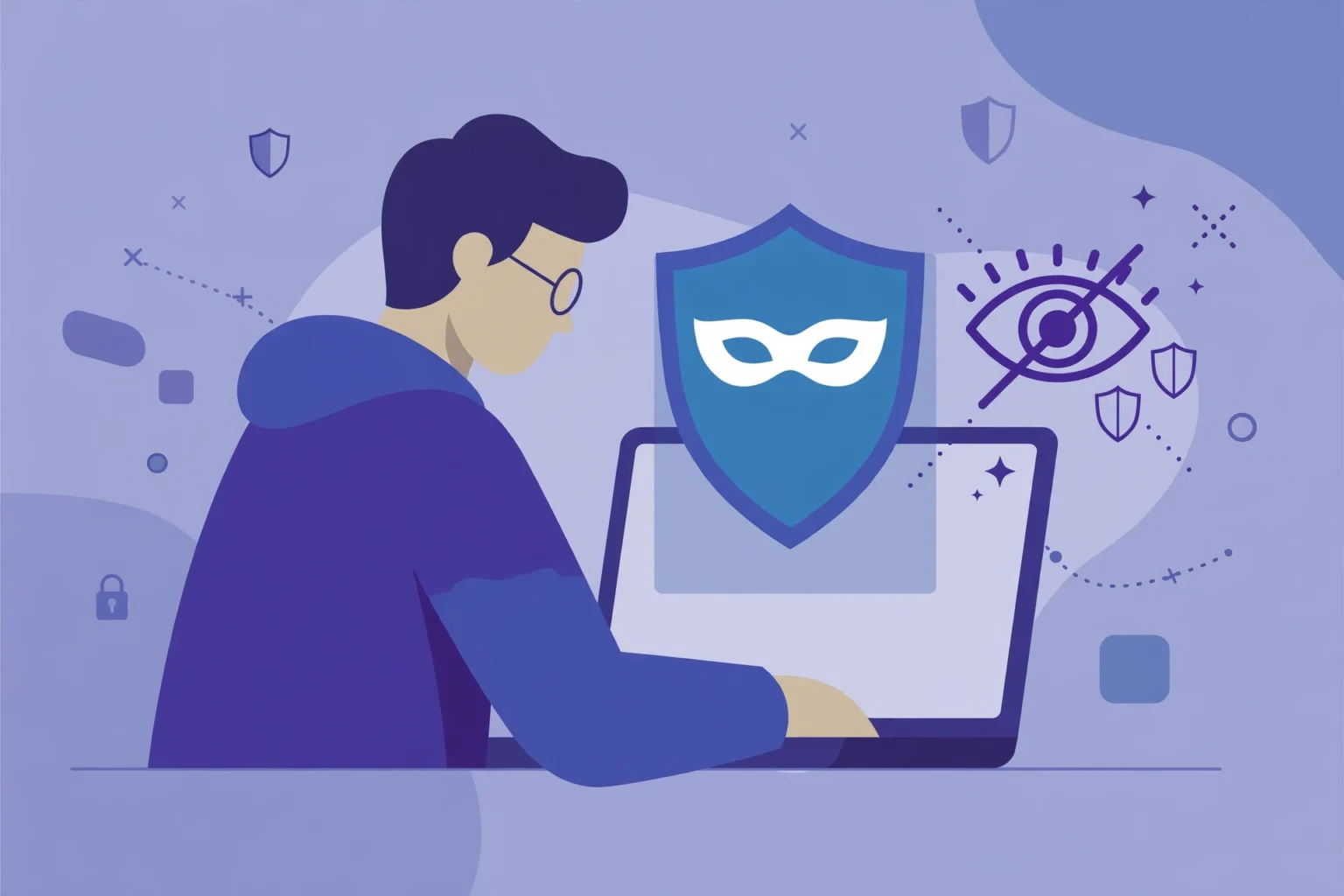
Private browsing sounds like a cloak of invisibility. Many people open an incognito window and feel completely hidden. That feeling is misleading, and it can lead to risky choices.
- Quick answer: What does private browsing actually do?
- Why does private browsing matter in 2026?
- What does private browsing hide, and what does it not hide?
- Is private browsing the same as a VPN?
- How do cookies and trackers work in private mode?
- How do I open a private window in Chrome, Firefox, and Safari?
- How do I use private browsing on a phone?
- What should I do after I close a private window?
- What are the biggest private browsing myths?
- When should I use private browsing, and when should I avoid it?
- Key takeaways
- Frequently asked questions
- Does private browsing hide my history from my internet provider?
- Can my employer see private browsing activity?
- Does Incognito mode hide me from Google?
- Do downloads disappear when I close a private window?
- Is private browsing enough for safe public Wi-Fi?
- A final private browsing checklist for your own devices
This guide explains private browsing in plain language. You will learn what it hides, what it does not hide, and how to use it well on your own devices.
Last updated: October 2026
Private browsing is a useful tool, but it is not a complete privacy solution. Think of it as a clean desk at the end of the day, not a locked room.
Quick answer: What does private browsing actually do?
Private browsing stops your browser from saving history, cookies, and form entries from that session on your own device. It does not hide your activity from your internet provider, your employer, or the websites you visit.
When you close the private window, the browser deletes local traces of that session. Your downloads and bookmarks stay, unless you delete them yourself. That local cleanup is the main benefit, and it is also the main limit.
The rest of this guide shows you when private browsing helps, when it does not, and what to use instead for stronger privacy. You will also learn the exact steps for Chrome, Firefox, and Safari.
Why does private browsing matter in 2026?
Private browsing matters because shared devices are common in homes, schools, and workplaces. A family tablet, a library computer, or a borrowed laptop can reveal a lot about the last user.
Private mode reduces that local trail. It helps you log in to a second account, check prices without saved cookies, or use a shared device without leaving a full history behind.
It also matters because many people overtrust it. They assume incognito mode hides them from everyone, so they take risks they would avoid in a normal window. Clear limits protect you better than false confidence.
Use private browsing for local privacy on your own device. Use other tools, such as a trusted VPN or stronger account settings, when you need protection from networks or trackers. For home network safety, see how to secure your home Wi-Fi and protect every device on it.
What does private browsing hide, and what does it not hide?
Private browsing hides your session from other people who use the same device later. It does not hide your session from the network, the website, or the account you sign in to.
Google Chrome Help explains that Incognito mode does not save browsing history, cookies, site data, or form information. Firefox Support gives a similar account of Private Browsing, and Apple Safari help describes Private Browsing as a mode that does not save history or AutoFill details.
Those official descriptions agree on one point. The protection is local, on the device in front of you. Once data leaves the device, private mode has no control over it.
| Private browsing hides this | Private browsing does NOT hide this |
|---|---|
| History on your own device | Your IP address from websites |
| Cookies from the private session | Activity from your internet provider |
| Form entries and search terms on the device | Activity on a school or work network |
| Site data saved during the session | Your identity when you sign in to an account |
| AutoFill details entered in the session | Files you download and keep |
Read the table as a simple test before you trust a private window. If the item stays on the device, private mode usually clears it. If the item travels over a network or belongs to an account, private mode does not protect it.
That test also explains why private browsing feels safer than it is. The browser window looks different, often dark, with a clear privacy message. That visual change suggests strong protection, but the actual change is narrow and local.
Is private browsing the same as a VPN?
No, private browsing is not the same as a VPN, and the two tools solve different problems. Private browsing cleans up local traces after you close the window, while a VPN encrypts traffic between your device and a VPN server.
A VPN can hide your IP address from the websites you visit. It can also protect traffic on public Wi-Fi from nearby snoopers. Private browsing does neither of those things, because it does not change how traffic travels.
Use both tools together when you need both kinds of protection. Private mode keeps the device clean, and a VPN adds network protection. Neither tool makes you anonymous, and neither tool protects you if you sign in and identify yourself.

If you want stronger browser privacy in general, compare your options before you choose. Read this guide to the top secure browsers and pick a browser that matches your needs, then use private mode inside it when it fits.
How do cookies and trackers work in private mode?
Cookies are small files that websites save on your device to remember you. In private mode, the browser deletes those session cookies when you close the window, so a later user does not inherit your logins.
Trackers can still follow you during the private session itself. A website can see your IP address, your browser type, and the pages you visit while the window is open. Closing the window does not erase what a server recorded during that visit.
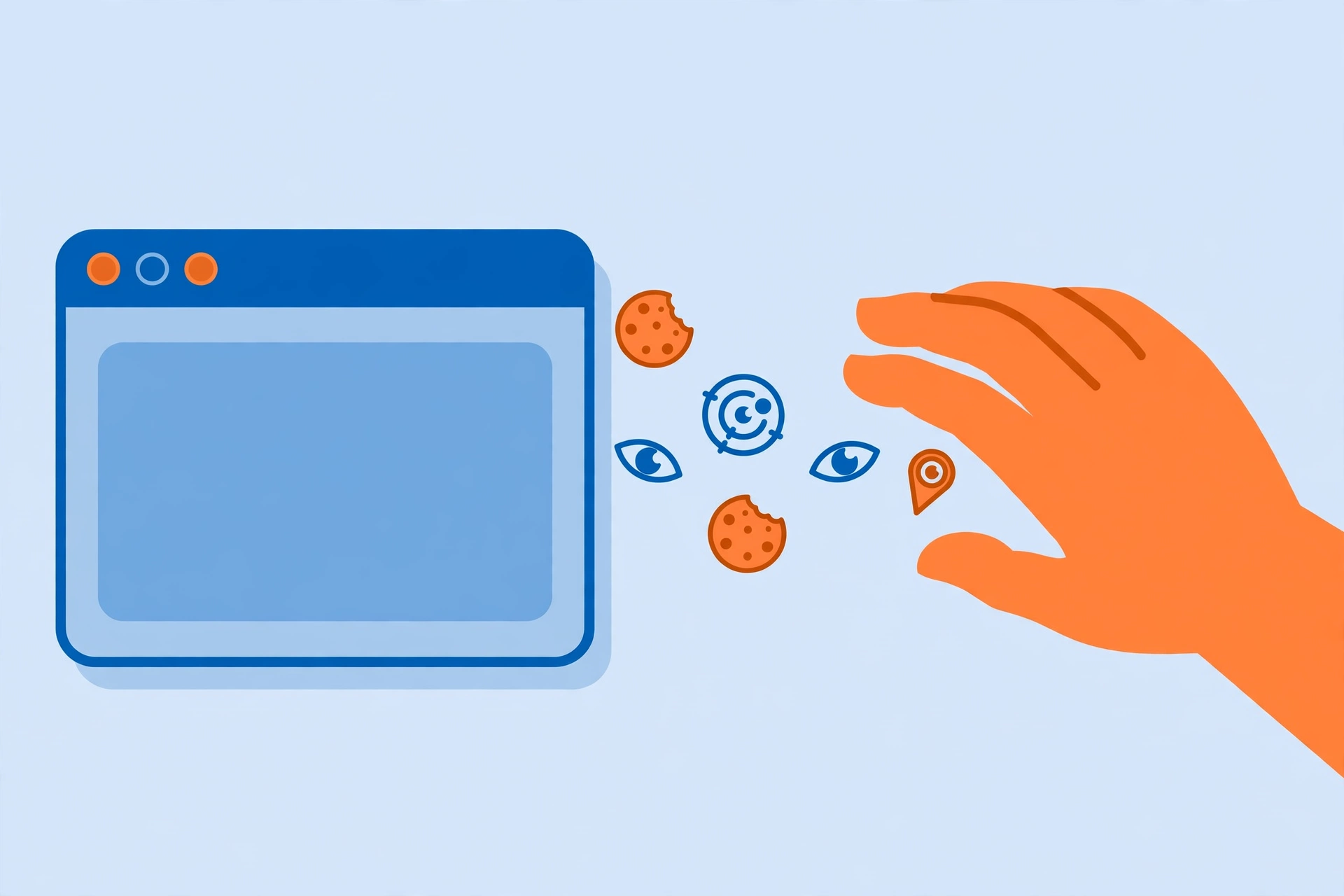
Private mode also does not stop tracking across accounts. If you sign in to an email account, a social account, or a shopping account, that service can link the private session to your account. Use a separate account or stay signed out when that link matters.
On a phone, tracking can feel harder to control, because apps and browsers share device signals. If you worry about someone watching your activity, learn the WhatsApp spying signs and check your own device settings before you assume a private window solved the problem.
How do I open a private window in Chrome, Firefox, and Safari?
Each major browser uses a different name for private browsing, but the steps are similar. Open the browser menu, choose the private option, and check that the new window shows the private indicator before you start.
| Browser | Private mode name | How to open it |
|---|---|---|
| Chrome | Incognito | Menu, then New Incognito window |
| Firefox | Private Browsing | Menu, then New Private Window |
| Safari on Mac | Private Browsing | File, then New Private Window |
| Safari on iPhone | Private tab group | Tabs view, then Private |
Chrome Help states that Incognito windows do not save history or cookies after you close them. Firefox Support states that Private Browsing windows do not save history, cookies, or temporary files. Apple Safari help states that Private Browsing does not save history, AutoFill information, or open pages after you close the window.
Always confirm the private indicator before you type anything sensitive. In Chrome, look for the Incognito icon and dark theme. In Firefox, look for the purple mask icon. In Safari, look for a dark address bar and the word Private.
If you open a normal window by mistake, close it and start again in a private window. History from the normal window will stay, even if you later open a private window in the same browser.
Stronger account safety matters more than the window type. Turn on extra login protection for your main accounts, and read this two-factor authentication guide to add a second step to your sign-ins.
How do I use private browsing on a phone?
Private browsing on a phone works like private browsing on a computer, with one extra risk. Phones keep many apps signed in, so a private browser tab does not clear app data or app history.
On iPhone Safari, open the tabs view, tap the tab group button, and choose Private. On Android Chrome, tap the menu and choose New Incognito tab. Close all private tabs when you finish, and do not leave the private window open for the next user.
Check downloads and screenshots after a private session on a phone. A file you saved, a screenshot you took, or a photo you shared stays on the phone after the private tab closes. Delete those items yourself if they should not stay.
If you share a phone with family, private browsing is a good habit, but it is not a full solution. Use separate user profiles or app locks for sensitive accounts on your own device, and learn how to detect spyware on iPhone if you suspect hidden monitoring on that device.
What should I do after I close a private window?
Closing the private window finishes the local cleanup, but a short after-close check protects you further. Use this simple decision framework before you hand the device to someone else or trust that the session is gone.
First, check downloads and bookmarks. Private mode keeps both, so delete any file you do not want to keep. Second, check other browser windows, because a normal window in the same browser still keeps its own history.
Third, sign out of any account you used in the private window if you used a shared device. Closing the window clears the session cookie, but a saved login or a synced account can bring the session back. Fourth, clear clipboard content if you copied a password or a private link.
Worked example: Sara borrows her brother’s laptop to check a gift price. She opens an Incognito window, signs in to a shop, and downloads a receipt. After she closes the window, the shop history is gone from the laptop, but the receipt file stays in Downloads.
Sara deletes the receipt, signs out before closing, and clears the clipboard. That short check turns a good private session into a clean handover. Without it, the private window alone would have left a clear trace.
What are the biggest private browsing myths?
Myth one says private browsing makes you anonymous. It does not, because websites, networks, and signed-in accounts can still identify you. Myth two says private browsing hides you from your employer or school. It does not, because managed networks can log traffic from any window.
Myth three says private browsing deletes everything. It does not delete downloads, bookmarks, or files you saved. Myth four says private browsing protects you from malware. It does not, because a harmful download or a fake site can still harm a private session.
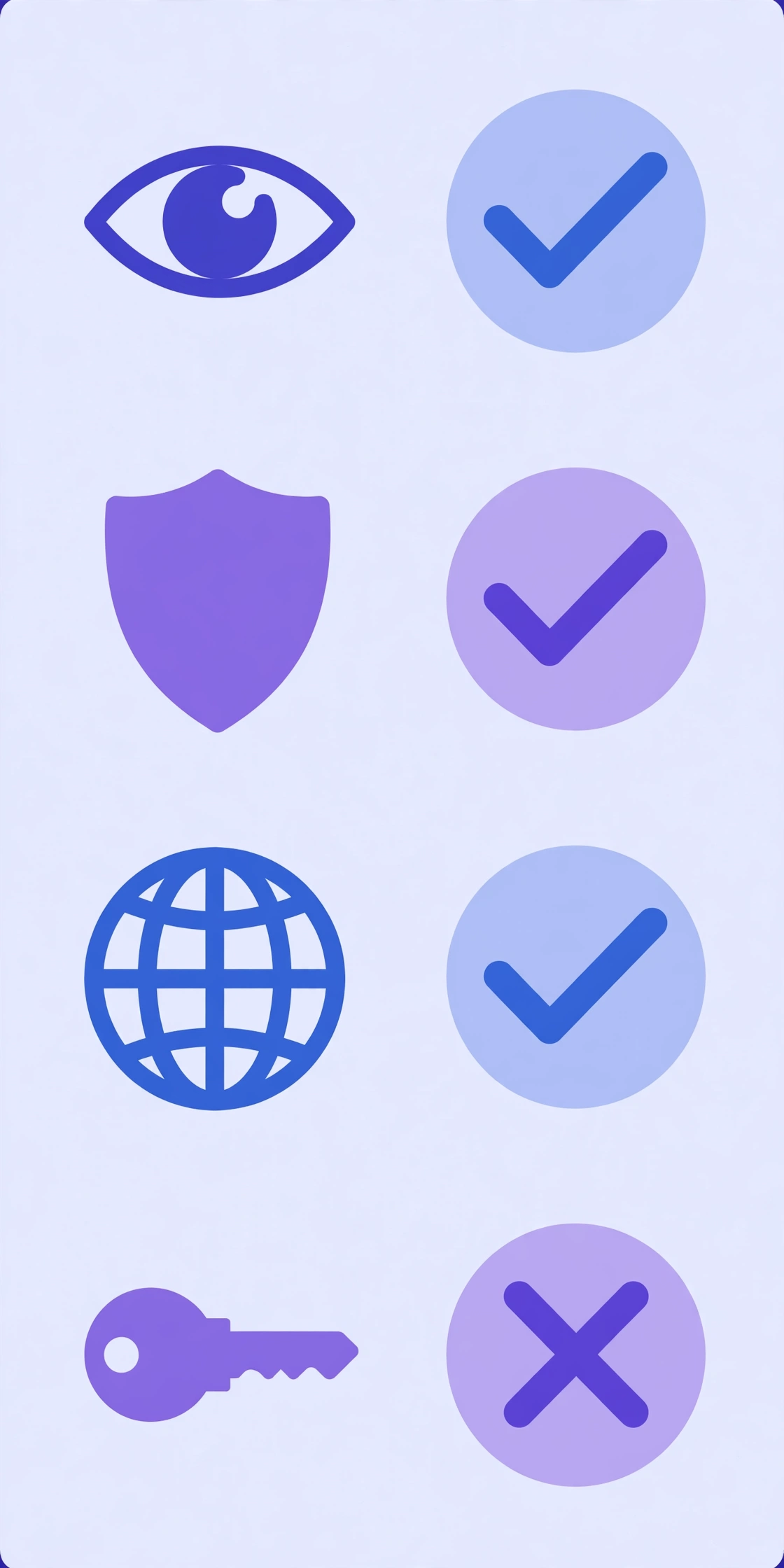
Use private browsing for what it does well, and do not ask it to do more. That honest view keeps you safer than any single browser feature can.
When should I use private browsing, and when should I avoid it?
Use private browsing when you want a clean local session on a shared device. Use it to check a second account, to avoid saved logins on a borrowed computer, or to test how a site looks without your cookies.
Avoid private browsing when you need to keep work open across sessions. Private windows do not save history, so you can lose a research trail if you close the window by mistake. Save important pages with bookmarks before you close a private window.
Avoid private browsing as your only privacy plan. If your goal is to hide activity from a network, a provider, or a tracker, private mode alone will fail. Combine it with a VPN, stronger browser settings, and careful account habits.
Also avoid private browsing for sensitive tasks on a device you do not trust. A private window does not remove keyloggers, spyware, or screen recording software from that device. Only use your own accounts on devices you trust, and keep those devices updated.
Decision rule: ask where the risk lives. If the risk is the next person who uses this device, private browsing helps. If the risk is the network, the website, or the device itself, you need a different tool.
Key takeaways
- Private browsing clears history, cookies, and form data from your own device when you close the window.
- Private browsing does not hide your IP address, your network activity, or your signed-in identity.
- Private browsing is not a VPN, and it does not protect you from malware or device spyware.
- Downloads, bookmarks, screenshots, and saved files stay after a private session, so delete them yourself.
- Check the private indicator before you start, and run a short after-close check on shared devices.
Frequently asked questions
Does private browsing hide my history from my internet provider?
No, your internet provider can still see that you connected to a website, even in private mode. Private browsing only clears history from your own device.
Can my employer see private browsing activity?
Yes, a work or school network can log traffic from private windows. Private mode does not bypass network monitoring or device management software.
Does Incognito mode hide me from Google?
No, signing in to a Google account in Incognito mode still links that session to your account. Stay signed out, or use a separate account, if that link matters.
Do downloads disappear when I close a private window?
No, files you download in a private window stay in your Downloads folder after you close it. Delete them yourself if you do not want to keep them.
Is private browsing enough for safe public Wi-Fi?
No, private browsing does not encrypt traffic on public Wi-Fi. Use a trusted VPN and avoid sensitive accounts on open networks when you can.
A final private browsing checklist for your own devices
Use this checklist on your own devices only, and only for your own accounts. Private browsing is a personal tool, not a way to hide activity on someone else’s device or account.
- Open a private window, and confirm the private indicator before you type anything.
- Stay signed out of main accounts when you do not need them for that session.
- Do not download files you do not need, and delete any file you do save.
- Close all private tabs, not just one tab, when you finish.
- Check bookmarks, downloads, screenshots, and clipboard content after you close the window.
- Use a VPN and stronger account settings when the risk is the network, not the device.
Password managers and browser extensions add another layer to consider. Some extensions run in private windows, and some do not, depending on your browser settings. Check extension permissions before a private session, and disable any extension you do not trust for that task.
Saved passwords also behave differently in private mode. A browser may still offer saved logins in a private window, even though it does not save new ones. That offer can reveal account names to the next user, so sign out and lock the device when you finish.
Keep your browser updated, because private mode protections depend on current browser code. An outdated browser can leak data that a current browser would clear. Update the browser, the operating system, and the apps you use most, on a regular schedule.
Private browsing works best as one habit in a wider privacy routine. Combine it with strong passwords, two-factor authentication, a secure home network, and a browser you trust. No single setting replaces that routine, and no single window makes you invisible.