
Quick answer
On a school managed Chromebook, the school can see a lot, but not everything. The school can manage apps, settings, and the school account on that device. It can also see activity tied to that school account. It cannot see your own personal account activity on a different device, and it should not use the device to watch your child at home in a private way.
- Quick answer
- What is a school managed Chromebook?
- What can schools see on a managed Chromebook?
- What schools usually cannot see
- How to check your own child device at home
- School account versus personal account
- Privacy rules for the home
- Questions to ask your school
- Data protection: what to expect
- When your child feels watched
- Chromebooks, games, and chat apps
- A parent checklist for the first week
- Common mistakes parents make
- What to do if something goes wrong
- Key takeaways
- Final verdict
- How a managed Chromebook works at school and at home
- Privacy for younger and older children
- If your child uses a personal Chromebook for school
Last updated: November 2026
If your child brings home a school Chromebook, you may ask a simple question. What can the school see? The answer depends on one key point. Is the device managed by the school, and is your child signed in with a school account?
This guide explains the difference in plain words. It covers what schools can manage, what they can see, what they usually cannot see, and how to check your own child device at home. It uses Google for Education and Google Admin help pages as the source for the settings, not guesswork.
For a wider family safety plan, start with our family online safety guide. It links the main topics in this cluster in one place.
What is a school managed Chromebook?
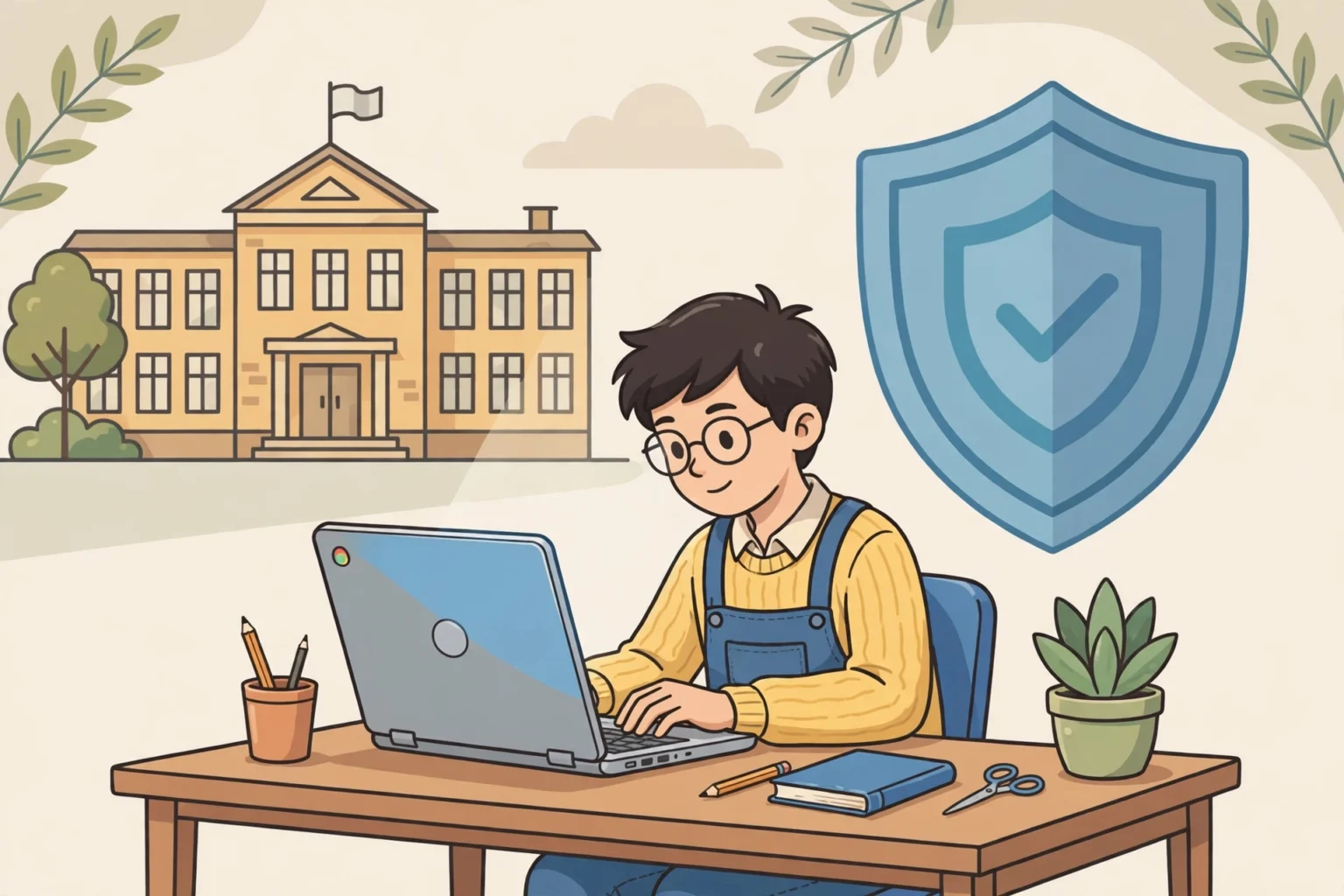
A school managed Chromebook is a device enrolled by the school in Google Admin. The school admin can set rules for that device. The admin can install or block apps. The admin can set web filters, sign in rules, and update rules.
A managed device is not the same as a normal home laptop. On a home laptop, you control the settings. On a managed Chromebook, the school controls many settings, even if your child uses it at home. That control is the reason the school can see school account activity on that device.
Your child may also use a personal Chromebook at home. On a personal device with a personal account, the school has no admin control. The school can only see what your child does in a school system, such as a school email or a classroom app, when your child signs in there.
What can schools see on a managed Chromebook?
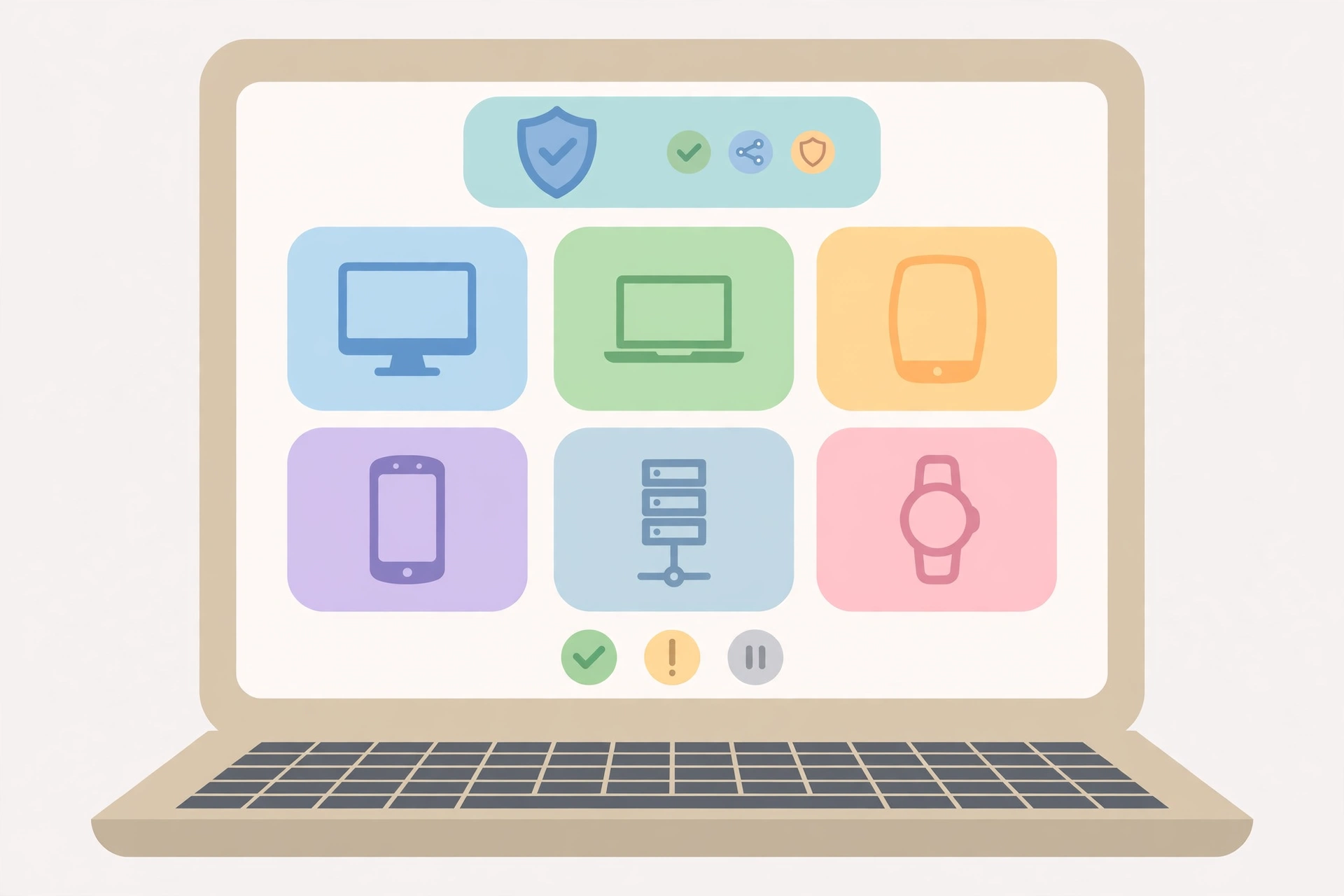
Schools can see activity linked to the school account and the managed device. This includes browsing in the school account, apps installed by the school, and device settings. Admins can also view device details, such as the model, the version, and the last sign in time.
Schools can set filters and reports for school account use. They can block sites that are not right for school. They can limit extensions. They can also force sign in with a school account, so a child cannot bypass the school rules with a personal account on that device.
Schools can see school email and school Drive files in the school account. That is because the school owns that account. Teach your child to keep school work in the school account, and personal chats and photos out of it.
| Area | What the school can manage or see | What it means for your child |
|---|---|---|
| School account browsing | Web use and search in the school account, under school filters | Assume school browsing is visible to the school |
| Apps and extensions | Apps installed, blocked, or forced by the school | Only school approved apps should be used for school work |
| Device settings | Updates, sign in rules, and device details | The school can change settings from a distance |
| School email and Drive | Messages and files in the school account | Keep personal details out of the school account |
What schools usually cannot see
Schools cannot see activity on a separate personal device with a personal account. If your child uses a home computer with a personal Gmail account, the school admin has no control over that device. The school can only see school systems your child opens there.
Schools should not use a managed Chromebook to watch your child through the camera or microphone at home. Google Admin controls are for device management, not for secret home spying. If you see a camera or mic use that you do not understand, ask the school in writing what app caused it.
Schools also cannot see passwords in a safe way. Your child should never share a school password with a friend. Change the password at once if a friend learns it, and tell the school if an account looks changed.
How to check your own child device at home
Check the device with your own child, not in secret. Sit together and look at the settings. This builds trust, and it teaches your child how the device works.
- Open Settings, then About ChromeOS, and look for Managed by your school or a similar managed note.
- Look at the account photo at sign in. A school account usually shows a school email address.
- Open the app list and note which apps the school installed.
- Check the browser history in the school account only, with your child present.
- Ask the school for its device policy in writing if any setting is unclear.
If the device is managed, treat the school account as a work account. Keep personal photos, chats, and passwords out of it. Use a personal device for personal things.
School account versus personal account
| Use | School account on managed device | Personal account on personal device |
|---|---|---|
| Who manages it | School admin through Google Admin | Parent or account owner |
| What is visible | School work, browsing, and apps in that account | Not visible to the school, unless opened in a school system |
| Best use | Lessons, homework, and school email | Family photos, personal chats, and play |
| Parent tip | Review school account activity with your child | Keep personal passwords private from friends |
This split helps children understand privacy. A school account is for school. A personal account is for family life. Mixing them creates confusion, and it can expose personal details to a school system by mistake.
Privacy rules for the home
Set home rules that match the school rules. Use the Chromebook in a shared room for homework. Keep it charged in a shared space at night. This reduces late night use and secret chats.
Do not let your child sign in with a personal account on a managed device if the school blocks it. Bypassing school controls can break school trust. It can also hide activity that a teacher needs to see for safety.
Talk about online safety in the same way you talk about road safety. Explain what to share, what to keep private, and what to do if a stranger contacts your child. For wider chat risks, read our guide to online grooming warning signs.
Questions to ask your school
Ask the school for clear answers in writing. A short email is enough. Keep the reply with your school papers. Good questions help you and the school stay on the same page.
- Is this Chromebook managed by the school in Google Admin?
- What data does the school collect from the school account?
- How long does the school keep that data?
- Can my child use a personal account on this device, or is sign in locked to the school account?
- What filters and apps are set on the device?
- Who should I contact if I see a setting I do not understand?
Schools should answer these questions in plain words. If a school cannot answer, ask for the name of the admin or the data protection contact. You have a right to know how your child school data is used.
Data protection: what to expect
Google for Education services have their own privacy terms. Schools must follow local data rules for children. That means the school should only collect data it needs for learning and safety. It should not sell school account data for ads in the way a normal consumer account might be used.
Parents can ask what data is stored, and how to correct it. If your child leaves the school, ask what happens to the school account. Some schools delete the account after a set time. Some schools let a family download school work first. Ask early, not in the last week of term.
Keep a copy of school work your child values. Save it on a personal device, with your child help, before the school account closes. This avoids losing a project your child worked hard on.
When your child feels watched
Some children feel uneasy when they learn a school can see school work. That feeling is normal. Explain the split again. The school can see school work, not family life on a personal device. Explain that the school rule is for safety, not for punishment.
Encourage your child to ask questions. A child who understands the rules will follow them better. A child who feels watched in secret may hide activity, which creates more risk, not less.
If your child is bullied or pressured on a school device, save the evidence on your own device where you can. Tell the school at once, and keep a copy of your message. For peer harm, read our guide on how to deal with cyberbullying.
Chromebooks, games, and chat apps
A school Chromebook is for school, but children may still open games and chats on it. Check which apps the school allows. If a game chat is open on a school device, the same stranger rules apply as at home.
For younger children, our guide to Roblox safety for kids explains chat filters and friend controls. For older children, our guide to online gaming safety for kids explains voice chat and friend requests. Use those guides with this one.
For teen chat apps on a personal device, our guide to Discord safety for teens explains server and direct message controls. Keep school work and social chat in separate accounts, so school rules do not mix with family rules.
A parent checklist for the first week
Use this checklist in the first week with a school Chromebook. Tick each step with your child. It turns a long guide into a short, clear plan.
- Day one: Check if the device is managed, and note the school account email.
- Day one: Agree that the school account is for school work only.
- Day two: List the apps the school installed, and remove personal details from the school account.
- Day three: Email the school with your questions, and keep the reply.
- Day five: Review school account activity with your child, and praise honest sharing.
- Day seven: Set a home routine for shared room use and night charging.
A weekly check does not need to be long. Ten minutes is enough. Ask what your child learned, what surprised them, and what felt wrong. End with a clear plan for the next week.
Common mistakes parents make
One common mistake is to assume the school can see everything. That fear can make a child hide activity. Teach the split between school and personal accounts instead. Clear rules reduce fear and secret use.
Another mistake is to assume the school can see nothing. That mistake can lead to personal photos in a school account. Treat the school account as a work account, and keep personal life out of it.
A third mistake is to share passwords. A child who shares a school password can lose control of school work. Change the password at once if it is shared, and tell the school if the account looks changed.
A fourth mistake is to ignore updates and school messages. Schools send policy updates for a reason. Read them, ask questions, and update your home rules to match.
What to do if something goes wrong
Stay calm and act in steps. First, stop the activity. Second, save a screenshot on your own device if you need a record. Third, tell the school in writing, and keep a copy of your message. Fourth, talk with your child about what happened, without blame.
If a stranger contacts your child on a school device, report it to the school and to the platform where it happened. Do not ask your child to keep chatting to gather more proof. Safety comes first.
If a school setting looks wrong, ask the school what app or policy caused it. A clear question gets a clear answer. A calm email works better than a guess shared with other parents.
Key takeaways
- A managed Chromebook is controlled by the school through Google Admin.
- The school can see school account activity, apps, and device settings on that device.
- The school cannot see a personal account on a separate personal device.
- Keep school work in the school account, and personal life in a personal account.
- Ask the school for its policy in writing, and check the device with your child each week.
Final verdict
What can schools see on a Chromebook? On a managed device, they can see school account work and settings, but they do not get a free view of your family life. The split between school and personal accounts is the key to privacy.
Your next step is simple. Today, check if your child device is managed. Note the school account. Email the school with the questions in this guide. Then set the home routine and the weekly check with your child. That habit matters more than any single setting.
For the full family plan, return to our family online safety guide and work through the cluster guides one by one.
How a managed Chromebook works at school and at home
At school, a managed Chromebook connects to school WiFi and school rules. At home, the same device still follows school rules, because the rules live on the device, not only on the school network. That is why home use still counts as school account use.
Your child should not assume home use is private in the school account. A teacher or admin may still see school account activity from home, if the school reviews it. That review is part of school safety, not a secret check on family life.
At home, you can add your own routine on top of school rules. Use a shared room. Set a homework time. Charge the device in a shared space. These home rules help your child focus, and they help you notice problems early.
Privacy for younger and older children
Younger children need more help. They may not understand the difference between a school account and a personal account. Show them the school email address at sign in. Show them which apps are for school. Repeat the rule in short words each week.
Older children and teens need a different talk. They may want more privacy for personal chats. Respect that need on a personal device, with clear family rules. On a school device, explain that school work is visible to the school, and personal chats belong on a personal device.
Teens may also use a school device for research on sensitive topics. If a teen asks a health or safety question at school, a teacher may see it in school account activity. Talk with your teen about where to ask sensitive questions, and who to trust at school and at home.
If your child uses a personal Chromebook for school
Some schools allow a personal Chromebook for school work. In that case, the school may ask your child to sign in with a school account on that personal device. That sign in can bring some school controls to that account, even on a personal device.
Ask the school what controls apply in that case. Ask if the school can install apps on a personal device, or if it only controls the school account. Write the answer down. Do not assume a personal device is fully private once a school account is added to it.
Where possible, keep school and personal use in separate user profiles on a personal device. A separate profile keeps school files and personal files apart. It also makes it easier to remove school access when your child leaves the school.
What can schools see on a Chromebook?
On a managed device, the school can see school account activity, apps, and device settings. It cannot see a personal account on a separate personal device.
Can schools see my child at home through the camera?
No. Google Admin controls are for device management, not for secret home spying. Ask the school in writing if you see camera or mic use you do not understand.
Can schools see personal Gmail on a school Chromebook?
If your child signs in with a personal account on a managed device, follow the school sign in rules. Keep personal chats and photos on a personal device to avoid mixing accounts.
How can parents check a school Chromebook at home?
Check Settings with your child, look for a managed note, note the school account email, and ask the school for its device policy in writing.
What should my child keep out of a school account?
Keep personal photos, personal chats, passwords, and family details out of the school account. Use the school account for lessons, homework, and school email only.