Roblox can feel like a whole universe in your child’s pocket. One tap opens a game, a chat, a shop, and a group of friends. That freedom is fun, and it is also why a few settings matter so much.
- Quick answer
- What is Roblox and why do kids love it?
- What are the real risks on Roblox?
- How do I set up a Roblox account safely?
- Which parental controls should I turn on first?
- Roblox parent setup checklist
- How do I control chat and privacy?
- What content maturity level should I choose?
- How do I spot and stop Robux scams?
- How do I control spending and screen time?
- How do I block and report on Roblox?
- What settings suit my child’s age?
- How do I talk to my child about Roblox?
- Key takeaways
- Final verdict: What should you do next?
- Frequently asked questions
Last updated: October 2026
Quick answer
Set up a linked parent account, enter your child’s correct birthdate, turn on parental controls, limit chat to trusted friends, set a content maturity level, and add a monthly spending limit. Then check the settings together once a month. These steps take about 20 minutes and they cover most of the common risks.
What is Roblox and why do kids love it?
Roblox is an online platform where players join games made by other users. Your child can build, race, role play, explore, and hang out with friends in the same place.
Kids love it because it feels social and creative. They can change their avatar, try a new game in seconds, and play with friends after school. That mix of play and friendship is powerful, and it keeps children coming back.
Roblox is not one single game. It is a platform full of experiences, and each experience can feel very different. Some are calm building games. Others are fast, loud, and competitive. A few may include chat, trading, or content that is not right for a young child.
That variety is the main reason to set controls before your child plays freely. You do not need to ban Roblox. You need to shape it so it fits your child’s age, your family’s rules, and your child’s comfort level.
Start with a calm conversation. Ask what your child plays, who they play with, and what they enjoy most. When a child feels heard, they are more likely to tell you when something feels wrong.
What are the real risks on Roblox?
The risks on Roblox are real, but they are also manageable. Most problems come from chat, strangers, scams, spending, and games that are too mature for the player.
Strangers can send friend requests or chat messages. Some may be friendly. Others may ask personal questions, push a child to move to another app, or try to build trust too fast. A child may not always spot the warning signs.
Scams are another common problem. A fake message may promise free Robux, a rare item, or a secret code. These offers often lead to a fake login page or ask for a password. Roblox does not give away free Robux through random messages, links, or videos.
In-game spending can also surprise parents. Robux can buy outfits, items, and game passes. Small purchases add up fast, especially when a child can buy with a saved payment method. A clear spending limit stops most of these surprises.
Inappropriate experiences are the fourth risk. User made games vary in theme, language, and behavior. A game may look cute in a thumbnail but include chat, scary content, or behavior that is not right for a younger child.
None of this means Roblox is unsafe for every child. It means the platform needs adult setup, clear rules, and regular checks. The settings below give you that control without taking away the fun.
How do I set up a Roblox account safely?
Create the account with your child’s correct birthdate, then link your parent account before your child starts to play. The correct birthdate matters because Roblox uses it to apply age based protections.
Start on your child’s device or a family computer. Create the account, choose a username that does not include a real name, school, or birth year, and set a strong password that only you and your child know.
Next, link a parent account. In the child’s account, open Settings, then Parental Controls, and choose Add Parent. Enter a parent email address and follow the emailed instructions to finish the link.
Roblox may ask you to verify your identity with a government issued ID if you are setting up a new parent account. This step helps Roblox confirm that a real adult is managing the account. Complete it on your own device, and keep the details private.
Once the accounts are linked, you can manage controls from your own parent account. You do not need to log in as your child to change most settings. That separation also helps your child learn that an adult is in charge of safety, not just watching.
Save the account details in a safe place that only adults in your home can access. Do not share the password in a group chat, a note on the device, or a public place.
Which parental controls should I turn on first?
Open Settings, then Parental Controls, in the linked parent account, and work through Content, Chat, Screen time, and Spending in that order. These four areas cover what your child can play, who can contact them, how long they play, and what they can buy.
Start with Content. Set a maximum rating for games so your child only sees experiences that fit the level you choose. If a game feels wrong even after that filter, use Block a game for that title, or Allow a game if you decide a specific title is fine for your child.
Next, review the friends list with your child. For a child under 13, you can approve trusted friends and review who is on the list. Remove any name you do not recognize, and talk about why that friend was removed. A short, calm reason works better than a long lecture.
Then set Screen time. For a child under 13, you can set daily screen time limits from the parent account. Pick a limit that fits school, sleep, and family time. Tell your child when play time ends so the limit does not feel like a surprise.
Finally, set Spending. Add a monthly spending limit and turn on spending notifications if they are available on your account. This gives you a clear signal before a small purchase becomes a large bill.
Roblox parent setup checklist
Use this checklist in order. Tick each item off with your child, so they know what changed and why.
| Step | What to set | Why it matters |
|---|---|---|
| 1 | Correct birthdate | Applies age based protections |
| 2 | Linked parent account | Lets you manage controls from your account |
| 3 | Content maturity level | Limits games to a suitable rating |
| 4 | Chat limits | Reduces contact from strangers |
| 5 | Trusted friends review | Keeps the friend list known and safe |
| 6 | Screen time limit | Protects sleep and school time |
| 7 | Monthly spending limit | Stops surprise purchases |
| 8 | Block or allow games | Fine tunes what your child can open |
Keep this checklist on your phone or fridge for the first month. Revisit it after any update, because Roblox can change menus or add new controls over time. If a setting looks different from this guide, check the official Roblox parental controls page for the current steps.
How do I control chat and privacy?
Limit chat to people your child knows in real life, and turn off chat for younger children if you are unsure. Chat is where most stranger contact happens, so this setting deserves the most care.
In Parental Controls, open Chat. You can turn chat on or off, and you can limit who can send friend requests. For a younger child, choose the strictest option that still lets them play with real friends.
Talk about chat rules in plain words. Tell your child never to share a full name, school, address, phone number, or photo with someone they only know online. Tell them not to move a Roblox chat to another app just because someone asks.
Review privacy settings together. Check who can see your child’s profile, who can join their games, and who can send messages. A smaller circle is safer, and it also makes play calmer.
If your child wants to chat with a new online friend, use a simple test. Ask how they met, what they talk about, and whether that person has asked for anything private. If any answer feels off, remove the friend and report the account.
For more ideas on safe online habits, read our family online safety guide. It covers device rules, screen time, and conversations that work across apps, not just Roblox.
What content maturity level should I choose?
Choose the lowest maturity level that still includes games your child enjoys, then raise it slowly as your child shows good judgment. A lower level is not a punishment. It is a starting point.
In Parental Controls, open Content and manage game maturity ratings. You can also remove content with sensitive issues if you want a stricter filter. Test the level with your child by opening a few games together and asking how they feel about them.
Watch for signs that a game is too mature. These include scary themes, rude language in chat, pressure to spend, or players who act unkindly. If you see these signs, block the game and talk about what happened.
Remember that ratings do not catch everything. User made games change, and chat can change the feel of a game in seconds. That is why you should still check in often, even with a good maturity level set.
How do I spot and stop Robux scams?
Treat every free Robux offer as a scam until proven otherwise, and never enter a password or code on a site linked from a chat, video, or comment. Scammers rely on excitement, and a calm pause breaks their plan.
Common scam signs include promises of free Robux, a link that looks almost like the real Roblox site, a request for a password, and a demand to act fast. Some scams ask a child to download a file or join a private server to claim a prize. All of these are red flags.
Teach your child a simple rule. If a prize is free, urgent, and secret, it is not safe. A real reward does not need a password, a code from another site, or a move to a private chat.
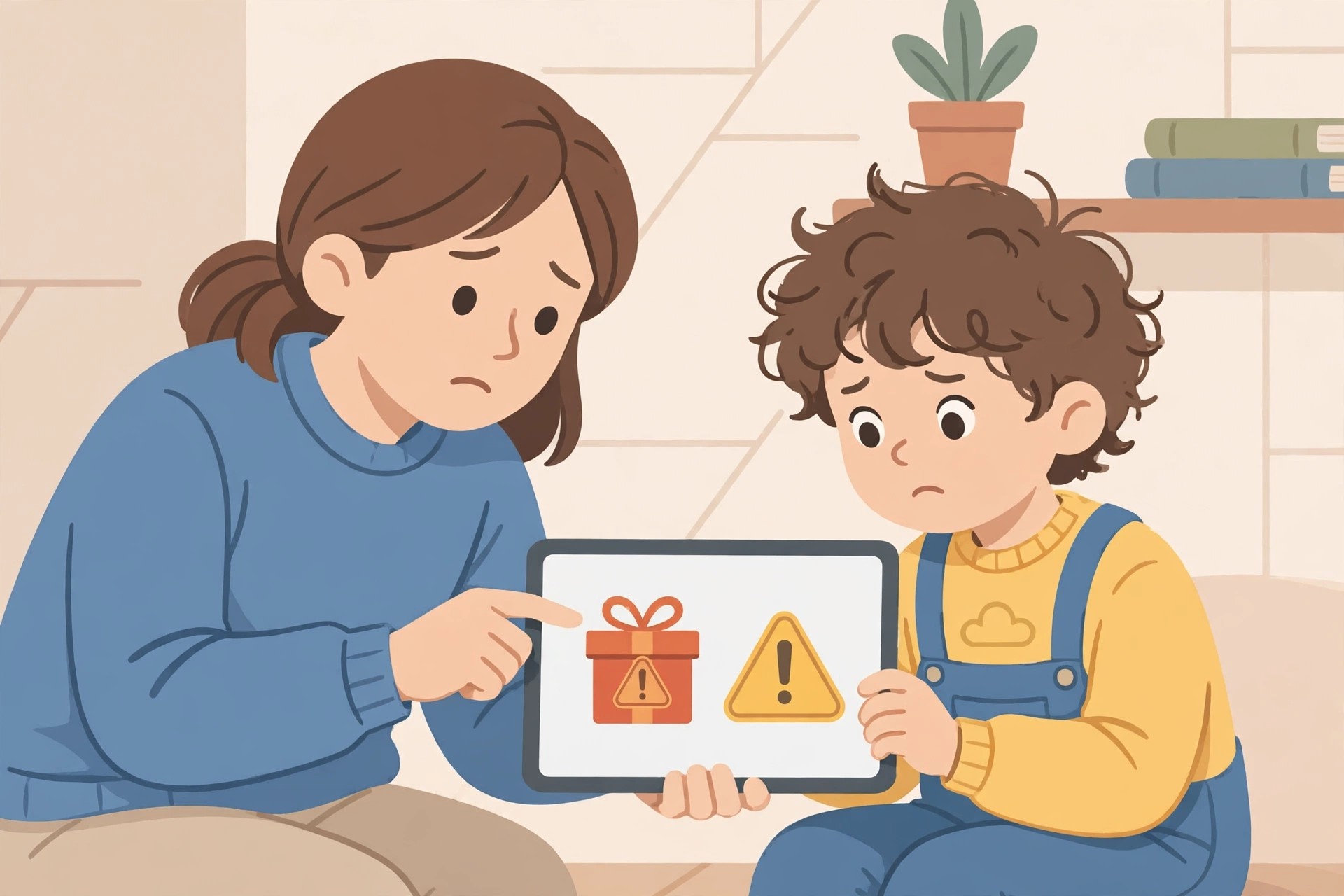
If your child clicks a scam link, act fast. Change the Roblox password from your own device, check the account for strange purchases or messages, and report the account that sent the link. Do not blame your child. Praise them for telling you, so they will speak up again.
Also check your child’s device for apps or files they do not recognize. If they downloaded something from a scam link, remove it and run your device security check. For general device safety, see our guide on how to secure your home Wi-Fi and keep your home network settings in good shape.
How do I control spending and screen time?
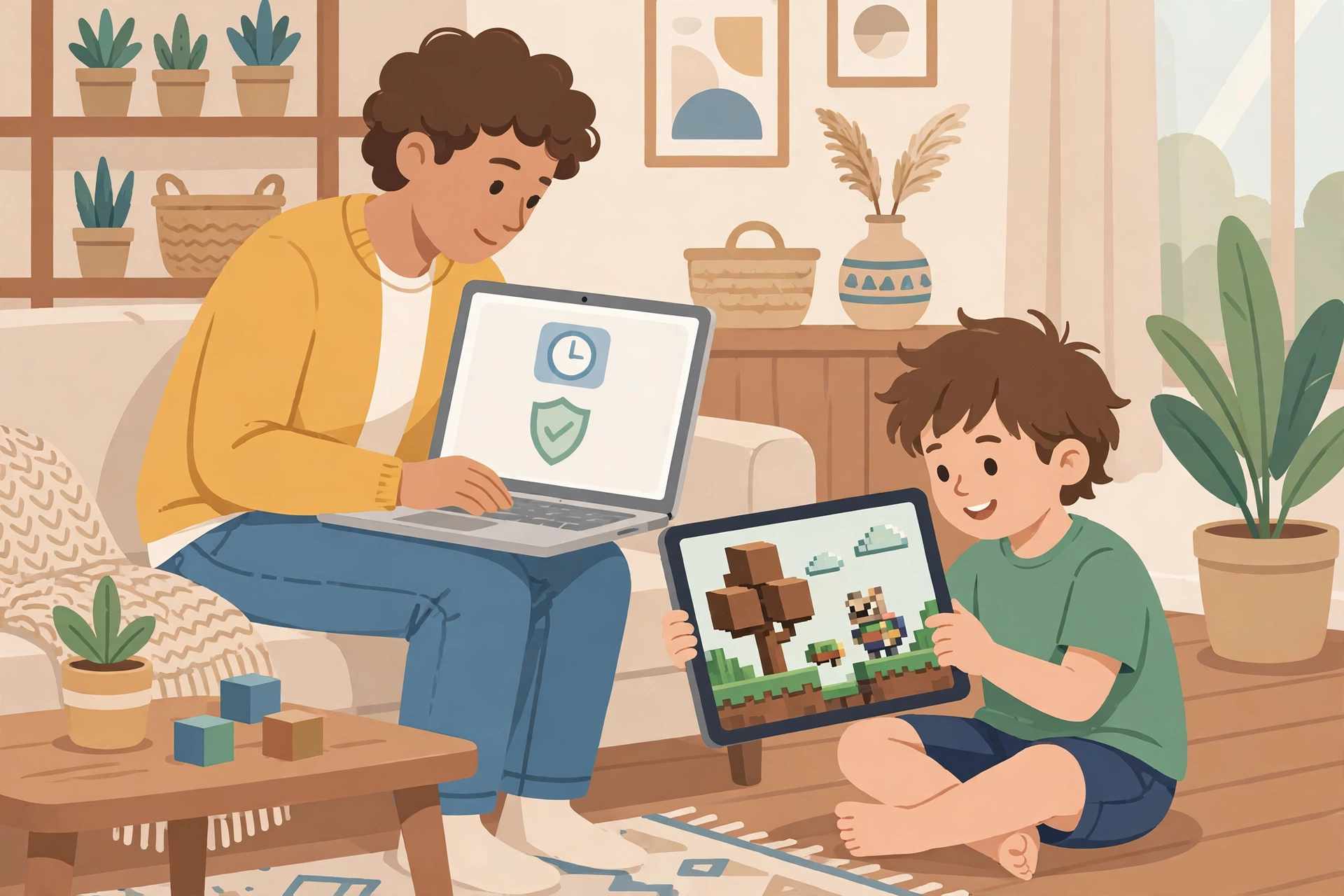
Set a monthly spending limit in Parental Controls, remove saved payment details from your child’s device where possible, and agree on a screen time routine before play starts. Clear limits prevent most arguments.
Open Spending in Parental Controls and set a monthly limit that fits your family budget. Turn on notifications so you see spending as it happens. If your child wants an item that costs more than the limit, use it as a chance to talk about saving and waiting.
Keep payment cards out of easy reach. If a card is saved on a shared device, a child can buy by accident or under pressure from a game. A safer pattern is to buy Robux yourself, in small amounts, and only when you agree.
For screen time, set a daily limit for a child under 13 in the Screen time section. Pair the limit with a routine. For example, homework and dinner come first, then a set play window. A routine feels fairer than a sudden stop.
If your child plays on Android, you can also use device level controls. Our guide to parental controls for Android can help you add a second layer on phones and tablets.
How do I block and report on Roblox?
Block a player who is rude, pushy, or unsafe, then report the account or content so Roblox can review it. Blocking stops contact fast, and reporting helps other players too.
To block a player, open their profile or use the block option in chat or in a game, then confirm the block. To report, use the report option on a profile, a chat message, or a game, and describe what happened in simple words.
After you block and report, talk with your child. Ask how they feel, and remind them that blocking is not rude. It is a safety tool, just like locking a door. Keep a note of the username and date in case you need it later.
If a message includes a threat, a request for personal details, or a request to meet, keep a screenshot if you can do so safely, block the account, and report it. If you are worried about your child’s safety, contact Roblox support and, if needed, your local authorities.
What settings suit my child’s age?
Use stricter settings for younger children, and loosen them step by step as your child shows care, honesty, and good judgment. Age is a guide, not a perfect rule, so adjust for your own child.
For under 9s, keep chat off or limited to trusted friends only, use the lowest suitable content level, block games that feel too intense, and set short screen time and small spending limits. Play together often, and review the friend list weekly.
For 9 to 12 year olds, allow chat with trusted friends, keep a clear content level, review friends and games together, and set a monthly spending limit. Give your child more choice, but keep the parent account linked and check settings each month.
For teens, focus on conversation as much as controls. Keep a content level that fits your family rules, review spending, and talk about scams, privacy, and pressure from other players. Teens need room to make choices, and they also need a safe adult to turn to when a choice goes wrong.
| Age group | Chat | Content level | Spending |
|---|---|---|---|
| Under 9 | Off or trusted friends only | Lowest suitable level | Very small limit, parent buys |
| 9 to 12 | Trusted friends, reviewed often | Moderate, reviewed monthly | Monthly limit with notifications |
| Teens | Friends, with clear rules | Family agreed level | Monthly limit, teen tracks spending |
This age framework is the heart of this guide. It is not about one perfect setting. It is about a pattern that grows with your child, with checks at each stage.
How do I talk to my child about Roblox?
Ask open questions, listen without blame, and agree on rules together. A child who feels safe to talk will tell you about problems early.
Try questions like: What did you enjoy today? Who did you play with? Did anything feel strange or unfair? Keep your tone calm, even if the answer worries you. If you react with anger, your child may hide the next problem.
Agree on three simple rules together. First, never share personal details. Second, never click a free Robux link. Third, tell an adult right away if someone is rude, pushy, or asks for something private. Write the rules down and place them near the device.
For older children, the same ideas apply on other apps too. Our guide to Discord safety for teens and our guide to social media safety for kids use the same pattern: set controls, agree on rules, and keep talking.
Key takeaways
- Link a parent account and enter the correct birthdate first.
- Set content, chat, screen time, and spending controls in that order.
- Treat free Robux offers as scams and never share passwords.
- Block and report rude or unsafe players right away.
- Review settings monthly and adjust them as your child grows.
Final verdict: What should you do next?
Do the 20 minute setup today, then play one game together this week. That short setup, plus a calm monthly check, gives your child freedom with clear guardrails. Start with the checklist above, set the strictest chat and content options you feel comfortable with, and loosen them only when your child shows good judgment.
If you want extra help with devices, read our guide to the best free parental control apps. It can add a useful second layer on shared family devices.
That is the core of Roblox safety for kids: clear settings, calm rules, and regular checks.
Frequently asked questions
Is Roblox safe for kids?
Roblox can be safe for kids when a parent links a parent account, sets content and chat controls, and reviews friends and spending. It is not safe to leave a young child unsupervised with open chat and no limits.
What age is Roblox best for?
Roblox suits older children and teens best with controls in place. Younger children can play safely with chat off or limited to trusted friends, a low content level, and regular adult checks.
How do I turn off chat on Roblox?
Open Settings, then Parental Controls, then Chat in the linked parent account, and turn chat off or limit it to trusted friends. Review the setting with your child so they understand the change.
Are free Robux offers real?
No. Free Robux offers in chats, videos, and comments are scams. Never enter a password, code, or personal detail to claim Robux, and report the account that sent the offer.
How do I block someone on Roblox?
Open the player’s profile or use the block option in chat or in a game, then confirm the block. You can also report the account so Roblox can review the behavior.