Last updated: October 2026
- What does family online safety mean in 2026?
- How do you start talking to your kids about online life?
- What should a family online agreement include?
- How do you set privacy and account settings that actually help?
- What settings suit each age group?
- How should families handle screen time and devices?
- What rules work for social apps and games?
- How do you spot strangers and grooming red flags?
- What should you do about cyberbullying?
- How do you handle scams and sextortion threats?
- What about school devices and homework apps?
- What should you do when something goes wrong?
- How do you handle a first phone or new device?
- How do you keep the plan working as children grow?
- Key takeaways for parents
- Final verdict: start with one talk tonight
- Frequently asked questions
Quick answer: Family online safety works best when parents combine open talks, clear rules, and sensible settings on the devices their own children use. Start with one honest talk, agree on a few simple rules together, and review privacy settings on every app your child uses. Add parental controls as a backup, not as a replacement for trust. Review the rules as your child grows, and keep the talk going.
Your child will learn, play, and make friends online. That is normal in 2026, and it can be a good thing. Your job is not to remove the internet from their life. Your job is to help them use it with confidence, care, and common sense.
This guide covers the whole plan in plain language. You will learn how to talk to your kids, how to write a family agreement, and how to set privacy controls that actually help. You will also learn what to do about strangers, bullying, scams, and school devices.
What does family online safety mean in 2026?
Family online safety means helping your own children use the internet with confidence and care. It covers what they watch, who they talk to, what they share, and how they react when something feels wrong.
It is not about banning every app or reading every message in secret. It is about teaching habits that last: pause before posting, check before trusting, and tell a parent early when something feels off.
The goal stays the same at every age, even though the rules change. Younger children need more limits and supervision. Older teens need more freedom, with clear boundaries and regular check-ins.
How do you start talking to your kids about online life?
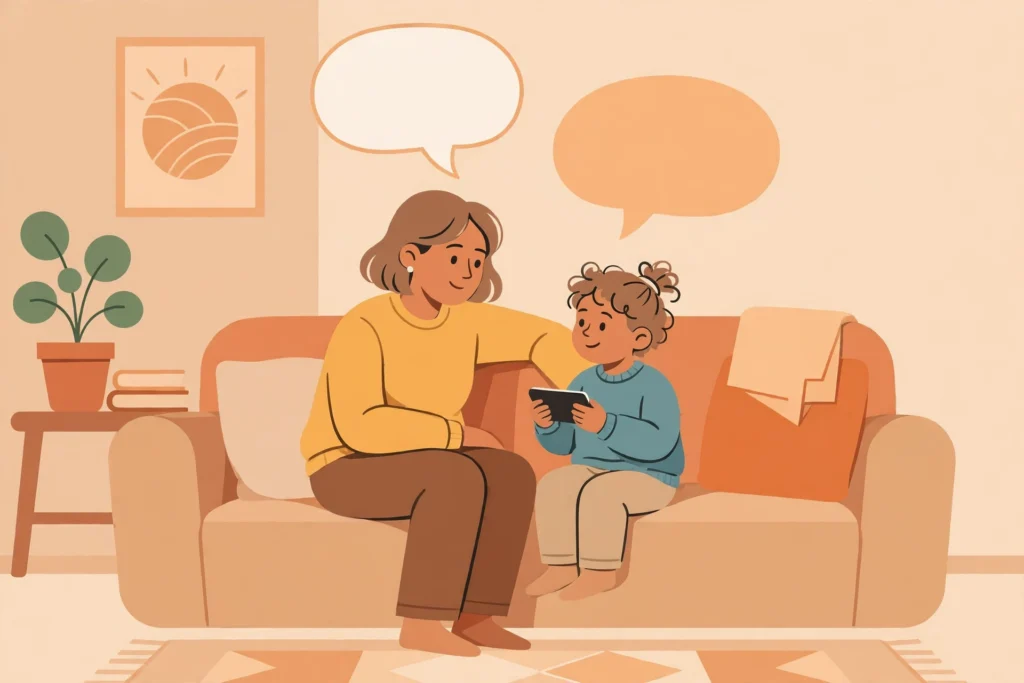
Start early, and keep it short. A calm five minute chat beats a long lecture. Ask what they enjoy online, and listen before you correct.
Use everyday moments as openings. A news story, a new game, or a friend’s post can start a useful talk. Praise honest answers, even when the news is not good.
What should a first talk cover?
Cover four basics: never share passwords, addresses, or school details with strangers; ask before posting photos of others; be kind online; and tell a parent at once if anyone asks for secrets, photos, or a private chat.
Agree on what happens next if a rule is broken. A calm response keeps the door open. A harsh punishment teaches a child to hide problems instead.
What should a family online agreement include?
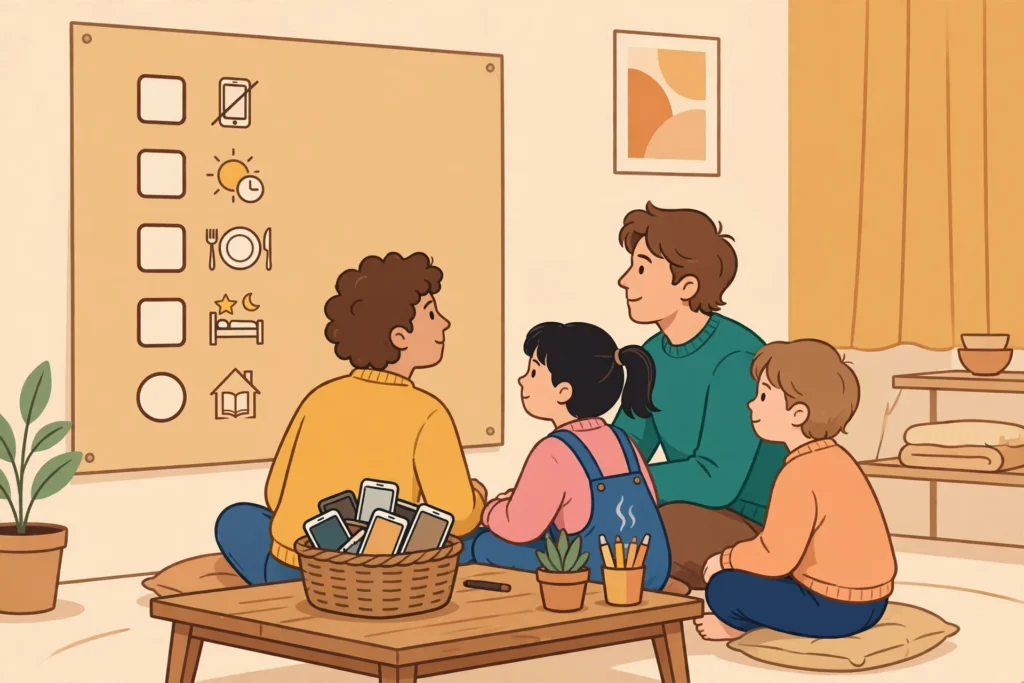
A family online agreement puts your rules in writing, in plain words. Write it together, and let every child add one rule of their own. A signed sheet on the fridge works better than a lecture that is forgotten by dinner.
Keep it short. Ten rules are plenty. Cover devices, bedtimes, apps, chats, photos, spending, and what to do when something goes wrong.
- Devices charge outside bedrooms overnight.
- No private chats with strangers.
- Ask before downloading a new app or game.
- Keep accounts private, and never share passwords.
- No photos or videos of others without permission.
- Tell a parent about bullying, threats, or requests for photos at once.
- Screen free times for meals, homework, and family time.
- Rules grow with age, and we review them every few months.
Review the agreement when a child gets a new device or joins a new app. Rules that never change will feel unfair as children grow. A short review every school term keeps the agreement honest and up to date.

How do you set privacy and account settings that actually help?
Settings are your second line of defence, after the talk. Sit with your child and open each app together. Set accounts to private, limit who can send friend requests, and turn off location sharing for posts and photos.
Use a strong password or passcode on every device, and turn on two-factor authentication where the app offers it. Keep the family email for account recovery, and check that birth dates are correct, since age settings drive many safety defaults.
On Android devices, use the built-in family controls to set screen time limits and approve app downloads. Our guide to parental controls for Android walks through the main settings step by step.
If you want one tool to manage several devices, compare the options in our guide to the best parental control apps before you pay. A tool should support your child’s devices and age, and it should be easy for you to review each week.
Which settings matter most?
Start with four: private accounts, friend request limits, direct message limits, and content filters. Then check location, contacts access, and in-app purchases. Turn off anything your child does not need.
Write down what you changed, in one note. When an app updates, settings can move or reset. A short note makes the next check take minutes, not an hour.
What settings suit each age group?
One set of rules does not fit every age. Use this table as a starting point, then adjust it to your child’s maturity and your family’s needs.
| Age group | Devices and accounts | Privacy starting point | Review rhythm |
| Under 10 | Shared family tablet or parent phone, no private accounts | Private by default, parent approves apps and contacts | Weekly |
| 10 to 12 | Own device with family controls, supervised accounts | Private accounts, friends only, no public posts | Every two weeks |
| 13 to 15 | Own phone with agreed limits, some social apps | Private accounts, limited friend requests, content filters on | Monthly |
| 16 to 17 | Own phone, wider freedom within agreed rules | Private by default, regular talks, spending limits | Monthly, plus a talk after any incident |
How should families handle screen time and devices?
Screen time rules work best when they are about balance, not just minutes. Agree on times for homework, play, rest, and sleep. Keep phones out of bedrooms at night, and keep one screen free time each day for the whole family.
Model the rule yourself. Children copy what they see. If phones stay off the dinner table for parents too, the rule feels fair.
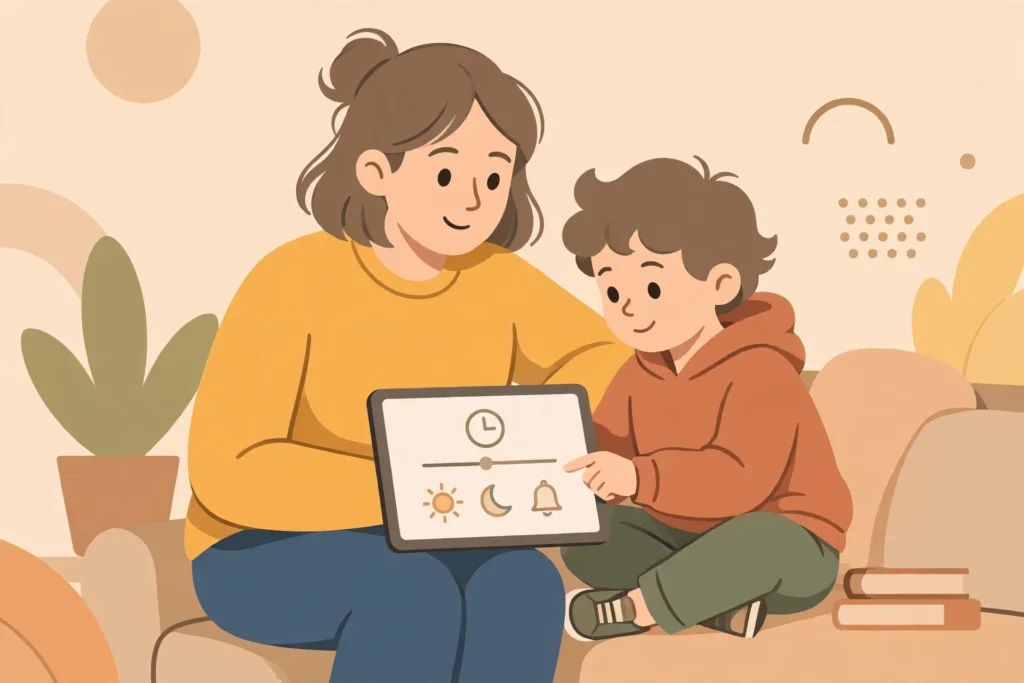
For younger children, use built-in timers and bedtime modes. For teens, agree on a daily limit together, and review it after a trial week. If schoolwork, sleep, or mood suffer, tighten the limit and talk about why.
If you monitor a phone, be open about it. Tell your child what you check and why, and focus on safety, not spying. Our guide on how to monitor your child’s phone explains how to set this up with honesty.
What rules work for social apps and games?
Treat every new app as a family decision. Check the age rating, read the privacy settings together, and agree on who your child can talk to. Start with friends they know in real life, and keep public servers and open chats off limits for younger children.
Games with chat need the same rules as social apps. Turn off voice chat with strangers, block and report abusive players, and never share account details to get free items or skins.
For chat apps, keep servers small and known. Our guide to Discord safety for teens explains server rules, friend requests, and Family Center in detail. Our guide to social media safety for kids covers the wider set of apps and age checks.
Review the friend list together every month. Remove contacts your child does not know, and talk about any new group before your child joins it.
How do you spot strangers and grooming red flags?
Most online harm starts with a friendly stranger who asks to move to a private chat. Teach your child that a stranger online is still a stranger, even after weeks of kind messages.
Watch for red flags: gifts or game currency, compliments that feel too personal, requests to keep a chat secret, pressure to share photos, and anger when your child says no. Any one of these is a reason to stop and tell a parent.
Practise the response in advance. Your child can say, “I need to check with my parent,” and then leave the chat. Save the messages, block the account, and report it in the app.
Remind older children that adults who want a real friendship do not need secrecy. A secret chat is itself a warning sign, not a sign of trust.
What should you do about cyberbullying?
Cyberbullying hurts most when a child faces it alone. Tell your child that reporting is not tattling, and that asking for help is a strong move.
If bullying happens, stay calm. Save screenshots with dates, block the accounts involved, and report the posts in the app. Do not reply in anger, since replies often make the problem worse.
Tell the school if the bullying involves classmates or school devices. Schools can act on behaviour that affects learning, even when it starts online. Keep a short log of what happened and when.
Support your child after the incident. Talk about what helped, change settings if needed, and check in again a week later. If your child feels low for more than a couple of weeks, speak to a doctor or school counsellor.
How do you handle scams and sextortion threats?
Scams target children through games, prizes, and fake giveaways. Teach your child a simple rule: free items that ask for a password, a code, or payment details are never free.
Sextortion threats follow a pattern: someone gains trust, asks for an intimate photo or video, then threatens to share it unless money or more images are sent. Tell your child that this is a crime, and that it is never their fault.
If a threat arrives, do not pay and do not send more images. Save the messages and the account details, block the account, and report it to the platform. Then contact local police, and ask for help from a trusted adult or a child safety helpline in your country.
Talk about this risk before it happens, in calm and age appropriate words. A child who has heard the warning is far more likely to ask for help fast.
What about school devices and homework apps?
School devices still need family rules. Check what the school allows, which apps are installed, and how the school handles filtering and monitoring. Ask the school who to contact if a problem appears on a school account.
Keep schoolwork and personal use separate where you can. Use the school account only for school, and keep personal chats on a family managed account. This makes it easier to spot problems and to hand the device back clean.
Remind your child that school rules still apply online. Kind language, honest work, and respect for other pupils matter in class chats just as much as in the classroom.
What should you do when something goes wrong?
Use this table as a fast reference. Print it, or save it on the fridge, so your child knows the first step before panic sets in.
| Situation | First step | Who to tell | What to save |
| Stranger asks for a private chat | Stop replying and leave the chat | A parent, at once | Username, messages, date |
| Bullying messages | Do not reply in anger | A parent and the school | Screenshots with dates |
| Threat to share a photo | Do not pay or send more images | A parent and local police | Messages, account details, links |
| Suspicious prize or free items link | Do not enter passwords or codes | A parent | The link and the account name |
How do you handle a first phone or new device?
A first phone is a milestone, not just a purchase. Before you hand it over, agree on the rules together. Decide which apps are allowed, who your child can contact, and where the phone charges at night.
Set the phone up together on day one. Create the account with correct birth dates, set it to private, and turn on family controls before your child takes it to school. A phone that starts safe is easier to keep safe.
Start with a trial period. Try the agreed rules for one month, then review them together. Praise what worked, and adjust what did not. A trial feels fair, and it teaches your child that rules can grow with trust.
For a new console, tablet, or laptop, repeat the same steps. Check chat settings, purchase controls, and friend requests on every device, not just the phone. Children move between devices fast, and gaps in one device undo rules set on another.
How do you keep the plan working as children grow?
Good online safety plans change with age. A rule that fits a ten year old will feel unfair to a sixteen year old. Review the plan each school term, and let your child argue for more freedom with good reasons.
Trade freedom for proof of good habits. If your child reports problems early, respects bedtimes, and keeps accounts private, widen the limits step by step. If problems appear, tighten the limits for a short time, and explain why.
Keep talking about new apps and trends. Ask your child to show you what they enjoy, and stay curious instead of suspicious. A parent who listens learns about risks far earlier than a parent who only checks settings.
Finally, look after your own habits too. Strong passwords, updated devices, and care with what you share about your children all protect the whole family. Children learn most from what they see at home.
Key takeaways for parents
Use this checklist to review your family plan in ten minutes.
- Talk early, talk often, and praise honesty.
- Write a short family agreement together, and review it each term.
- Set accounts to private, limit friend requests, and turn off location sharing.
- Keep devices out of bedrooms at night, and keep meals screen free.
- Start with known friends only, and review friend lists each month.
- Save evidence, block, report, and tell a trusted adult fast when something goes wrong.
- Grow freedom with age, and keep trust at the centre of every rule.
Final verdict: start with one talk tonight
You do not need perfect settings to keep your child safer online. You need one honest talk, a few clear rules, and settings that match your child’s age.
Start tonight. Pick one app your child uses, open its privacy settings together, and agree on one new rule. Then add the next step next week. Small steps, repeated often, build the safest habit of all: a child who tells you early.
Frequently asked questions
These short answers cover the questions parents ask most about family online safety.
What age should a child get a first phone?
There is no single right age. Base the choice on maturity, need, and agreed rules, and start with strict settings and a trial month.
Should parents use parental control apps?
Yes, as a backup to talks and rules. They help with time limits and app approvals, but they do not replace trust or regular check-ins.
How do I talk to my child about strangers online?
Keep it simple: strangers online are still strangers. Teach your child to leave private chats, save messages, block the account, and tell you at once.
What should I do if my child is cyberbullied?
Stay calm, save screenshots with dates, block and report the accounts, and tell the school if classmates are involved. Check in again a week later.
What is a family online agreement?
A short set of written rules made together, covering devices, bedtimes, apps, chats, photos, and what to do when something goes wrong. Review it each school term.