Last updated: October 2026
- What Is Two-Factor Authentication?
- How Does Two-Factor Authentication Work?
- Which Two-Factor Method Should You Choose?
- What Is the 60 Second Decision Framework?
- How Do You Set Up Two-Factor Authentication Step by Step?
- Set Up an Authenticator App
- Set Up Google Two-Factor Authentication
- Set Up Apple Two-Factor Authentication
- Set Up a Hardware Key
- How Do You Avoid Getting Locked Out?
- Worked Example: Secure Four Accounts in 35 Minutes
- What If You Lose Your Phone or Key?
- Common Problems and Simple Fixes
- Should You Use Passkeys Instead of Codes?
- How Do You Keep Your Whole Phone and Account Safe?
- Key Takeaways
- Frequently Asked Questions
Your password can leak in a data breach. It can also be guessed, phished, or reused from another site. Two-factor authentication adds a second check that a thief usually does not have.
This guide shows you how to set up two-factor authentication on your own accounts. You will learn what each method does, which method fits each account, and how to avoid getting locked out.
Quick answer: Turn on two-factor authentication in each account security setting, choose an authenticator app for most accounts, save your backup codes offline, and add a hardware key for email and banking. Start with your email account, because it can reset almost every other account.
What Is Two-Factor Authentication?
Two-factor authentication asks for two different proofs before it opens an account. The first proof is something you know, such as a password. The second proof is something you have, such as a phone app code, or something you are, such as a fingerprint.
This matters because passwords alone fail in predictable ways. People reuse passwords across sites. They choose short passwords. They also enter passwords on fake login pages. A second factor breaks that chain in most cases.
Think of it like a house with two locks. A thief who copies one key still cannot enter. The second lock does not need to be complex. It only needs to be separate from the first.
How Does Two-Factor Authentication Work?
Two-factor authentication works by checking a second, time limited proof after your password. You enter your password, then you enter a code from an app, tap a prompt on your phone, or touch a hardware key. The service only grants access when both checks pass.
Authenticator app codes change every 30 seconds. That short life makes a stolen code useless within a minute. A hardware key works differently. It proves that you hold a physical device and that you are on the real login page, not a fake copy.
Some services call this two-step verification. Others call it login verification or multi-factor authentication. The names differ, but the core idea stays the same. You prove identity with more than a password.
Which Two-Factor Method Should You Choose?
Choose an authenticator app for most accounts, a hardware key for email and banking, and SMS only when no better option exists. This order balances strong protection with daily ease, and it keeps your most valuable accounts hardest to attack.
Authenticator apps generate codes on your phone without a mobile signal. They work on planes and in areas with poor coverage. They also resist SIM swap attacks, because the code never travels by text message.
Hardware keys give the strongest protection for a single account. You plug in a key or tap it on your phone. The key checks the real site address, so it blocks many phishing pages. Keep a second key as a backup.
SMS codes are better than no second factor. They are still the weakest common method. Attackers can swap your SIM, intercept texts, or trick you into sharing a code. Use SMS only as a last resort.
Two-Factor Methods Compared
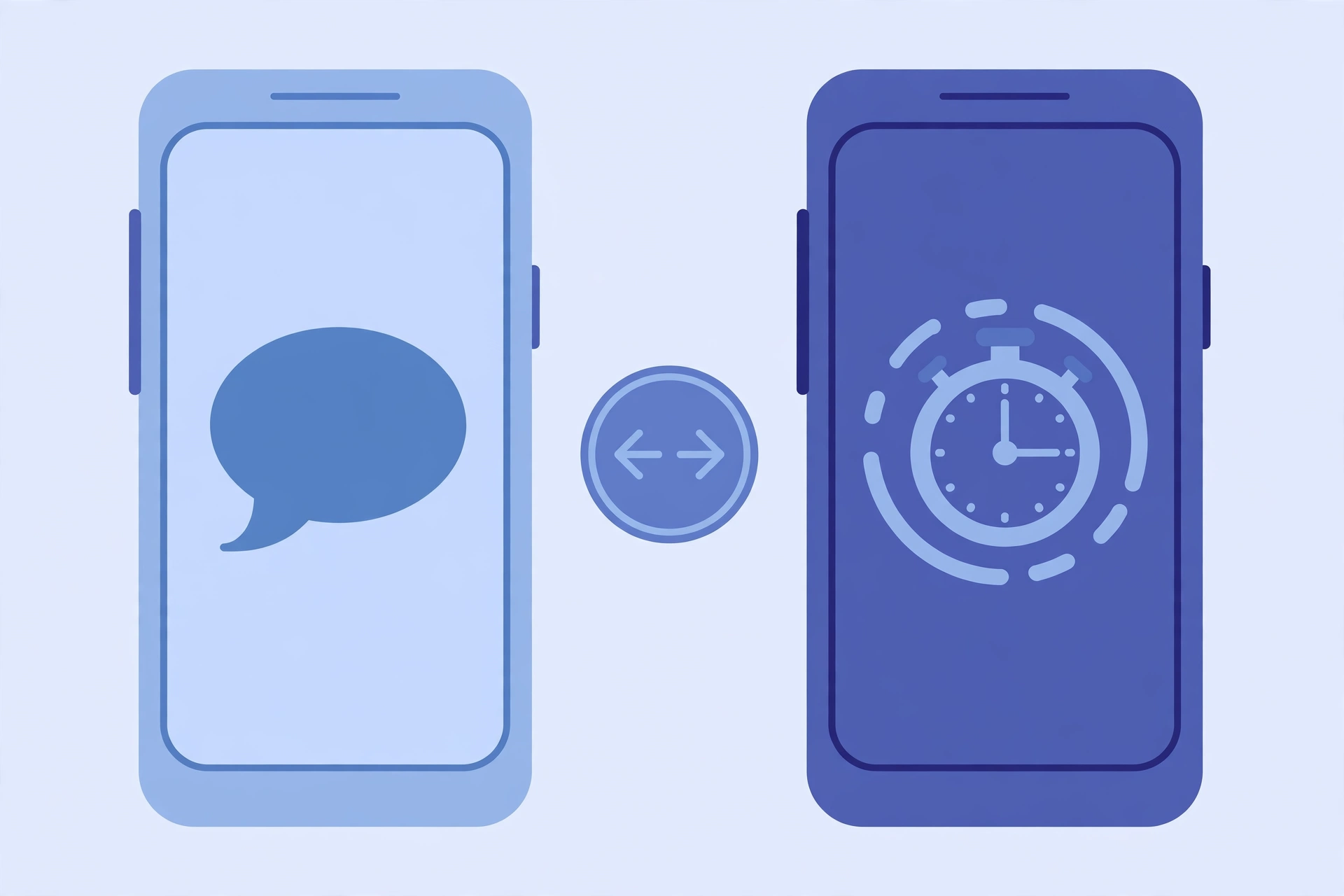
Use this table to compare methods at a glance. Security, ease, and cost matter in different ways for each person. A method you will actually use beats a perfect method you avoid.
| Method | Security | Ease of use | Best for |
|---|---|---|---|
| Authenticator app | High | Easy after setup | Most accounts |
| Hardware key | Highest | Very easy, needs a key | Email, banking, work |
| SMS code | Basic | Very easy | Only when nothing else works |
| Email code | Basic | Easy | Low value accounts |
| Push approval | High | Very easy | Accounts that support it |
What Is the 60 Second Decision Framework?
Use three questions to pick a method in under a minute. First, can an attacker reset other accounts from this one? Second, do you log in daily or rarely? Third, do you have a safe place to store a backup key or code?
If the account can reset others, choose a hardware key. Email, password managers, and banking fall in this group. If you log in daily, choose an authenticator app. It adds only a few seconds per login.
If you log in rarely, choose the strongest method you can store safely. A hardware key in a drawer works well. Add backup codes in a sealed envelope. Test the backup once, before you need it.
| Account type | Risk if lost | Recommended method | Backup |
|---|---|---|---|
| Very high | Hardware key plus app | Second key and codes | |
| Banking | Very high | Hardware key or bank app | Bank recovery process |
| Social media | High | Authenticator app | Backup codes |
| Shopping | Medium | Authenticator app | Backup codes |
| Forums | Low | App or SMS | Email recovery |
How Do You Set Up Two-Factor Authentication Step by Step?
Set up two-factor authentication in this order: email first, then your password manager, then banking, then social media. Open the security setting on each service, choose an authenticator app, scan the QR code, enter the test code, and save the backup codes before you finish.
Start in a calm moment, not when you are rushing. Keep your phone charged and nearby. Open the authenticator app first, so you can add the account as soon as the QR code appears. If a code expires, wait for the next code and try again.
Set Up an Authenticator App
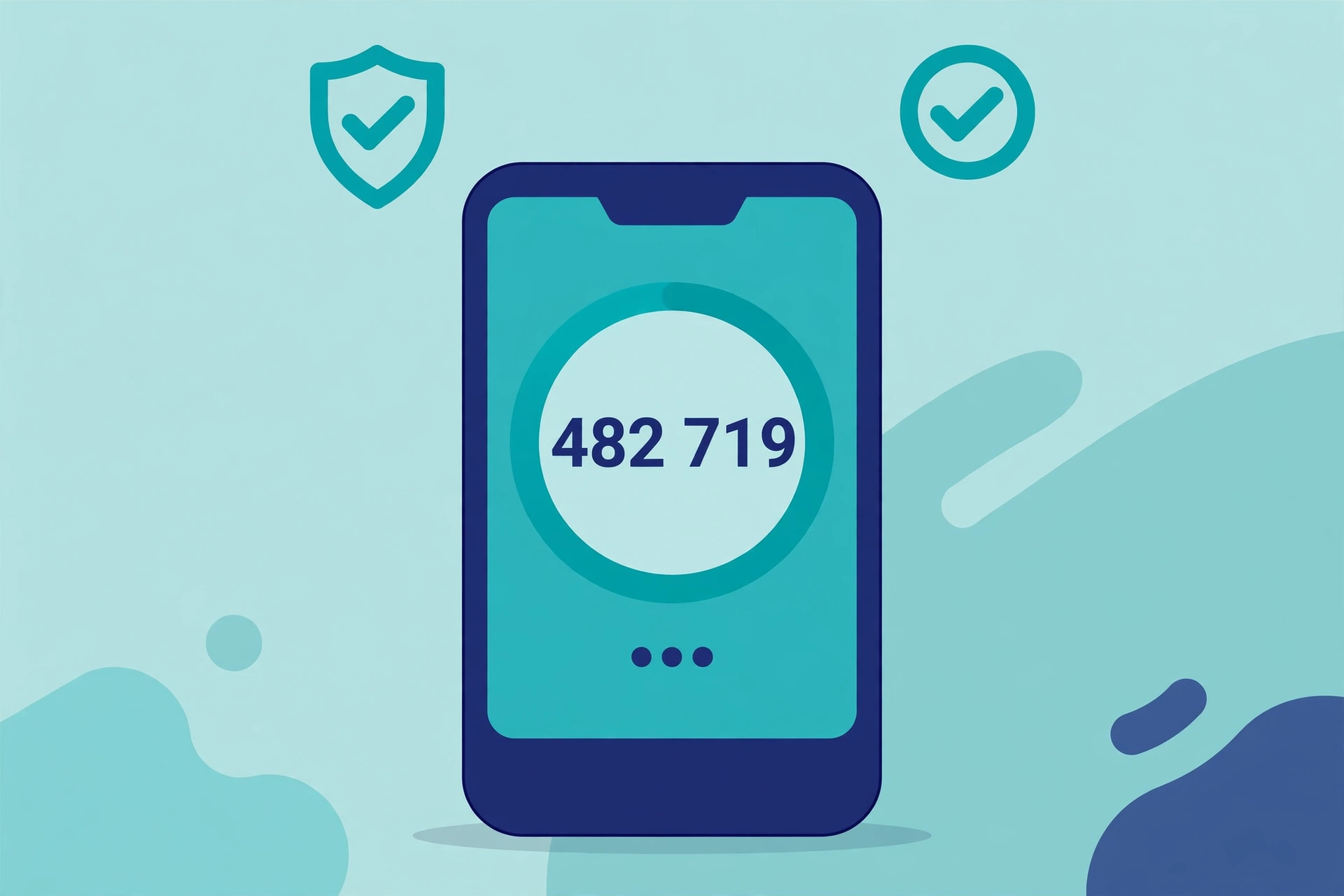
Install a well known authenticator app from your official app store. Open the account security page in a browser. Choose the authenticator app option, then scan the QR code with the app. Enter the six digit code that the app shows.
Do not take a photo of the QR code and store it in a shared album. The QR code works like a password for that account. If you need a second device, use the app export or transfer feature inside the app itself.
Set Up Google Two-Factor Authentication
Google calls this 2-Step Verification. Sign in to your Google Account, open Security, then open 2-Step Verification. Follow the prompts to confirm your password, choose Authenticator app, scan the QR code, and enter a code.
Google may also offer passkeys and phone prompts. A passkey on your own phone or key can replace a password for sign in. Keep at least two sign in options for your main Google account, so one lost phone does not lock you out.
Set Up Apple Two-Factor Authentication
Apple builds two-factor authentication into Apple Account sign in on trusted devices. On an iPhone, open Settings, tap your name, then open Sign-In and Security and turn on Two-Factor Authentication. Apple sends a code to a trusted device when you sign in elsewhere.
Keep at least one trusted device and one trusted phone number current. If you change numbers, update Apple Account settings before you lose access to the old number. Recovery takes longer when no trusted device remains.
Set Up a Hardware Key
Buy a key from a reputable maker and register it in each account security setting. Choose the security key option, insert or tap the key, and follow the browser prompt. Name the key clearly, such as Main key or Backup key in a safe place.
Register two keys when a service allows it. Store the second key away from the first. Test both keys by signing out and signing in again. A backup key only helps if you know where it is and that it works.
| Step | What to do | Time | Check |
|---|---|---|---|
| 1 | Secure email first | 10 minutes | You can sign in with the second factor |
| 2 | Secure your password manager | 5 minutes | Backup codes are saved offline |
| 3 | Secure banking | 10 minutes | Bank app or key works |
| 4 | Secure social accounts | 15 minutes | Each account shows the app as active |
| 5 | Test recovery | 5 minutes | You can sign in from a second device |
How Do You Avoid Getting Locked Out?
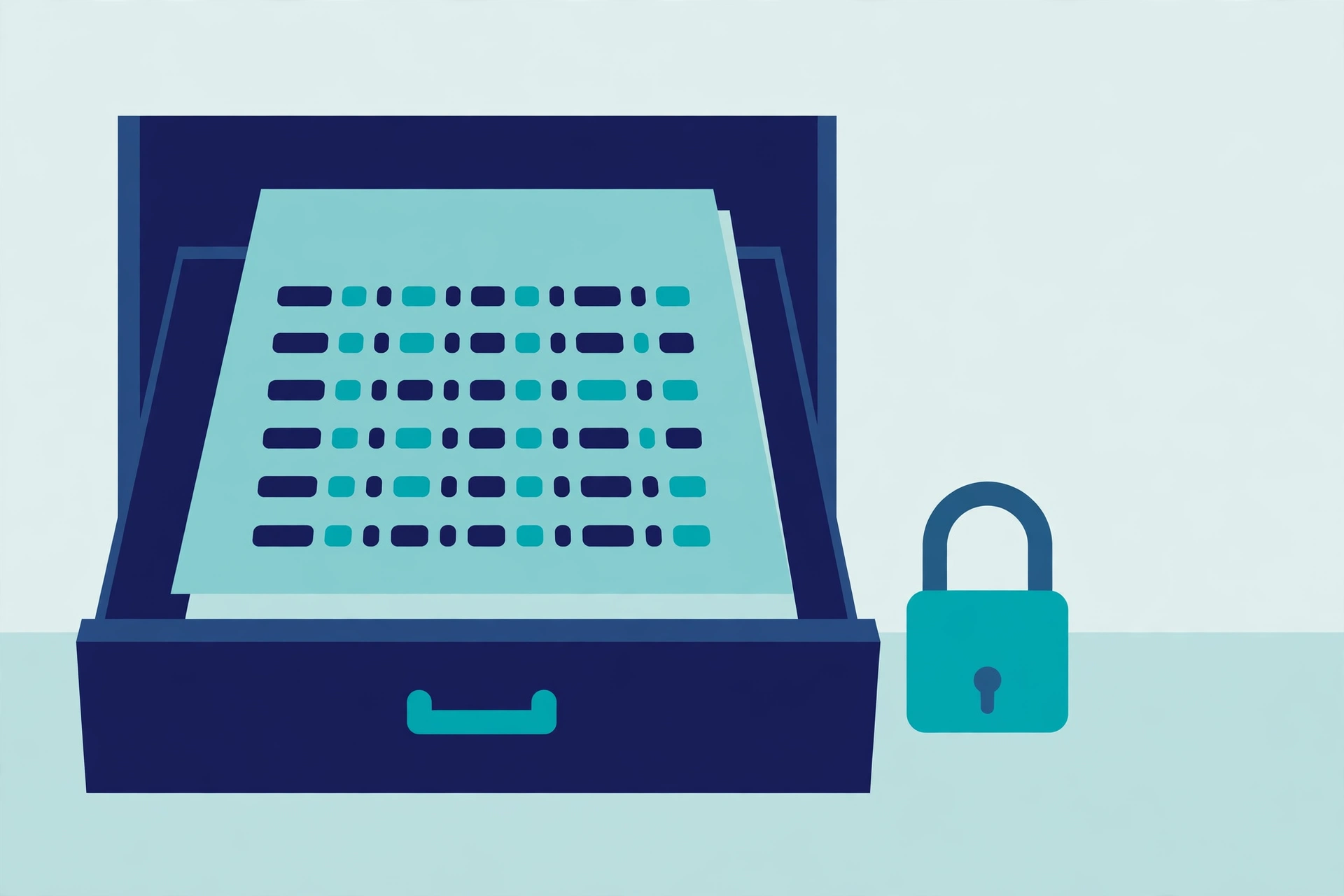
Save backup codes on paper, store them away from your phone, and test one backup method before you rely on it. A backup that you never test is a guess, and a guess is a poor plan when you cannot sign in.
Print backup codes or write them by hand. Put them in a locked drawer or a safe. Do not store a photo of the codes in the same phone that holds your authenticator app. If the phone is lost, the photo goes with it.
Set up a second device when the service allows it. A tablet or an old phone can hold the same authenticator account. Keep that device charged and updated, but store it in a safe place. Check it every few months.
Worked Example: Secure Four Accounts in 35 Minutes
Sara starts with email, because email can reset her other accounts. She turns on an authenticator app, saves ten backup codes on paper, and adds a hardware key. The email step takes twelve minutes, including a test sign in.
Next, Sara secures her password manager in five minutes. She uses the same authenticator app and stores its backup codes in the same envelope. She then secures banking in ten minutes, using the bank app approval method.
Finally, Sara secures her main social account in eight minutes. She adds the authenticator app and removes an old SMS method. She signs out on a second device and signs in again to prove the setup works. Total time is 35 minutes.
This example shows a useful order. High value accounts come first. Each step builds on the last. A test sign in at the end of each step prevents a surprise later.
What If You Lose Your Phone or Key?
If you lose your phone, use a backup code or a second device to sign in. Open the security setting, remove the lost device, and add the new device. Change your password if you think the lost phone could be used by someone else.
If you lose a hardware key, use your second key or backup codes. Remove the lost key from the account at once. Do not wait for a convenient day. A lost key in the wrong hands still needs your password, but removal closes the risk.
If you have no backup, use the official account recovery process. It may ask for identity proof and take days. That delay is the price of strong security. Keep backups current to avoid it.
Common Problems and Simple Fixes
Codes fail most often because the phone clock is wrong. Authenticator codes depend on correct time. Turn on automatic date and time in phone settings. Wait for a fresh code and enter it quickly.
QR codes fail when the screen is dim or cracked. Raise brightness and hold the phone steady. If scanning still fails, enter the setup key by hand. The service shows this key near the QR code.
Push prompts can be ignored by mistake. Check notifications and open the prompt within the time limit. If no prompt arrives, check network access and battery settings. Some phones delay background alerts.
Never share a code with a caller, even if the caller claims to be support staff. Real support will never ask for your current code. Treat any such request as a scam and end the call.
Should You Use Passkeys Instead of Codes?
Passkeys can replace passwords and codes on many services. You sign in with your phone, fingerprint, or face. The passkey stays on your device and cannot be phished in the same way as a code.
Use passkeys where they are offered for your own accounts. Keep a backup sign in method until you are sure the passkey works on all your devices. Some services still need a second factor for recovery.
Passkeys do not remove the need for backup planning. Sync passkeys only through a trusted system on your own devices. Check which devices hold your passkeys after you add a new phone.
How Do You Keep Your Whole Phone and Account Safe?
Two-factor authentication protects sign in, but it does not fix every risk. Review active sessions in each important account. Sign out of old phones, browsers, and apps that you no longer use.
Watch for warning signs on your own device. If you notice strange messages or apps, read the guide to WhatsApp spying signs and check whether any linked session looks unfamiliar. Act early, and change passwords on your own accounts first.
Strange battery drain, data use, or settings changes can point to a wider problem. Our guide to signs your phone is being tracked helps you separate normal glitches from real tracking signs. Use it before you change many settings at once.
If you find unwanted monitoring software on your own phone, follow the steps in how to remove stalkerware carefully. Back up your own photos first, then remove the app and change your main passwords from a clean device.
iPhone owners should also run the checks in how to detect spyware on iPhone. Those checks cover unknown profiles, screen time controls, and app permissions. Combine them with two-factor authentication for a stronger setup.
Your browser matters too. A private browser can reduce tracking and block many phishing pages. See the top secure browsers list and pick one that fits your phone and computer. Keep it updated, just like your other apps.
Key Takeaways
- Start with email, then your password manager, banking, and social accounts.
- Use an authenticator app for most accounts and a hardware key for high value accounts.
- Save backup codes on paper and test a backup sign in method.
- Never share a login code with anyone, including a caller who claims to be support.
- Review sessions, remove old devices, and update trusted phone numbers when they change.
- Use passkeys where they are offered, but keep a tested backup method.
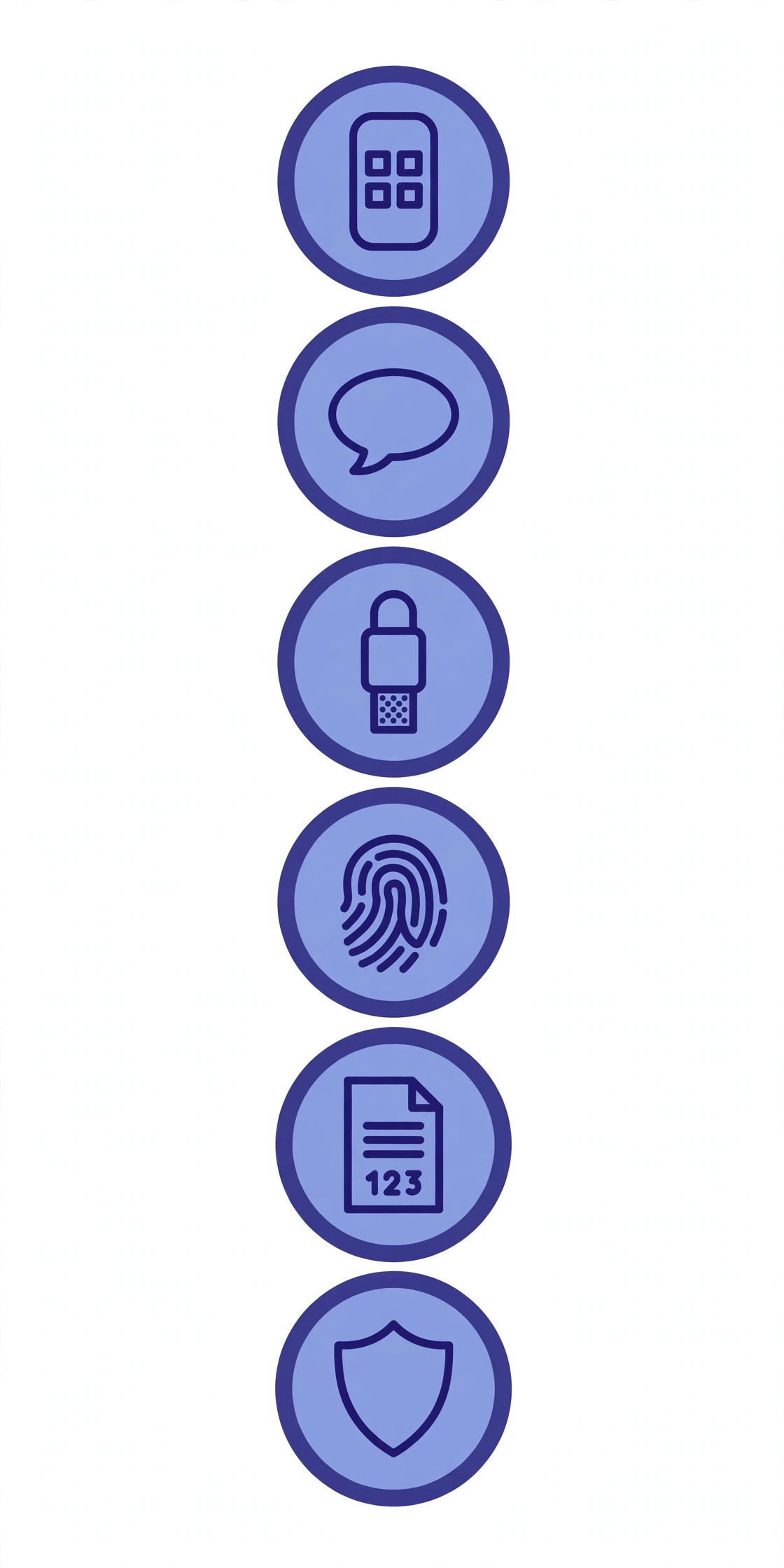
Use the infographic above as a quick reminder. Pick the method, save the backup, and test the sign in. Those three habits protect most accounts from the most common attacks.
Frequently Asked Questions
What is two-factor authentication in simple words?
Two-factor authentication asks for your password plus a second proof, such as a code from an app or a tap on a hardware key. The second proof makes a stolen password much less useful.
Is an authenticator app better than SMS?
Yes, an authenticator app is usually better than SMS. App codes stay on your phone and change every 30 seconds. SMS codes can be intercepted or moved to a new SIM by an attacker.
What should I do if I lose my phone?
Use a backup code or a second trusted device to sign in. Then remove the lost device, add your new device, and change your password if you think someone else could use the lost phone.
Do I need two-factor authentication on every account?
Start with email, banking, and your password manager, then add social and shopping accounts. Every account with personal data or payment details deserves a second factor.
Can two-factor authentication stop all hacking?
No method stops every attack, but two-factor authentication blocks most password theft, phishing, and credential leaks. Combine it with strong passwords, updates, and session reviews for the best result.
Start today with one account. Secure your email, save your backup codes, and test a sign in. That one step already makes your other accounts far harder to take over.
Do a five minute check each month. Open security settings, confirm backup codes still exist, remove old devices, and update any phone number that changed. Small checks prevent large lockouts and keep your protection current.