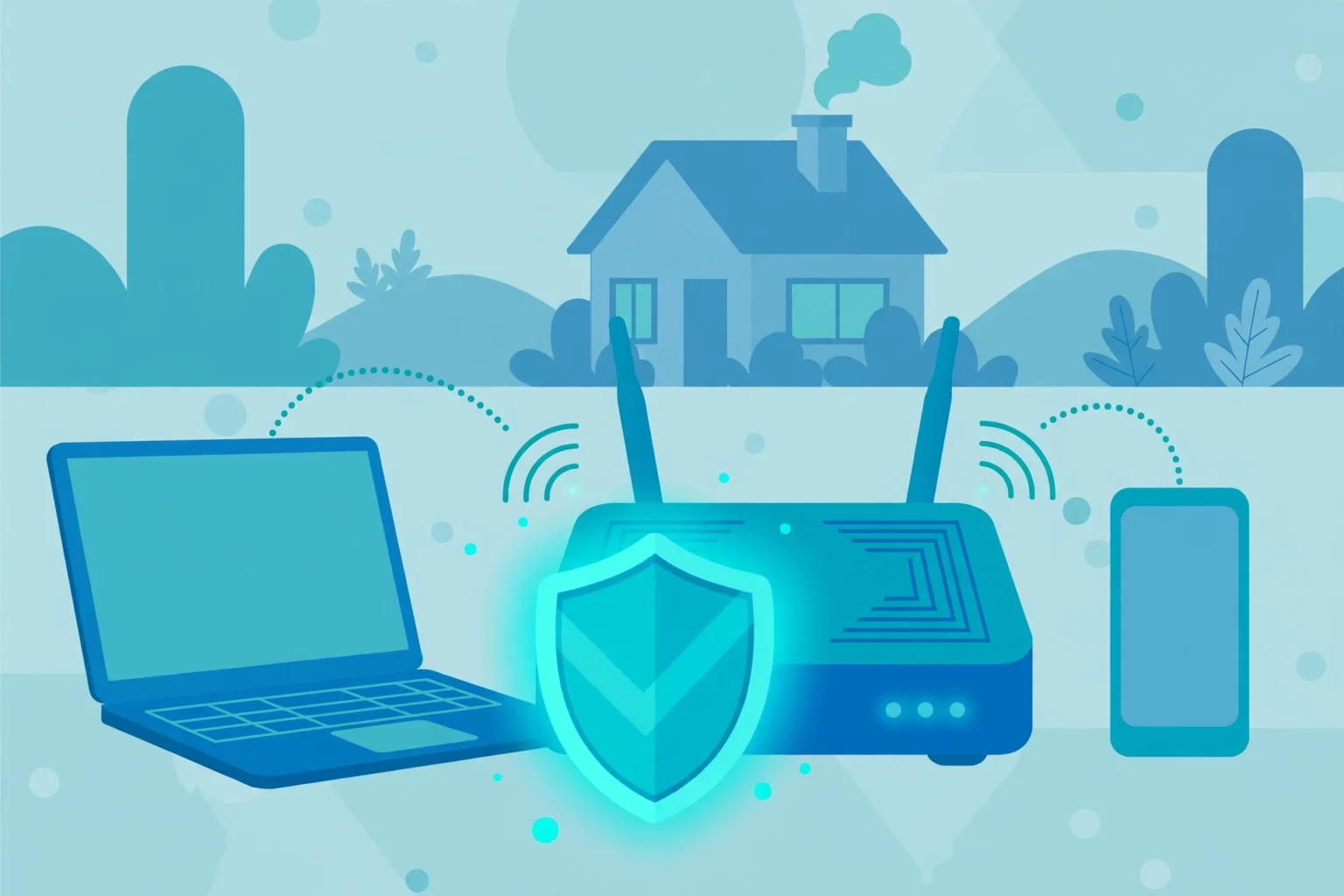
Your home Wi-Fi carries almost everything you do online. It carries work calls, school lessons, banking, streaming, and smart home controls.
- Quick answer: How do I secure my home Wi-Fi?
- Why does home Wi-Fi security matter in 2026?
- What is the fastest way to secure your home Wi-Fi today?
- How do I change my router admin password and log in safely?
- Which Wi-Fi encryption should I use: WPA2 or WPA3?
- How do I create a strong Wi-Fi password that I can remember?
- Should I set up a guest network for visitors and smart devices?
- How do I update router firmware and keep it current?
- What settings should I check beyond the password?
- How do I check which devices are on my network?
- What should I do if I think someone is on my Wi-Fi?
- How do I secure smart home devices and cameras?
- Do I need a VPN on home Wi-Fi?
- Key takeaways
- Frequently asked questions
That is why a weak home network is a real risk. A neighbor, a visitor, or a stranger nearby could join it if the settings are weak.
Last updated: October 2026
This guide shows you how to secure your home Wi-Fi in plain steps. You do not need technical skills, and you can finish the core steps in about 30 minutes.
Quick answer: How do I secure my home Wi-Fi?
Use WPA3 if your router offers it, or WPA2 if it does not. Set a long and unique Wi-Fi password, change the router admin password, and turn on automatic updates. Then put guests and smart devices on a separate guest network, turn off WPS and remote access, and check the connected devices list each month.
Those steps stop most casual intruders. They also make your network much harder to abuse if a password leaks or a guest shares it.
The rest of this guide explains each step in order. You can follow it from top to bottom, or jump to the section you need.
Why does home Wi-Fi security matter in 2026?
Home Wi-Fi security matters because your router is the front door to every device in your home. If someone joins your network, they are inside that front door, and they can try to reach other devices.
An intruder could use your connection for illegal downloads, spy on unencrypted traffic, or try to reach a camera or a file share. You could face slow speeds, a warning from your provider, or a real privacy problem.
Most homes now have far more devices than they did five years ago. Phones, laptops, TVs, game consoles, speakers, cameras, and plugs all share the same network.
Each device adds a possible entry point. A cheap smart bulb with an old password can become a way in, even if your phone and laptop are safe.
What is the fastest way to secure your home Wi-Fi today?
The fastest way is to complete five core steps in order, and then check your work. Start with the router login, then change passwords, set encryption, update firmware, and clean up risky settings.
You can do the core steps in about 30 minutes. The rest of this guide explains each step, so you can check a setting without guessing.
| Step | What to do | Time it takes |
|---|---|---|
| 1. Log in | Open your router settings on your own device | 5 minutes |
| 2. Change passwords | Change the admin password and the Wi-Fi password | 10 minutes |
| 3. Set encryption | Choose WPA3, or WPA2 if WPA3 is not available | 2 minutes |
| 4. Update firmware | Install the latest router update and turn on auto updates | 10 minutes |
| 5. Clean up | Turn off WPS and remote access, and review devices | 5 minutes |
Write down the new passwords in a safe place before you save them. You will need to reconnect your phones, laptops, and TVs after a password change.
Do this work on your own device and your own network only. Never change settings on a router you do not own or have permission to manage.
How do I change my router admin password and log in safely?
To change your router admin password, log in to your own router settings, find the admin or system section, and set a new password that you do not use anywhere else. Save it, log out, and log in again to confirm it works.
First, connect to your home network on a device you trust. Then open a browser and type your router address, which is often 192.168.1.1 or 192.168.0.1, or the address on the router sticker.
Use the login details on the sticker on your router if you have never changed them. Many routers use admin as the user name and a simple password, and attackers know those defaults well.
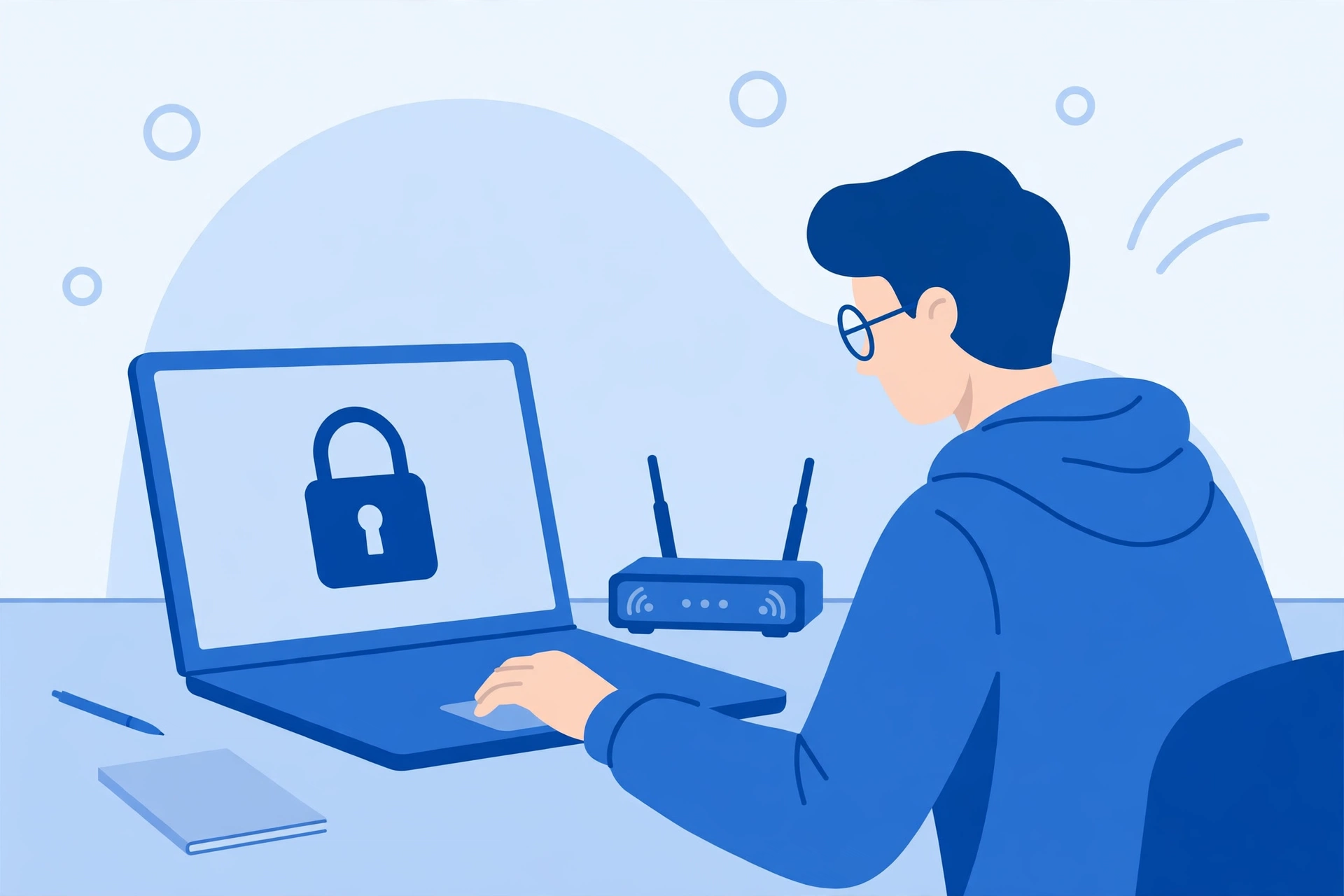
Once you log in, change the admin password right away. Choose a long password you do not use anywhere else, and store it in a password manager if you use one.
Also change the default user name if your router lets you do that. A default user name makes guessing easier, and a custom name adds a small extra barrier.
Turn off remote management if you see that option. Remote management lets someone log in from outside your home, and most homes never need it.
If you get locked out, use the reset button on the router only as a last step. A reset wipes your settings, so you will need to set up the network again from scratch.
For extra account safety, learn how to add a second step to your main accounts. Our guide to two-factor authentication setup shows the same idea for email, banking, and social accounts.
Which Wi-Fi encryption should I use: WPA2 or WPA3?
Use WPA3 if your router and your devices support it, and use WPA2 if WPA3 is not available. WPA3 is the current Wi-Fi security standard, and it protects passwords better than older options, especially on a shared home network.
Never use WEP or WPA if you can avoid them. Both are old and weak, and tools can break them quickly, even with a long password.
| Encryption | What it means for you | What to do |
|---|---|---|
| WPA3 | Strongest home option in 2026, better password protection | Choose it if all your devices connect well |
| WPA2 | Still safe for most homes when paired with a strong password | Choose it if WPA3 causes problems |
| WPA2/WPA3 mixed | Helps older devices connect while newer ones use WPA3 | Use it only if an old device will not connect otherwise |
| WEP or WPA | Old and weak, easy to break | Do not use, replace the router if needed |
Find the setting under Wireless, Wi-Fi Security, or Security in your router menu. The exact name changes by brand, but the choice is usually in the wireless security section.
After you change encryption, some old devices may ask for the password again. Reconnect them one by one, and check that each one joins the network as expected.
What if my router has no WPA3 option?
A missing WPA3 option often means the router is old or its firmware is out of date. Update the firmware first, then look for the security setting again.
If WPA3 still does not appear, WPA2 with a long unique password is still a solid choice. Focus on the password, updates, and device checks in this guide.
How do I create a strong Wi-Fi password that I can remember?
Create a strong Wi-Fi password by using a long phrase that only makes sense to you, plus numbers and symbols. A phrase of four random words is easier to remember than a short string of random letters, and it is much harder to guess.
Pick four random words, then add a number and a symbol you will remember. For example, a phrase built from unrelated words beats a single common word with a number at the end.
Do not use your address, your pet name, your birth year, or the router brand. Those details are easy to guess or find on social media, and they make a password much weaker.
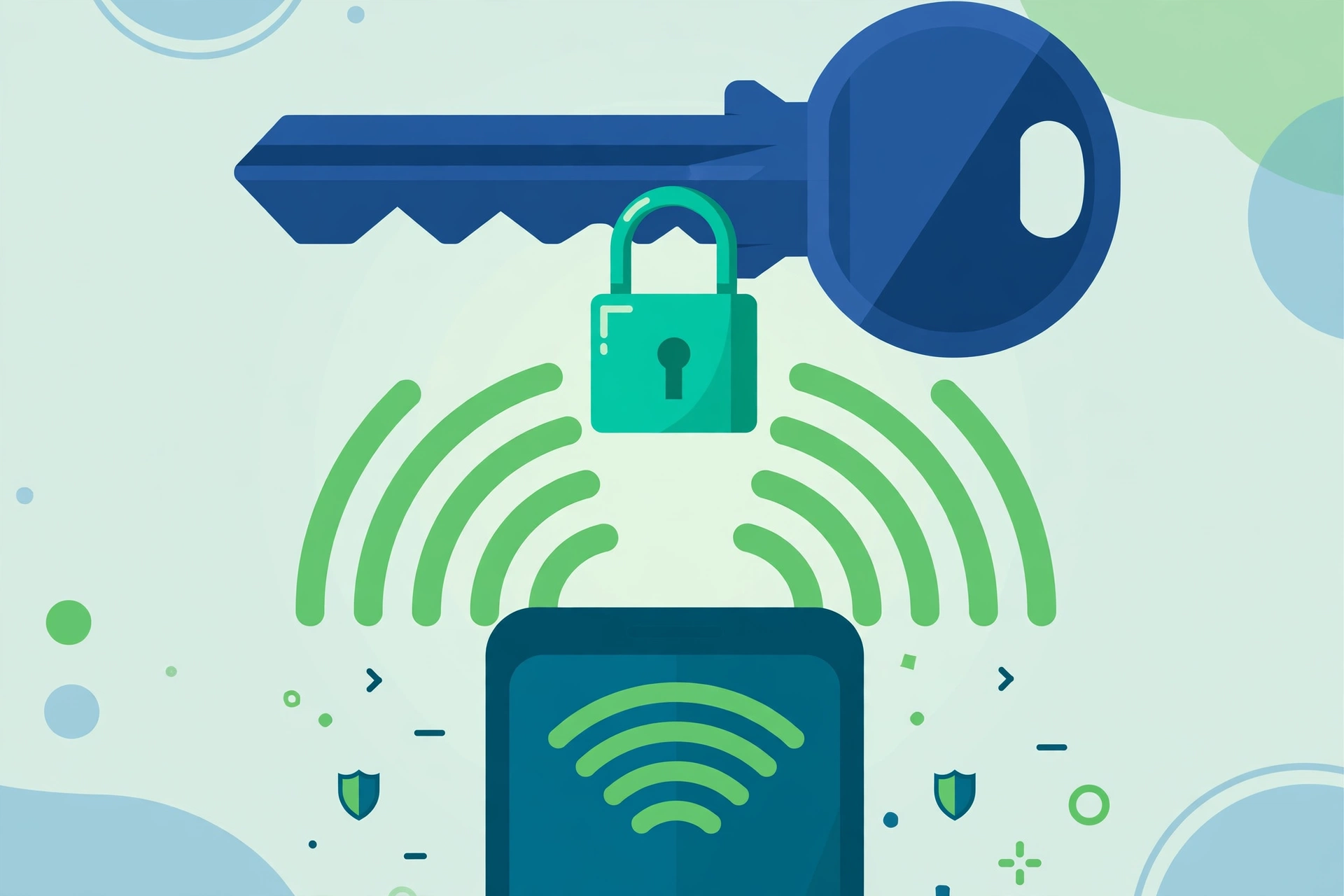
Use a different Wi-Fi password from your email, bank, and router admin passwords. If one password leaks, the others stay safe, and you only need to change the leaked one.
Store the Wi-Fi password in a password manager if you use one. If you write it down, keep the note in a safe place at home, not stuck to the router.
Change the Wi-Fi password when someone who should no longer have access leaves your home, or when you suspect sharing. After a change, reconnect only the devices you trust.
Should I set up a guest network for visitors and smart devices?
Yes, you should set up a guest network if your router offers one. A guest network gives visitors internet access without giving them access to your main computers, files, and cameras.
Turn on the guest network in the wireless settings, give it a clear name, and set its own password. Most routers let you turn it on in a few clicks, and you can turn it off when no guests are visiting.
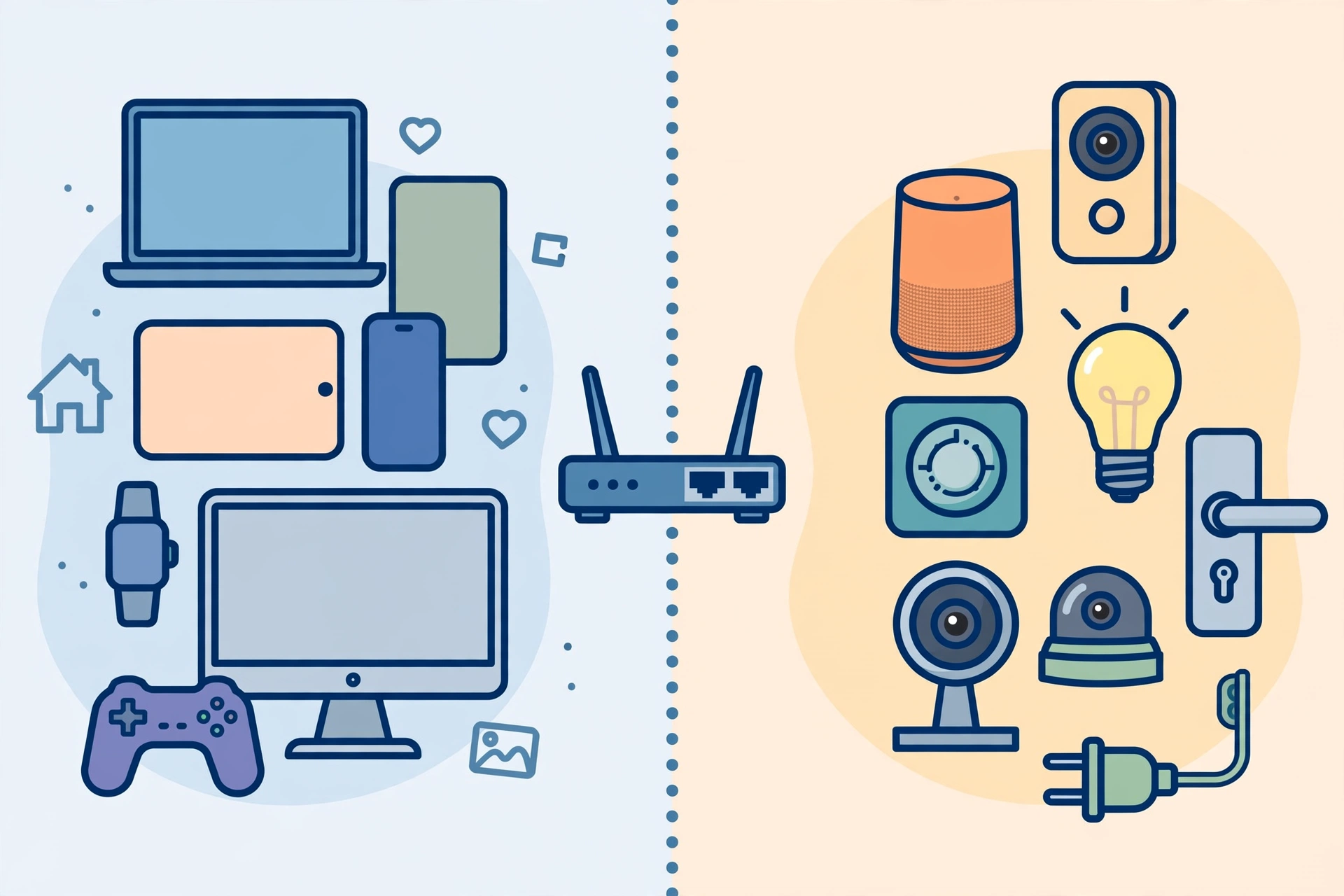
Many people also put smart devices on a guest or separate network. That way, a weak smart plug or camera cannot reach your main laptop or phone if it is ever compromised.
Check the guest settings for client isolation if your router offers it. Client isolation stops devices on the guest network from seeing each other, which adds privacy for visitors too.
Do not use the same password for the guest network and your main network. Use a simpler guest password that you can change often, and change it after a large gathering or a long visit.
For phone safety beyond Wi-Fi, see how to spot signs your phone is being tracked and what steps to take next on your own device.
How do I update router firmware and keep it current?
To update router firmware, open your router settings, find the firmware or update section, and install the latest version offered by your router maker. Firmware is the software that runs your router, and updates fix flaws and add security fixes.
Turn on automatic updates if your router offers that option. Automatic updates protect you when a new flaw appears, and you do not need to remember to check each month.
Do not turn off the router during an update. Wait until the router restarts on its own, then check that your devices reconnect and the version number has changed.
If your router maker no longer offers updates, that is a warning sign. An unsupported router will keep old flaws, and it may be time to replace it with a supported model.
Also update the apps and systems on your phones and laptops. A secure router helps, but an old phone app or system can still leave a gap in your home setup.
What settings should I check beyond the password?
Beyond the password, check WPS, remote access, UPnP, your network name, and the firewall. These settings control how devices join, what the router exposes, and what traffic it blocks.
| Setting | Best choice for most homes | Why it matters |
|---|---|---|
| WPS | Off | WPS can let someone join with a short PIN |
| Remote management | Off | Stops logins from outside your home |
| UPnP | Off unless a device needs it | UPnP can open ports without asking you |
| Network name (SSID) | Neutral name, no address or family name | Avoids giving away who you are or where you live |
| Firewall | On | Blocks unwanted traffic from reaching devices |
| Automatic updates | On | Fixes flaws without waiting for a manual check |
Do not hide your network name as your main defense. Hiding the SSID does not stop a skilled person from finding it, and it can make your own devices harder to connect.
A neutral network name is still a good idea. Avoid your full name, street number, or apartment number, so the name does not tell a stranger who you are or where you live.
How do I check which devices are on my network?
To check which devices are on your network, open your router app or settings and look for Connected Devices, Attached Devices, or a similar list. That list shows the devices that are using your Wi-Fi right now.
Device names can be confusing, so check the list with your family or housemates. A name like ESP_1234 may be a smart plug, a camera, or a light, not a stranger.
Use this simple decision check for any device you do not recognize. First, turn off Wi-Fi on your phones and tablets one by one, and see if the unknown device disappears. If it stays, ask everyone at home if they recognize it.
If the unknown device is still there after that check, block it in the router settings and change your Wi-Fi password. Then check the list again to confirm it is gone.
Repeat the device check once a month, or after guests visit. A quick check takes only a few minutes, and it catches sharing that has gone too far.
What should I do if I think someone is on my Wi-Fi?
If you think someone is on your Wi-Fi, change the Wi-Fi password, block the unknown device, and check the device list again. A password change forces every device to reconnect, so an intruder without the new password stays out.
Start by blocking the device in the router settings if you can. Then change the Wi-Fi password and the admin password, and reconnect only your trusted devices.
Worked example: a family notices an unknown phone on the list after a weekend visit. They block that device, change the main and guest passwords, and reconnect their phones, laptops, and TV. The unknown device does not return, and the family now changes the guest password after visitors leave.
Check your main accounts after a suspected intrusion. Change passwords for email and banking first, and turn on two-factor authentication where you can.
For phone checks, read how to detect spyware on iPhone if you use an iPhone, and how to remove stalkerware if you suspect a hidden app on your own phone.
How do I secure smart home devices and cameras?
Secure smart home devices by changing their default passwords, updating their apps, and putting them on a guest or separate network. A camera or plug with a default password is an easy target, even on a secure Wi-Fi network.
Use a unique password for each camera app and smart home account. Turn on two-factor authentication for those accounts when it is available, and review who has access.
Turn off features you do not use, such as remote viewing for a camera you only use at home. Less exposure means less risk, and you can turn a feature back on when you need it.
For messaging safety on your own phone, see how to secure your WhatsApp and review its linked devices and privacy settings.
Do I need a VPN on home Wi-Fi?
You do not need a VPN just because you are at home, but a VPN can help on public Wi-Fi or when you want extra privacy from your internet provider. At home, the router steps in this guide matter more than a VPN.
A VPN encrypts traffic between your device and a VPN server. That hides your browsing from your internet provider and from others on a shared network, but it does not fix a weak Wi-Fi password.
Use a VPN on public Wi-Fi, on a shared network, or when you travel. At home, focus first on the router password, encryption, updates, and device checks.
Key takeaways
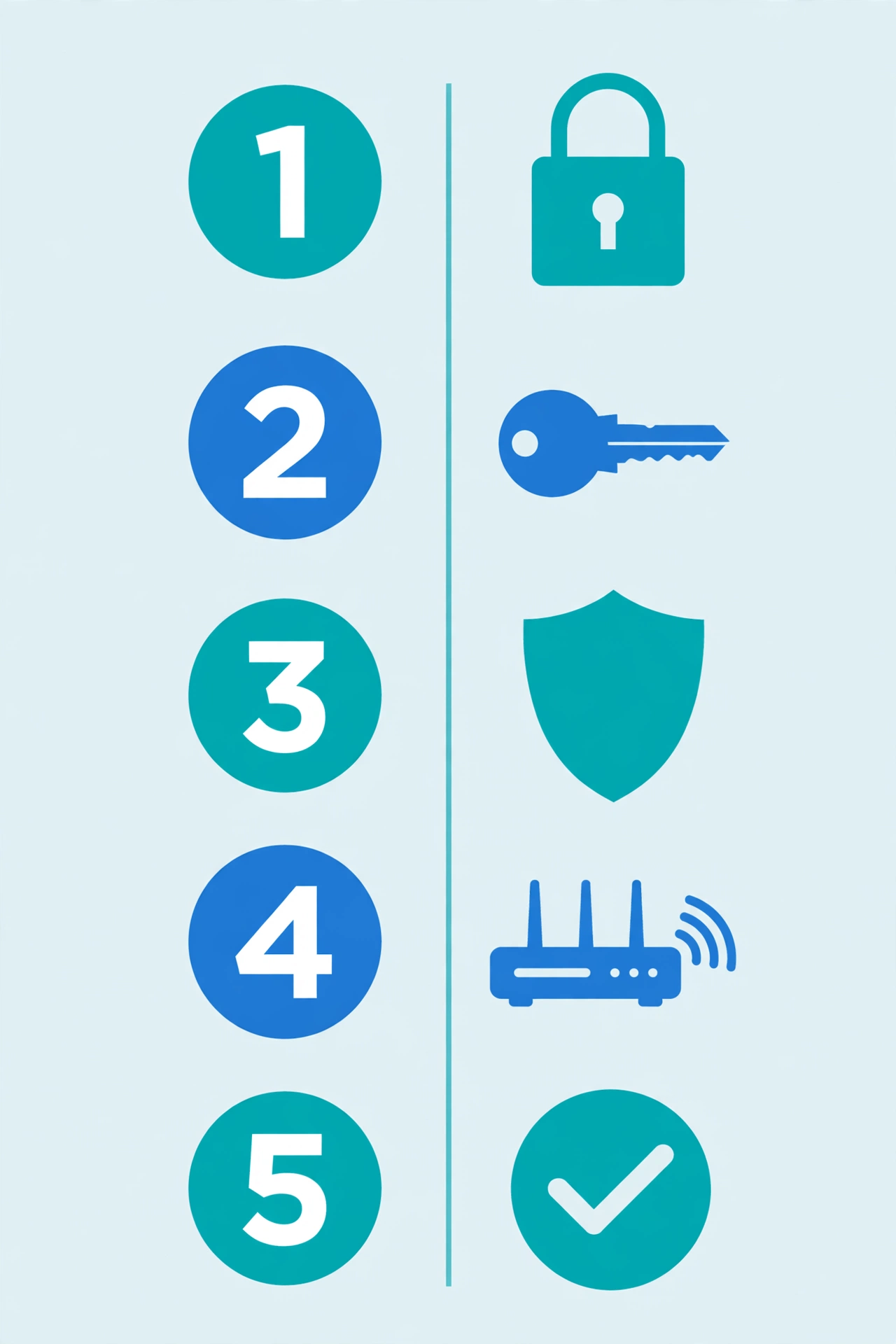
- Change the router admin password and the Wi-Fi password, and keep them different.
- Use WPA3 when you can, and WPA2 with a long password when you cannot.
- Turn on automatic updates, and turn off WPS and remote management.
- Put guests and smart devices on a separate network.
- Check connected devices every month, and change passwords after guests or a suspected intrusion.
Frequently asked questions
How often should I change my Wi-Fi password?
Change it when someone who should not have access leaves, when you suspect sharing, or at least once a year. Change it right away after a suspected intrusion.
Is WPA3 much better than WPA2?
Yes, WPA3 protects passwords better and is the current standard. WPA2 is still safe for most homes when you use a long, unique password.
Does hiding my Wi-Fi name make me safe?
No, hiding the network name does not stop a skilled person from finding it. Use strong encryption and a long password instead.
Should I restart my router often?
A restart can help after an update or a connection problem. It is not a security fix on its own, so do not rely on it alone.
What is the first step if my Wi-Fi feels slow?
Check the connected devices list first. An unknown device, a large download, or an old router can all slow your connection down.