
Is someone spying on your Android phone? This guide shows you exactly how to detect spyware on Android, step by step. You will learn the checks that work best, in the order that matters most.
- A Safety Note Before You Start
- The 10-Minute Android Spyware Check
- How Spyware Gets Onto Android Phones
- Step 1: Run a Google Play Protect Scan
- Step 2: Audit Your Full App List
- Step 3: Audit App Permissions
- Step 4: Check Device Admin Apps
- Step 5: Read Battery, Data, and Heat as Supporting Symptoms
- Spyware Symptoms: What They Usually Mean
- How to Remove Spyware From Your Android Phone
- First, Remove Device Admin Rights
- Uninstall in Safe Mode
- Change Your Important Passwords From a Clean Device
- Factory Reset: The Last Resort
- Keep Spyware Off Your Phone
- Key Takeaways
- Frequently Asked Questions
Spyware on Android can read your messages, track your location, and listen through your microphone. The good news is that most of it leaves traces you can find yourself. This guide covers Android only, and every step uses built-in Android settings and Google Play Protect. You do not need to install any extra app.
If you are new to the topic, read our guide on what spyware is and how it works first. iPhone owners should follow our iPhone spyware detection guide instead, because the steps are completely different.
Quick answer: To detect spyware on Android, run a Play Protect scan (open the Play Store, tap your profile icon, then Play Protect, then Scan). Next, audit your app list at Settings, then Apps, then See all apps. Then review Location, Microphone, Camera, and Accessibility permissions at Settings, then Privacy, then Permission Manager. Finally, check Device admin apps at Settings, then Security. Uninstall anything you do not recognize, starting with apps that hold device admin or Accessibility rights.
Last updated: October 2026
A Safety Note Before You Start
This guide is for checking your own phone, or a phone you are clearly responsible for, such as your child’s. Only look for spyware on a device you own or have clear permission to check. Checking someone else’s phone without consent can break trust and, in many places, break the law.
One warning matters more than any check below. Removing spyware or stalkerware can alert the person who installed it. If you are in an abusive or controlling relationship, do not delete anything yet. Contact a local support organization or the Coalition Against Stalkerware first, and plan for your safety before you act.
The 10-Minute Android Spyware Check
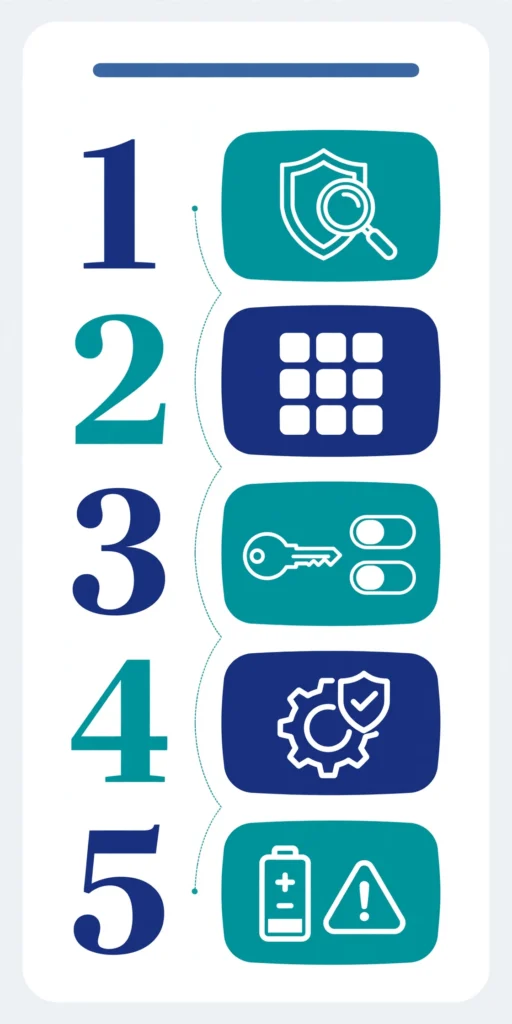
You do not need an hour for this. The checks below take about ten minutes, and they are ordered by how certain each result is. Start at the top and work down.
A Play Protect flag or an unknown device admin app is strong evidence. A hot phone or fast battery drain, on its own, proves almost nothing. The table keeps you honest about that difference.
| Step | Check | Certainty | If you find something |
|---|---|---|---|
| 1 | Play Protect scan flags an app | High | Tap the notification, then tap Uninstall. Do not open the app first. |
| 2 | Unknown app listed under Device admin apps | High | Switch off its admin rights, then uninstall it. |
| 3 | Unknown app with Accessibility access | High | Turn off its access. Uninstall it if you did not install it. |
| 4 | App you do not recognize in the app list | Medium-high | Look up the name. Uninstall it if you cannot verify it. |
| 5 | App holding permissions it does not need | Medium | Revoke the permissions. Uninstall if it demands them back. |
| 6 | Location used while the phone sat idle | Low-medium | Check which app used location recently. |
| 7 | Battery draining fast or phone hot while idle | Low | Supporting symptom only. Check battery usage per app. |
| 8 | Unexplained jump in mobile data | Low | Supporting symptom only. Check data usage per app. |
How Spyware Gets Onto Android Phones
Most Android spyware does not hack its way in. It walks through the front door. Someone with your unlocked phone for five minutes can install a hidden monitoring app, and you would never see it happen.
The other routes are digital. Phishing messages link to fake app downloads. Shady websites push so-called security apps that are actually spyware. App stores outside the Play Store sometimes bundle spyware with popular free apps.
That is why physical access is the strongest predictor of spyware, a point that both the FTC and the Coalition Against Stalkerware stress in their guidance. Lock your phone with a PIN or biometrics, and treat any unexpected hands-on time with your device as a reason to run the checks in this guide.
Step 1: Run a Google Play Protect Scan
Play Protect is Google’s built-in malware scanner, and it is already on your phone. It checks apps when you install them and scans your device on a regular schedule. A manual scan takes less than a minute, so always start here.
Open the Google Play Store app. Tap your profile icon in the top right corner, then tap Play Protect, then tap Scan. Wait for the scan to finish and read the result on screen.
While you are there, confirm that protection is fully turned on. On the Play Protect screen, tap the gear icon and make sure “Scan apps with Play Protect” is switched on. This setting lets Google check apps from outside the Play Store too, which is where sideloaded spyware comes from.
If Play Protect flags an app, tap the notification and tap Uninstall. Do not open the app first. Opening it can give it a chance to hide itself or fight the removal.
One honest limit: Play Protect catches known threats, but clever spyware can slip past any scanner. A clean scan is good news, not proof. Keep going through the checks below.
Step 2: Audit Your Full App List
Spyware on Android usually arrives as an app. Someone with physical access to your unlocked phone can install one in minutes. That makes the app list audit the highest-value manual check you can do.
Go to Settings, then Apps, then See all apps. Scroll the entire list slowly, from top to bottom. Menu names can differ slightly by brand, but every Android phone has an Apps list in Settings.
Watch for these red flags as you scroll:
- Apps you do not remember installing.
- Generic names like “System Service”, “Battery Manager”, “Device Health”, or “Update Service”.
- Apps disguised as ordinary tools, such as a second calculator or calendar you never downloaded.
- Apps with blank icons, missing names, or icons that look broken.
Tap any suspicious app and check its details screen. Look at the install date and the permissions it holds. A so-called system app installed last Tuesday, right after someone borrowed your phone, deserves a closer look.
A fair warning: Android ships with many system apps that have technical names. Do not delete built-in apps you cannot identify. When in doubt, search the exact app name online before you remove anything. Our guides on whether One UI Home is a spy app and whether System UI is a spy app show how ordinary system apps can look suspicious at first glance.
Step 3: Audit App Permissions
Permissions tell you what an app can actually do. A flashlight app with microphone access is a red flag. Android groups the sensitive permissions in one place, which makes this check fast.
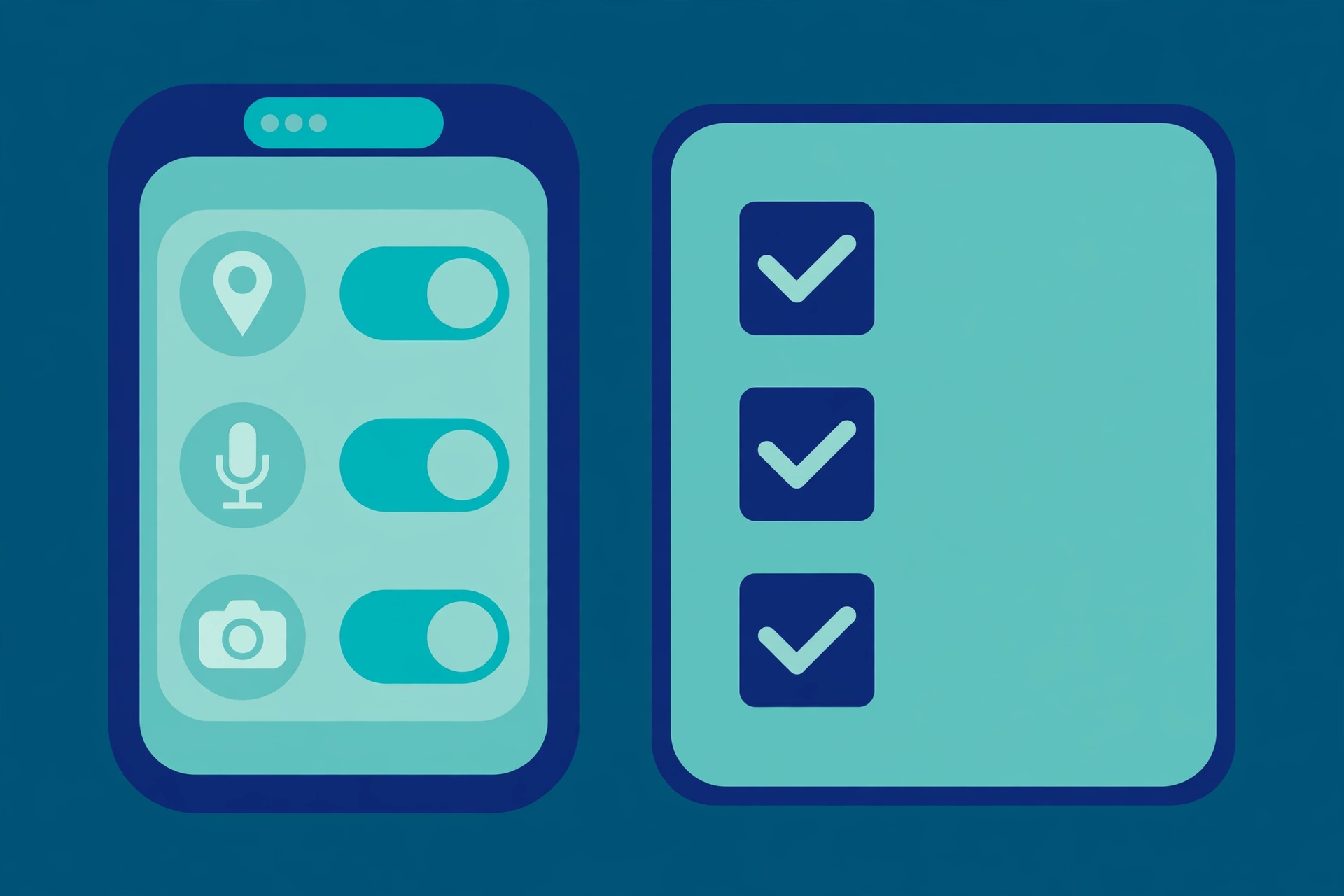
Go to Settings, then Privacy, then Permission Manager. Work through Location, Microphone, and Camera first. Then check Accessibility, which is the highest-risk permission of all.
- Location: See which apps used your location recently. An unknown app with “Allow all the time” location access deserves a closer look.
- Microphone and Camera: Only calling, camera, and voice assistant apps should appear here. A game or utility app with microphone access is suspicious.
- Accessibility: This permission can read your screen and capture what you type. Legitimate uses exist, such as screen readers, but spyware abuses it constantly.
For each permission, tap it and review the app list. Change anything suspicious to “Don’t allow” or “Ask every time.” If an app truly needs the permission, it will ask again the next time you open it.
Why Accessibility Permissions Are High Risk
Accessibility is the crown jewel for spyware. With it, an app can read your notifications, log keystrokes, and see everything on your screen. That is why it deserves its own check.
Android 13 added an extra defense called restricted settings. Sideloaded apps, meaning apps installed from outside the Play Store, can no longer turn on Accessibility freely. The system blocks the toggle until you explicitly allow restricted settings for that specific app.
To review: go to Settings, then Accessibility, and look under installed or downloaded apps. Turn off anything you do not recognize or no longer use. If an unknown sideloaded app is asking for Accessibility, treat it as a serious red flag.
Step 4: Check Device Admin Apps
Some spyware protects itself with device administrator rights. A device admin app cannot be uninstalled the normal way, and the Uninstall button will be greyed out. That greyed-out button is actually a useful clue.
If you try to uninstall a suspicious app and the button is greyed out, check its admin status before you do anything else. Go to Settings, then Security, then Device admin apps. On Samsung phones, the path is Settings, then Security and privacy, then Other security settings, then Device admin apps.
You will see a short list. Legitimate entries include Find My Device and your work profile app, if you have one. If you see an unknown app on that list, switch it off, then go back and uninstall the app normally. Never grant device admin rights to an app you do not fully trust.
Step 5: Read Battery, Data, and Heat as Supporting Symptoms
A phone that gets hot in your pocket or loses a third of its battery overnight feels wrong. These symptoms can point to an app working hard in the background. But they rarely prove spyware on their own, so treat them as supporting evidence only.
Aging batteries, poor signal, hot weather, and buggy updates cause the exact same symptoms. If you are still unsure whether something is wrong after the checks above, run through our guide to the 12 signs your phone is being tracked for the full symptom picture.
- Battery: Go to Settings, then Battery, then Battery usage. This screen shows which apps used the most power. An unknown app near the top is worth investigating.
- Data: Check per-app mobile data usage in your network settings. Spyware must send stolen data somewhere, so unexplained uploads stand out here.
- Heat: A phone that stays warm for hours with the screen off and no apps open deserves the full check from Step 2 onward.
- Google account devices: Open your Google account, go to Security, then Your devices. If you see a device you do not recognize, sign it out and change your password.
If the battery and data screens point to an app you do not recognize, go back to Step 2 and Step 3. The app list and permissions will give you the real answer.

Spyware Symptoms: What They Usually Mean
Most spyware symptoms have innocent explanations. This table keeps the honest balance between what each symptom usually means and when it should genuinely worry you.
| Symptom | It usually means | Worry when |
|---|---|---|
| Battery drains fast | Old battery, poor signal, or a buggy update | An unknown app tops Battery usage while the phone idles |
| Phone feels hot | Gaming, charging, hot weather, or weak signal | It stays warm for hours with the screen off |
| Data usage jumps | Video autoplay, cloud backups, or hotspot use | Per-app data shows uploads from an app you do not know |
| Phone runs slowly | Full storage or an aging device | Slowness started suddenly after someone borrowed your phone |
| Strange pop-ups | Adware from a shady app or website | Pop-ups appear on the home screen or over other apps |
| Unknown app appears | A preinstalled app you never noticed | It holds Accessibility or device admin rights you never granted |
How to Remove Spyware From Your Android Phone
Found something suspicious? Remove it carefully. The order matters, because spyware with admin rights will resist a normal uninstall.
First, Remove Device Admin Rights
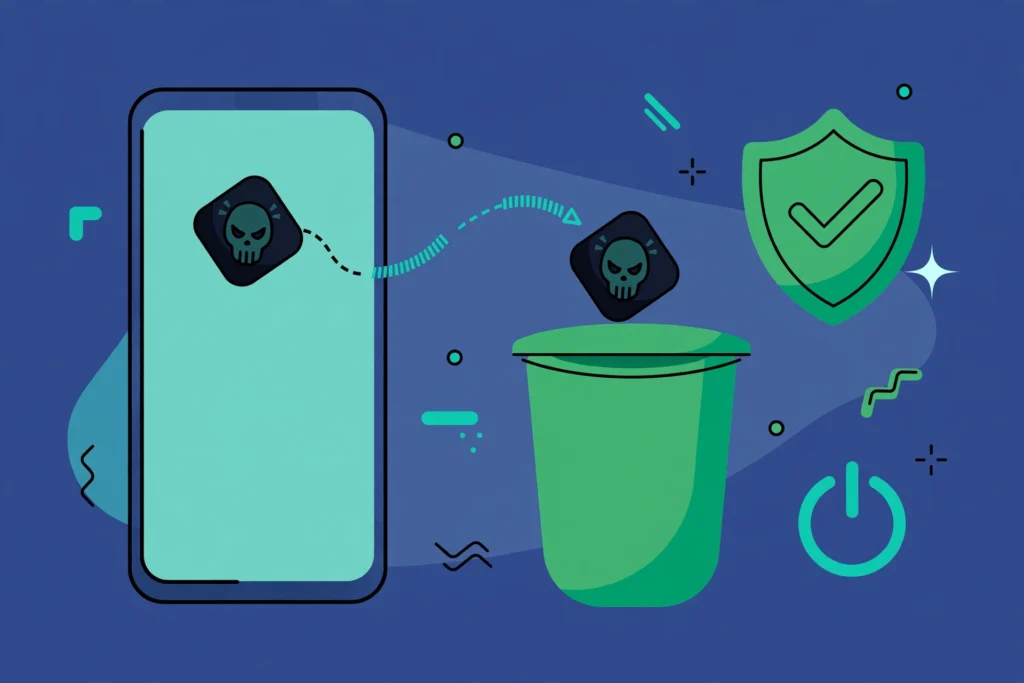
Go to Settings, then Security, then Device admin apps, and switch off the suspicious app. Then uninstall it from Settings, then Apps. This two-step order is the whole trick.
If the app returns after uninstalling, or you cannot switch off its admin rights, restart into safe mode and try again from there.
Uninstall in Safe Mode
Safe mode starts Android with only system apps running. Third-party spyware cannot protect itself there, which makes removal straightforward.
Press and hold the power button, then press and hold the Power off option until “Reboot to safe mode” appears. Tap OK. The steps are the same on Samsung phones.
In safe mode, go to Settings, then Apps, find the suspicious app, and uninstall it. Restart the phone normally when you are done.
Change Your Important Passwords From a Clean Device
If spyware was on your phone, assume it saw your passwords. Change them from a different device you trust, such as your laptop or a family member’s phone.
Start with your Google account, then email, banking, and social media. Turn on two-step verification everywhere it is offered. Our guide on how to stay safe from spying covers the full lockdown routine.
Factory Reset: The Last Resort
A factory reset wipes the phone and removes almost all spyware. Use it when you cannot find the malicious app, or when the app keeps coming back after removal.
Back up your photos and files first, but restore with care. Restoring a full backup can reinstall the spyware. Bring back photos and documents only, then reinstall apps one by one from the Play Store.
Go to Settings, then System, then Reset options, then Erase all data (factory reset). After the reset, set the phone up as new instead of restoring from a backup.
Keep Spyware Off Your Phone
Detection is only half the job. A few habits make it much harder for spyware to land on your phone again. Most of them take less than a minute to set up.
Lock your phone with a PIN, pattern, or biometrics, and do not share the code casually. Every spyware guide comes back to this point, because physical access remains the number one infection route.
- Install apps from the Play Store only. Sideloading is the most common way spyware arrives.
- Keep “Scan apps with Play Protect” turned on at all times.
- Review app permissions every few months at Settings, then Privacy, then Permission Manager.
- Install Android security updates as soon as they arrive.
- Do not tap download links in unexpected text messages, even from contacts.
Your Android Spyware Removal Checklist
- Run a Play Protect scan and confirm it stays turned on.
- Audit Settings, then Apps, then See all apps for unknown apps.
- Review Location, Microphone, Camera, and Accessibility permissions.
- Check Device admin apps and revoke unknown entries.
- Uninstall in safe mode if a normal uninstall fails.
- Change important passwords from a clean device.
- Factory reset as a last resort, and set up the phone as new.
Key Takeaways
- Play Protect plus a manual app audit catches most Android spyware in about ten minutes.
- Accessibility and device admin rights are the two permissions spyware wants most, so check them first.
- Battery drain and heat are supporting symptoms, not proof. Always confirm with the app list.
- Uninstall flagged apps from the Play Protect notification without opening them first.
- Change your passwords from a clean device after any infection.
- If you are in an abusive situation, plan for your safety before deleting anything.
Frequently Asked Questions
Can spyware be installed on an Android phone without physical access?
Rarely. Most Android spyware needs someone to handle your unlocked phone for a few minutes. Remote attacks usually trick you into tapping a malicious link or installing a fake app. Keep your phone locked and avoid sideloading apps from unknown sources.
Will a factory reset remove spyware from Android?
In almost all cases, yes. A factory reset wipes every third-party app, including spyware. Set the phone up as new afterward, because restoring a full backup can bring the spyware right back.
Can Google Play Protect remove spyware by itself?
Often, yes. Play Protect can warn you about a harmful app, disable it, or remove it automatically. If it flags something, tap the notification and tap Uninstall. Still run the manual checks in this guide, because no scanner catches everything.
How do I know if a “System Service” app on my phone is spyware?
Generic names are a classic disguise, but Android also ships with legitimate system apps that have technical names. Check the app’s install date, its permissions, and its device admin status. If it holds Accessibility or admin rights that you never granted, remove it. When in doubt, search the exact name online first.
Is it legal to check someone else’s phone for spyware?
Only check a phone you own or have clear permission to check, such as your child’s. Checking a partner’s or stranger’s phone without consent can break trust and, in many places, break the law. This guide is written for people checking their own devices.