The safest way to learn how to track your child’s location is to use family location sharing that your child knows about. On iPhone, Apple Find My shares location inside your Family Sharing group. On Android, Google Family Link shows your child’s device location and can alert you when they arrive at school or home. Both are free, and both work best when you set them up together and agree on the rules first.
- What is the safest way to share your child’s location?
- Which family location option should you pick?
- How do you set up location sharing with Apple Find My?
- How do you see your child’s location with Family Link?
- What are place alerts, and how do you use them?
- How accurate is phone location, and what about battery?
- How do you talk to your child about location sharing?
- When is tracking your child not appropriate?
- Frequently asked questions
Last updated: October 2026
Please read this part first. This guide is for parents and guardians, and it is about your own child’s device and your own family safety. It is not a guide to tracking anyone in secret. Location sharing in this article is always on with your child’s knowledge, and the built in tools show your child that sharing is on.
How we check facts. We use the official help pages from Apple and Google for every setup step below. We do not claim hands-on testing. Some links on this site may earn us a commission at no extra cost to you.
What is the safest way to share your child’s location?
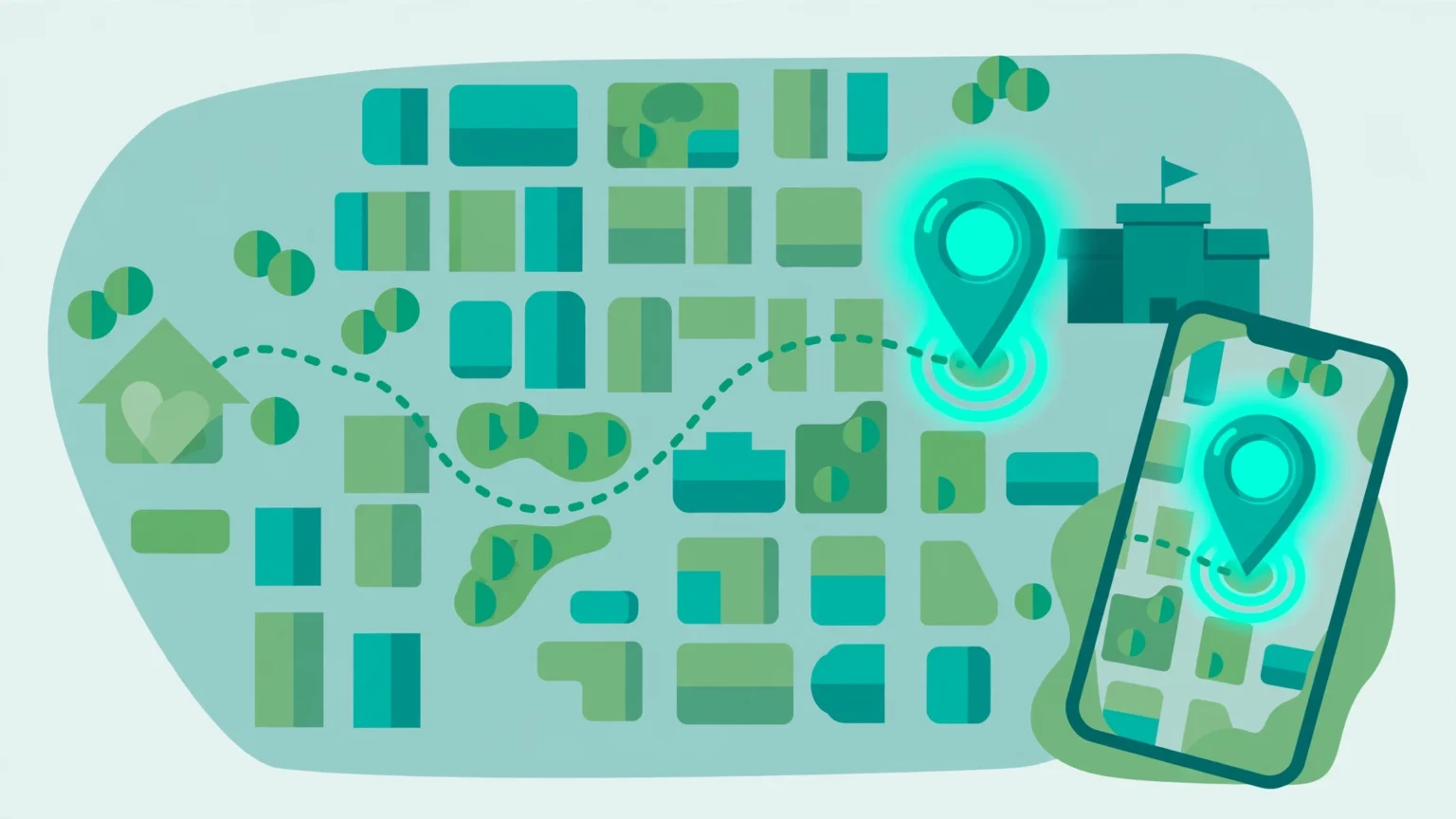
Family location sharing means your child’s phone sends its location to your phone, with sharing turned on in the open. You see a pin on a map, not a secret feed. Your child can see who can view their location, and they can ask questions about it at any time.
This helps in normal family life. You can check that your child got to school, a club, or a friend house. If a bus is late or a plan changes, you both waste less time on worried calls. The goal is peace of mind, not watching every move.
Start with the free tool that matches your phones. Apple families should start with Find My, and Android families should start with Family Link. If your family mixes both phone types, a family app like Life360 can cover everyone in one place. Our roundup of the best parental control apps shows what paid tools add on top of these free options.
Which family location option should you pick?
Use the table to compare the main choices. All of them need the child phone to have power, signal, and location turned on. None of them works if the phone is off or deep inside a building with a weak signal.
| Option | Platform | Cost | Best for |
|---|---|---|---|
| Apple Find My with Family Sharing | iPhone and Apple devices | Free | Apple families who want simple sharing and place alerts |
| Google Family Link location | Android | Free | Android families who already use Family Link for limits |
| Life360 | iPhone and Android | Free tier, paid plans add more alerts and history | Mixed phone families who want one app for everyone |
| Carrier family safety plans | iPhone and Android | Paid add on in most cases | Families who want location plus account level controls from their mobile carrier |
Carrier plans differ a lot by country and by network, so check the fine print before you pay. In general, they add location to your mobile account and bill it each month. For most families, the free Apple or Google tool already does the job well.
Pick one tool and learn it well. Running two or three location apps at once drains battery and confuses alerts. One clear tool, set up with your child, beats a stack of apps no one checks.
How do you set up location sharing with Apple Find My?
Find My is built into every iPhone. Location sharing works through Family Sharing, where one adult sets up the family group and adds the child account. Apple says family members can then share their location with the group and see each other in the Find My app.
Setup steps for Find My
First, make sure your child is in your Family Sharing group. On your iPhone, go to Settings, tap your name, then Family, and add your child if they are not there yet. On your child’s iPhone, go to Settings, tap their name, then Find My, and turn on Share My Location.
Next, open the Find My app on your phone and tap People at the bottom. Tap your child’s name and you should see their location on the map. If you see no location, check that their phone is on, has signal, and has Location Services turned on in Settings under Privacy and Security.
Our iPhone parental controls guide covers the Family Sharing and Screen Time setup that sits next to these steps. Do both setups in one sitting and your child phone is ready for daily use.
How do you see your child’s location with Family Link?
If your child uses an Android phone with a supervised Google Account, Family Link can show you the device location. Open Family Link on your phone, pick your child, and tap Location. You will see the last known location of the child device on a map.
Setup steps for Family Link location
On your child’s phone, turn on device location and pick the highest accuracy mode, so the phone uses GPS and nearby networks together. In Family Link, open your child, tap Location, and follow the prompts to turn location sharing on for that device. Google notes that you see the location of the device, so a phone left at home shows home, not your child.
Keep the child account supervised and signed in on the device. If your child signs out or turns location off, the map stops updating and Family Link shows the last spot. Read our Android parental controls guide for the full supervision setup before you turn location on.
What are place alerts, and how do you use them?
Place alerts, also called geofence alerts, tell you when your child arrives at or leaves a set place. You save a place like Home or School on the map. When the phone crosses that area line, you get a note on your phone. This is the feature most parents use every day.
In Find My, tap your child’s name, look for Notifications, and add one for when they arrive at or leave a place you pick or add. In Family Link, open Location, add a family place, and turn on the arrive and leave notices for that place. Test each alert once with your child so you both know how it sounds and when it fires.
Keep the list short. Home, school, and one club or training ground is enough for most families. Too many alerts train you to ignore them. Two or three key places keep the alerts useful and calm.
Family location sharing checklist
- Set up sharing with your child, never in secret.
- Use Find My on iPhone or Family Link on Android first, both are free.
- Turn on location and the highest accuracy mode on the child phone.
- Add place alerts for home and school only.
- Agree on when you will check the map and when you will not.
- Review the rules every few months as your child grows.
How accurate is phone location, and what about battery?
Be honest about accuracy. Outdoors with a clear signal, a phone pin is often close, within a short walk of the real spot. Indoors, in a big school building, or in an area with weak signal, the pin can drift by a street or more. Treat the map as a good guide, not as exact proof of a room or a desk.
Battery matters too. Location checks use power, and apps that update very often use more. Modern phones limit this well, but a child who starts the day on a low charge may go dark by the last class. Build a charge habit at night, and keep a cable in the school bag for long days.
A missing pin does not mean trouble. Phones die, signal drops, and kids turn phones off in class as they should. Agree on a backup plan, such as a text when plans change. Our guide on monitoring your child phone safely helps you set these wider family rules in one place.
How do you talk to your child about location sharing?
Start with the reason, in plain words. You share location so everyone knows the kids got home safe, and so pickups are easy. Show your child your own location in the same app. When parents share back, kids see the tool as a family habit, not a one way watch.
Agree on limits for yourself too. Say when you will check the map, such as when a pickup is due or when your child is late. Promise not to quiz them about every short stop. Kids share more, and hide less, when the rules feel fair and the checks stay light.
Review the deal as your child grows. A young child may need school and home alerts every day. A teen who has earned trust may only share on late nights or long trips. Loosen the checks in steps, and keep the talk open. Our social media safety guide has more help for these trust talks.
When is tracking your child not appropriate?
Secret tracking is not appropriate. Do not hide a tracker app or a tag on your child, and do not track an older teen who has shown they can be trusted, just to watch every move. Hidden tracking breaks trust fast, and kids who find it often learn to leave the phone behind, which makes them less safe, not more.
It is also not appropriate to track people outside this guide. Never track another adult, a partner, a friend of your child, or a child who is not yours. Those cases raise real legal and safety issues, and family sharing tools are not made for them. At home, you can use tools like the ones in our best nanny cams guide for house safety, with the same open and fair approach.
If you feel you must check the map many times a day, pause and talk. Worry is normal, but constant checks can strain your child and you. Clear rules, good talks, and one well set tool beat non stop watching every time.
Frequently asked questions
Quick answers to the questions parents ask us most about location sharing.
What is the best free way to track my child location?
Use the tool built into the phone. Apple Find My is best for iPhone families and Google Family Link location is best for Android families. Both are free, and both show your child that location sharing is on.
Can I track my child location without them knowing?
We do not recommend secret tracking, and this guide does not cover it. The built in tools show your child that sharing is on. Open sharing builds trust, and kids are less likely to leave the phone behind or turn location off.
How accurate is phone location for kids?
Outdoors with a good signal, the pin is often close to the real spot. Indoors or in weak signal areas, it can drift by a street or more. The phone also needs power and signal, so a dead or off phone shows only its last spot.
How do I get an alert when my child arrives at school?
Use place alerts. In Find My, tap your child name, add a Notification for when they arrive at a place, and pick or add the school. In Family Link, open Location, add the school as a family place, and turn on arrive notices.
Does location sharing drain the phone battery?
It uses some extra power, and apps that update very often use more. Most modern phones handle family sharing well. A nightly charge habit and fewer location apps running at once keep battery use low.