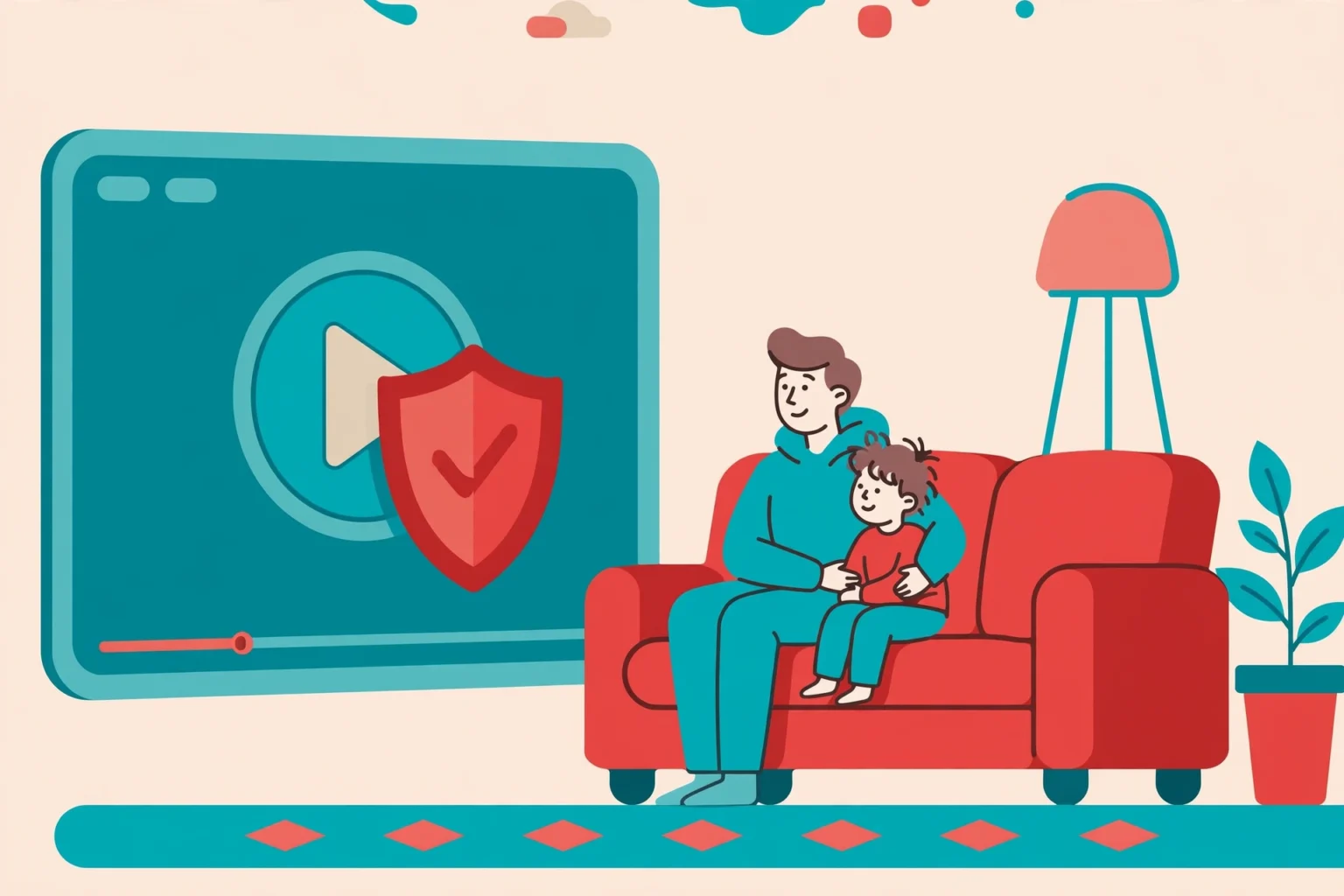
YouTube parental controls come in three main forms. YouTube Kids suits young children, a supervised account suits older kids and young teens, and Restricted Mode is a light filter for teens and shared devices. For most families, a supervised account gives the best balance. You set a content level in Google Family Link, and your child watches normal YouTube with limits you choose.
- What are the three YouTube options for kids?
- How do you set up a supervised account with Family Link?
- What do the supervised content levels mean?
- How do you turn on Restricted Mode, and what are its limits?
- How do you block channels and check watch history?
- How do you keep YouTube rules working over time?
- Frequently asked questions
Last updated: October 2026
This guide is for parents and guardians who set up YouTube for their own child. You use your own parent account, and your child knows the account is supervised. Nothing here is about checking another adult viewing in secret.
How we check facts. We use Google and YouTube official help pages for the setup steps and content level names. We do not claim hands-on testing. Some links on this site may earn us a commission at no extra cost to you.
What are the three YouTube options for kids?
The right option depends on your child age and how much freedom they can handle. Young kids need a closed, simple app. Older kids want real YouTube, but with content limits and no open comments. Teens often need only a light filter and clear house rules.
| Option | Best for | Control level | Cost |
|---|---|---|---|
| YouTube Kids app | Young children | High. A separate app with content made for kids and parent approved mode | Free |
| Supervised account on YouTube | Older kids and young teens | Medium to high. Parent picks a content level and can block channels | Free |
| Restricted Mode | Teens and shared devices | Low to medium. A filter that aims to hide mature content | Free |
Many families use two options at once. A young child uses YouTube Kids on a tablet, while an older child uses a supervised account on the family TV. As kids grow, move them up one step at a time instead of jumping from the kids app to full open YouTube.
All three options are free. You do not need a paid app to start. If you want wider phone controls as well, our roundup of the best parental control apps compares the extra tools.
How do you set up a supervised account with Family Link?
A supervised account is a normal YouTube account for a child under 13, or under the age Google sets for your country, that a parent manages. Google says the parent picks a content setting that limits what the child can find and play. Features, default settings, and ads also change for these accounts.
Step by step setup
First, create a Google Account for your child and manage it with Family Link, or use a child account you already manage. Next, open Family Link, pick your child, and go to Controls, then Content restrictions, then YouTube. Turn on the supervised YouTube setup and pick a content level. You can also start from the YouTube parent settings page when you sign in with your parent account.
Then sign your child into YouTube with their own account on their device. Check that the content level shows in the settings. Watch a few videos together on day one so you both see what the level allows. For the phone level setup first, read our Android parental controls guide.
What changes on a supervised account?
Some YouTube features are off or limited for supervised kid accounts. Comments, live chat, uploads, and some other social features are restricted, based on the content level and age. Ads are limited too. Google lists the current feature rules on its help pages, and they can change, so check them when you set up.
Your child sees that the account is supervised. This is a good thing. Open supervision lets you talk about videos as part of normal family life, not as a secret check. Link the setup to your wider rules in our social media safety guide.
What do the supervised content levels mean?
Google offers three content settings for supervised accounts. Explore is the lowest level and is made for viewers aged 9 and up, in Google words. It includes a wide range of videos that fit younger viewers, such as music, gaming, science, and crafts, with stricter limits.
Explore More is the middle level and is made for viewers aged 13 and up. It opens a larger set of videos, including more live streams and topics for teens. Most of YouTube is the highest level. Google aims it at older teens who are close to ready for almost all of YouTube, except content that is age restricted to 18 and over.
Start one level lower than you think you need. You can move up later in Family Link in a minute. Moving down after a child has had wide access feels like a punishment. Moving up feels like a reward, and kids respond better to that path.
YouTube safety checklist
- Pick YouTube Kids, a supervised account, or Restricted Mode by age.
- Start with the lowest content level that fits your child.
- Block channels that worry you and review the list monthly.
- Turn off autoplay for young kids where you can.
- Check watch history together once a week.
- Agree on what to do when a bad video slips through.
How do you turn on Restricted Mode, and what are its limits?
Restricted Mode is a setting on a normal YouTube account or browser. Open YouTube, tap your profile picture, and look for Restricted Mode in Settings under General in the app, or at the bottom of the YouTube site menu on a computer. Turn it on for that account, app, or browser.
On a browser you can also lock Restricted Mode for that browser, so it needs your Google password to turn off. On a child phone, combine it with phone level controls. Our app blocking guide shows how to stop a child from just adding a new browser.
Know its limits. Google says Restricted Mode aims to hide videos with mature content, but no filter is perfect. It works at the device or account level, so a child who signs out or uses a new browser may not have it. That is why Restricted Mode fits teens and shared screens better than young kids.
How do you block channels and check watch history?
For a supervised account, a parent can block a channel so its videos do not show for the child. Google gives steps for this in its help pages. In general, you open the channel or a video from it while you manage the supervised account settings, pick Block, and confirm that you block it for your child account. You can unblock channels later from the same parent settings.
Blocking works well for a few clear problem channels. It does not scale to the whole site, so use it with a good content level. If a whole topic worries you, lower the content level for a while and talk about what your child saw.
For watch history, sit with your child and open YouTube History on their account once a week. Look at what they watch most, not only for bad content. You will learn their interests and spot new channels early. Pair this with the time rules in our screen time limits guide, and with free tools from our free parental control apps list.
How do you keep YouTube rules working over time?
Set a simple weekly habit. Pick one short time each week to look at new channels, new searches, and the time spent on the app. Ten minutes is enough for most families. Keep the tone light. Ask your child to show you one video they liked and tell you why they liked it. You learn more from that talk than from any report.
Turn off autoplay for younger kids when you can, so one video does not roll into ten more without a choice. Put a clear end point on viewing, such as the end of a show or a timer on the phone. For shared TVs, sign in with the supervised account, not your adult account, so the content level and history stay right.
Raise the content level in small steps as your child shows good judgment. If they tell you when a video feels wrong, praise that and act fast. Trust works both ways. A child who knows you will listen is more likely to come to you when something online upsets them, and that talk is the strongest safety tool you have.
Frequently asked questions
Quick answers to the questions parents ask us most about YouTube controls.
What is the safest YouTube option for a young child?
YouTube Kids is the safest start for young children. It is a separate app with content made for kids, simple controls, and a parent approved mode where you pick each video or channel.
How do I set up a supervised YouTube account?
Create or pick a Google Account for your child that you manage with Family Link. In Family Link, pick your child, open Controls, Content restrictions, then YouTube, and choose a content level. Then sign your child into YouTube with that account.
What is the difference between Explore and Explore More?
Explore is the lowest supervised content level and Google makes it for viewers aged 9 and up. Explore More opens a larger set of videos and Google makes it for viewers aged 13 and up. Start low and move up as your child grows.
Does Restricted Mode block all bad videos?
No. Restricted Mode aims to hide mature content, but Google says no filter is perfect. It also only works on the account or browser where you turn it on. Use a supervised account for younger kids.
Can I block a YouTube channel for my child?
Yes, for a supervised account a parent can block a channel in the parent settings so its videos do not show for the child. You can unblock it later. Blocking works best with the right content level, not on its own.