

Have you ever wanted to find out what your router IP address is, but were unsure where to look? In this beginner-friendly post, we will guide you on how to find your router IP on all devices in a few simple steps.
- What Is a Router IP Address?
- How to Find Your Router IP Address on Windows 10/11 (Step-by-Step)
- How to Find Router IP on macOS
- How to Find Router IP on iPhone/iPad (iOS)
- How to Find Router IP on Android Devices
- How to Find Router IP on Linux
- How to Find Router IP on ChromeOS
- How to Find Router IP Using Your Router’s Brand
- Alternative Methods
- Common Issues
- Security Reminder
- Conclusion
- FAQ Section
Just as every device that connects to the internet has an IP address, the router that shares the internet connection also has its own IP address.
Knowing your router IP address is very crucial because it serves as the front door and default gateway to your router’s administrative interface.
For instance, all devices connected to your local network (LAN) need it to communicate with the router and access the internet.
Also, you need the IP address to log into the router’s admin panel, where you can change the password, update firmware, change the Wi-Fi name (SSID) and password, and access network settings for opening ports (port forwarding).
Finding your router IP address is simple, though the exact steps vary slightly by device and operating system. Read on for clear steps to find router IP addresses on Android and iOS devices, or Windows, Mac, and Chromebook OSes.
What Is a Router IP Address?
Generally, an IP address is a device’s unique identification tag, allowing data packets sent online to find their specific recipients.
An IP address that belongs to your network’s entry node is referred to as a default gateway IP address. Since a router is most likely the entry node to any wireless network, we can conclude that a router’s IP and the default gateway IP are the same thing.
That said, a “router IP” or “default gateway” is the internal IP address of your router on your local area network (LAN). It is often referred to as a private IP address because only you can see it.
Being the default gateway, all devices on your LAN send traffic to this address to communicate with each other and access the internet. It is also the address you type into a web browser to access your router’s admin page to change Wi-Fi settings or set up port forwarding.
Most routers use a default private IP address like 192.168.1.1 or 192.168.0.1, though this can vary depending on the brand or setup. Typical private IP ranges are 192.168.x.x for home/small office networks, 10.0.x.x for large enterprise networks, and 172.16.x.x for medium-sized networks.
A router also has a public IP address, assigned by the Internet Service Providers (ISPs). The public IP is what others see when you connect to the internet. It is used for inbound and outbound communication between your router and the wider internet.
So, how can I find out my router IP address? In the next section, we’re going to show you how to find your router’s IP address on all devices. It is easy to spot once you know what to look for.
How to Find Your Router IP Address on Windows 10/11 (Step-by-Step)
You can find your router IP address on Windows using two methods: Using the “Command Prompt” and using “Settings.”
Method 1: Using Command Prompt
This is often the fastest and easiest method to find your router IP address on Windows.
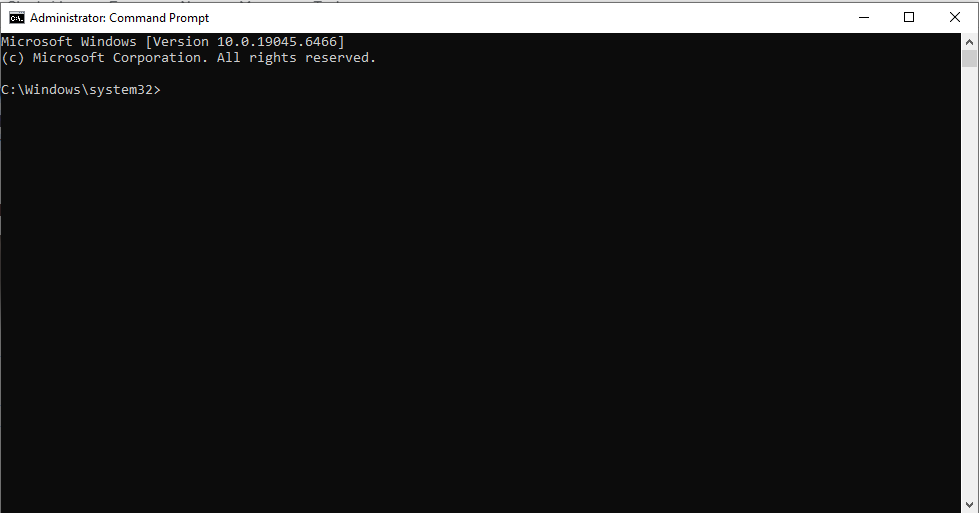
Open the Command Prompt (CMD). You can do this by hitting Windows Key + R to open the ‘Run’ box. Then type cmd and press ‘OK’ to launch Command Prompt. You can also type ‘CMD’ or ‘Command Prompt’ in your search bar and click it in the search results.
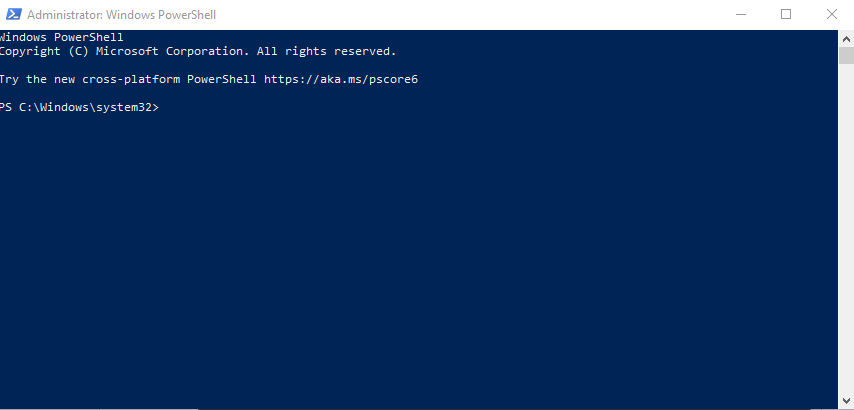
Windows 10 or Windows 11 users can use Windows PowerShell in place of the Command Prompt. Simply right-click the Start button and select Windows PowerShell (Admin) or press Windows Key + R, type powershell, and press Enter.
In the open field, type ‘ipconfig’ without the quotes and hit Enter.
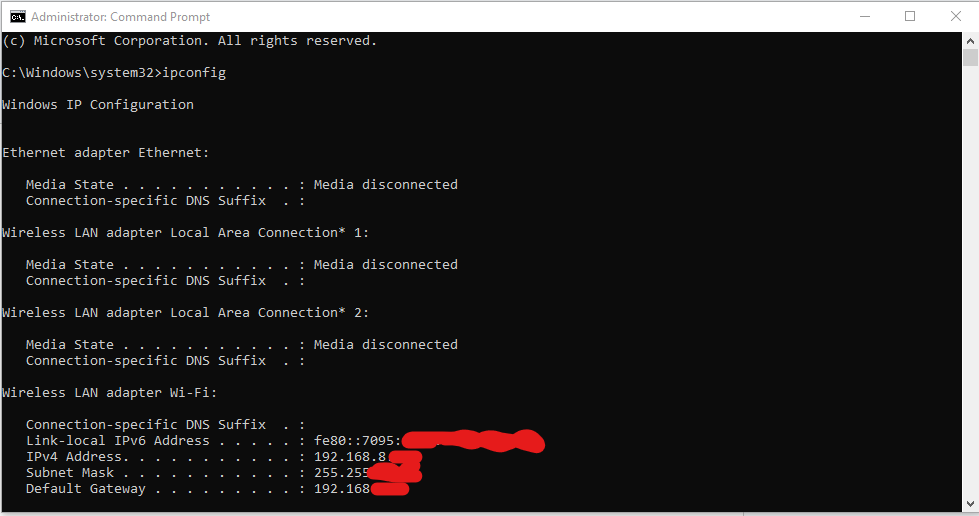
Look for ‘Default Gateway’ under your active network adapter; that’s your router’s IP address. It’s usually in the 192.168.x.x format.
If you’re connected to the internet wirelessly, you can find the address under the section “Wireless LAN Adapter Wi-Fi.” If you connect using an Ethernet cable, look for the section “Ethernet Adapter Ethernet.”
Method 2: Using Control Panel
Navigate to your Control Panel. Type ‘Control Panel’ in your search bar and click on the icon.
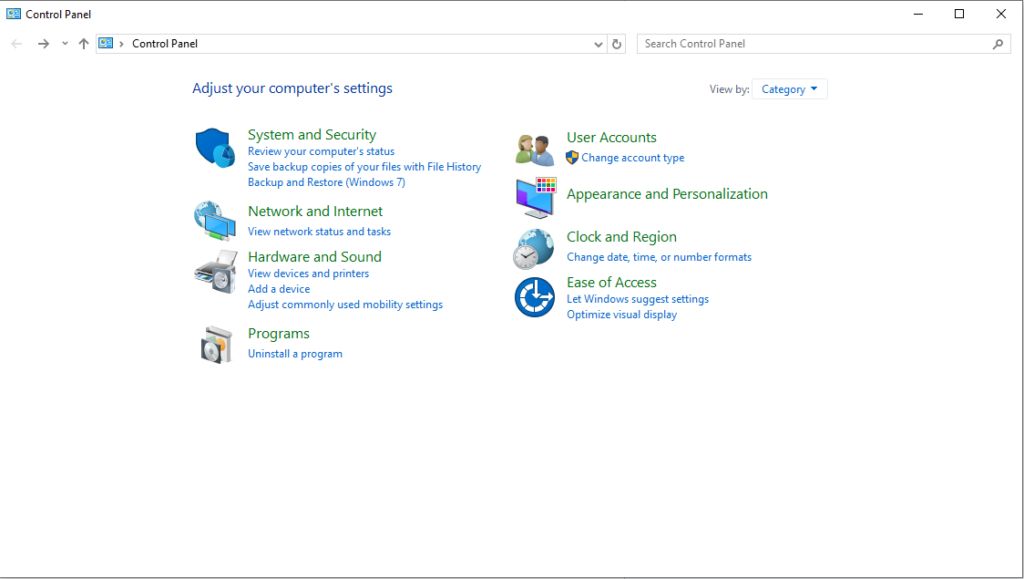
Look for ‘Network and Internet’ and click ‘View network status and tasks’ under it.
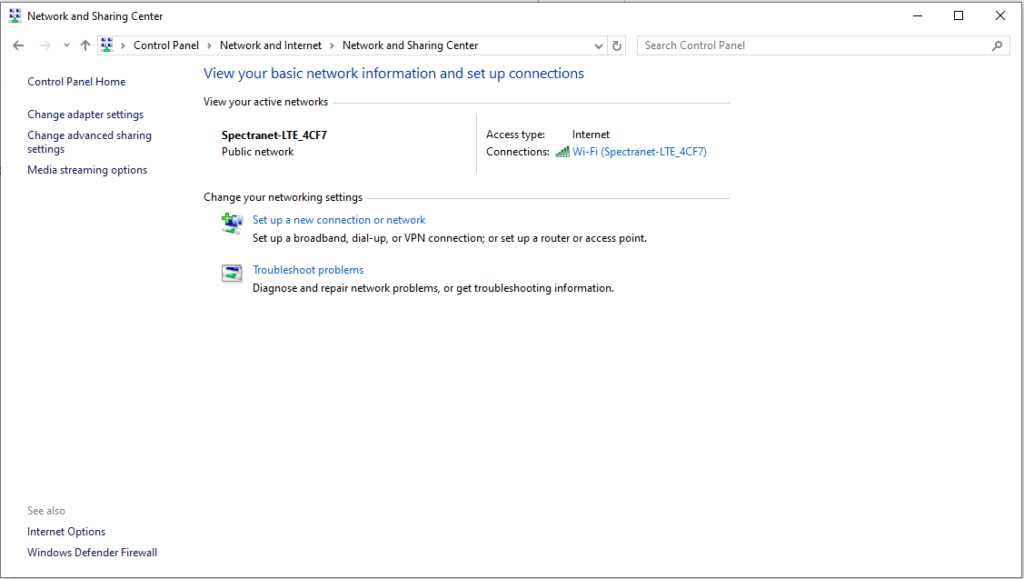
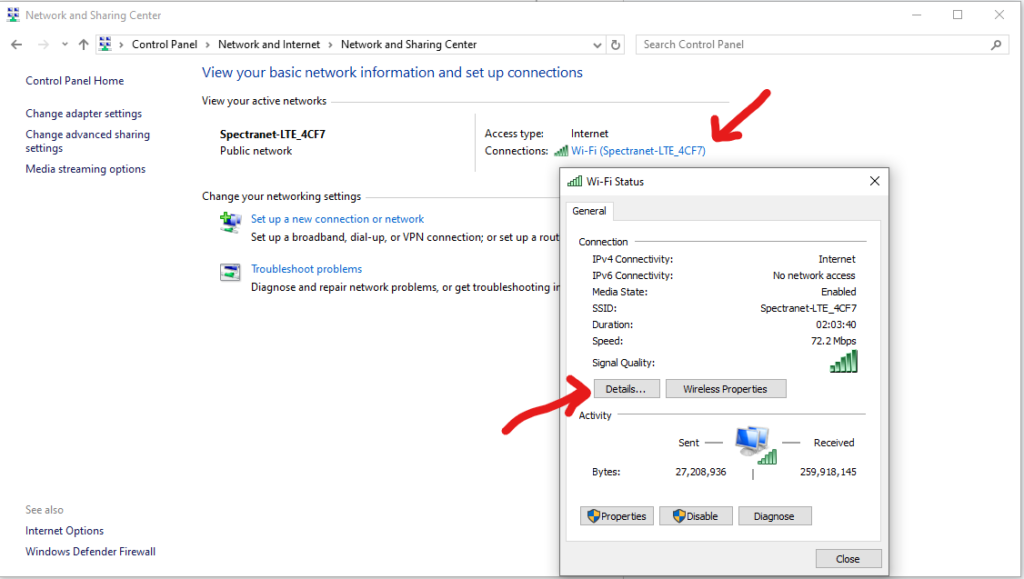
Click on your network’s name, which you should see in blue text next to “Connections.” A new window will pop up. Click on “Details.”
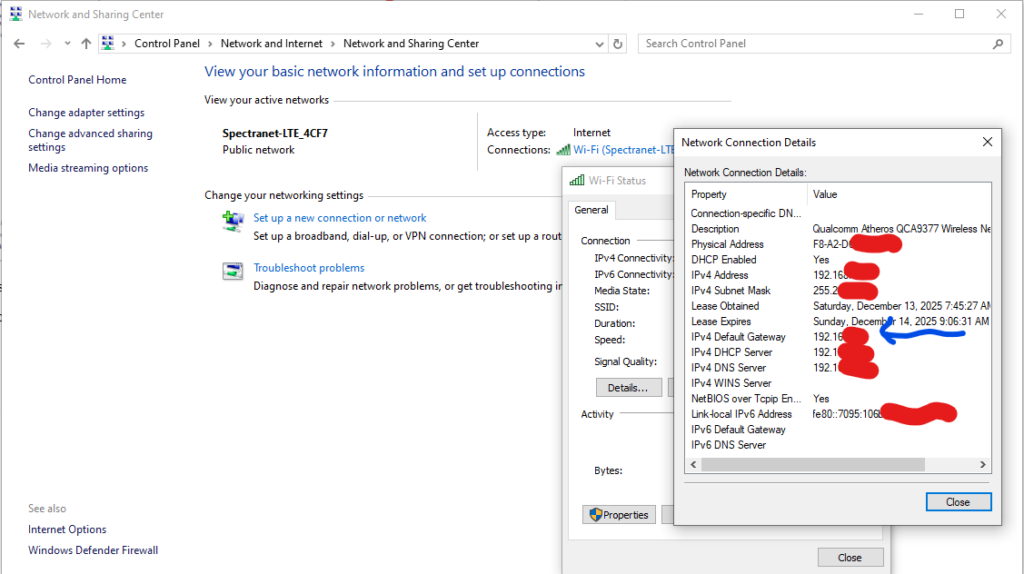
You should see your router IP address under ‘IPv4 Default Gateway.’
Finding your router IP address in Windows 11 follows a slightly different method:
Go to ‘Settings’ from the Start Menu or by pressing Windows key + I on your keyboard. Click on ‘Network & Internet’ and then on ‘Advanced Network Settings’ at the bottom of the right panel.
Click on your current network adapter, whether Wi-Fi or Ethernet. Then click ‘View additional properties. ‘Look out for ‘IPv4 address,’ your router’s IP is next to it.
How to Find Router IP on macOS
Click the Apple icon and select ‘System Preferences’ or ‘System Settings’ depending on your macOS version.
Click on ‘Network’ and select your active network on the left side (most commonly Wi-Fi). Click ‘Advanced’ on macOS Monterey or earlier versions or ‘Details’ for macOS Ventura.
Then select the ‘TCP/IP’ tab. There, you’ll find your router’s IP address displayed under ‘Router.’
Alternatively, you can find your router’s IP address using the Terminal app on macOS.
Simply search for the Terminal app and launch it.
Either type or copy and paste the following code ‘netstat -nr | grep default’ and press the Return button. The router’s IP is displayed next to the word ‘Default.’
How to Find Router IP on iPhone/iPad (iOS)

This is a very simple process.
Navigate to ‘Settings’ on your iOS device. Then, tap on Wi-Fi. You should see the network you’re connected to.
Tap the lowercase ‘i’ in a circle next to your current connection. This should display the necessary information about the network you’re connected to.
You should see your router IP displayed under ‘Router.’ You may need to scroll down a little to see it.
If you need to copy the address, simply tap and hold on the address to display the dialogue box. Then tap on ‘Copy.’
How to Find Router IP on Android Devices

Android is open source, allowing different phone manufacturers, such as Samsung, Xiaomi, and Pixel, to create custom versions. Nevertheless, the process of finding your router IP is similar across the different custom versions.
Navigate to ‘Settings.’ Click on ‘Connections,’ ‘Network & Internet,’ or ‘Wi-Fi,’ depending on your phone brand.
On the Wi-Fi tab, you should see your connected network. Tap on it.
You may need to press ‘Advanced,’ ‘View more’ dropdown, or just scroll down to see ‘Router.’
If you can’t see ‘Router,’ the ‘IP configuration,’ ‘Gateway,’ or ‘IP settings’ is set to dynamic IPs (DHCP). Tap on it and select ‘Static.’ The router IP should be displayed.
If, for any reason, you can’t find the router’s IP address on your Android model, you can use a third-party app called ‘Wi-Fi Analyzer.’
Download and install a Wi-Fi Analyzer from the Google Play Store. After installation, launch the app and click the menu icon at the top-left corner of the screen.
Click on ‘Access Points’ to see a list of available Wi-Fi networks. The one you’re currently connected to tops the list.
Your router’s IP address is displayed below the network’s name, just beside the connection speed.
How to Find Router IP on Linux

You can find your router IP on Linux using two methods: via ‘Settings’ or a simple terminal command.
To use the terminal command, open a Terminal window by pressing Ctrl + Alt + T.
Type ‘ip route show’ or ‘ip route show default’ without the quotes and press Enter. Alternatively, you can type ‘ip r’ or ‘netstat -nr | grep default’ and press Enter.
Look for the line that starts with ‘default’ or ‘default via,’ your router IP address immediately follows this line.
To use the GUI, click on the network icon in the notification area and select ‘Settings.’ On some other Linux distributions, it is called ‘Connection Information,’ ‘Network Settings,’ or similar names.
You should see your router IP address displayed next to ‘Gateway’ or ‘Default Router.’
On some versions, you would need to click the ‘Network’ tab and tap on the settings icon next to ‘Connected.’
Then select ‘Details’ to see your router IP listed next to ‘Default Router.’
How to Find Router IP on ChromeOS
Compared to other operating systems, it’s easier to find your router IP address on a computer running Chrome OS.
All you need to do is click on the notification area (system tray) at the bottom right corner of the screen.
Click on ‘Wi-Fi (Connected to the wireless network you’re connected to).’ Then select the name of your wireless network.
Click on the ‘Network’ tab. You would see your router IP address displayed next to the word ‘Gateway.’
Likewise, you can click on the gear icon in the system tray to open Chromebook’s ‘Settings.’
Click the ‘Network’ and select the Wi-Fi (or Ethernet) network you’re connected to.
You should see information about your current connection, including the router IP listed under ‘Gateway.’
How to Find Router IP Using Your Router’s Brand
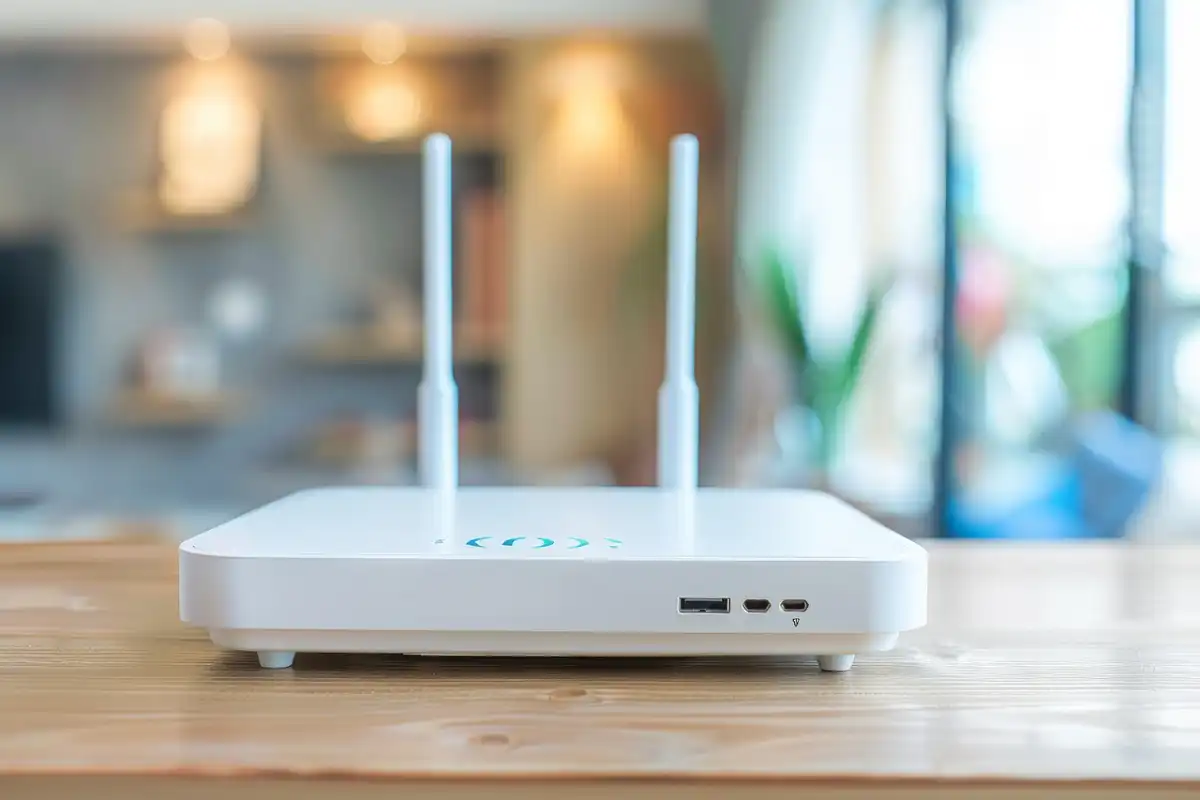
The easiest way to find your router’s IP address is by relying on common default addresses assigned by your router’s manufacturer.
The frequent default gateway used by most router brands is 192.168.1.1. Here are the default gateways for some major router brands:
| Brand | Default IP Addresses | Default Login Page |
| TP-Link | 192.168.0.1 or 192.168.1.1 | http://tplinkwifi.net |
| Netgear | 192.168.1.1 | http://routerlogin.net |
| Linksys | 192.168.1.1 | http://linksyssmartwifi.com |
| ASUS | 192.168.1.1 | http://router.asus.com |
| D-Link | 192.168.0.1 | http://dlinkrouter.local |
| Huawei | 192.168.100.1 | http://192.168.100.1 |
If any of these default IP addresses or login pages don’t work, it’s possible it has been changed, or your specific router model has its unique model-specific default gateway.
In that case, check the label on the body of the router for its default gateway or check the manufacturer’s manual.
Alternative Methods
Sometimes, the standard ‘ipconfig’ or ‘ifconfig’ methods may not be available or easy to use. This makes using alternative methods the best solution to finding your router’s IP address.
Here is an explanation of alternative methods to find your router’s IP:
Check the sticker on the back of the router: This is often the easiest method, especially for new routers whose IP or initial setup hasn’t been changed from the factory default.
Most router brands often attach the default Wi-Fi name (SSID), the default admin login credentials (username and password), and the default Gateway IP address on a label stuck to the body of the router.
Use router apps: Most modern router brands, such as TP-Link, Netgear, and ASUS, have dedicated mobile apps.
These apps, which include TP-Link Tether, ASUS router app, and Netgear Nighthawk app, communicate directly with the router once your device is connected to its Wi-Fi network.
These apps have a dashboard that displays necessary network information, including the router’s IP address.
Use network scanner tools like Fing: This is the most accurate alternative method to get your default gateway IP. It works even if the router IP has been changed.
A network scanner tool like Fing, Angry IP Scanner, or Advanced IP Scanner, performs a network scan of all devices connected to your LAN, identifying and listing them along with their corresponding IP addresses and MAC addresses.
This includes your router, which is usually labelled as the Gateway or Router.
Log into ISP modem interface: This method works if your network setup includes a separate ISP modem and a separate router – double-NAT setups.
If you log into the modem’s interface, you may see the IP address of the device it is connected to, which, in this case, is your router.
Common Issues

No gateway shown: It means your device failed to receive an IP configuration from the router through DHCP or is using a static IP that is incorrect for the network.
Solution: Either connect via Ethernet or use alternative methods to find the default gateway IP.
Wrong network: It means the IP you found belongs to the wrong router or Wi-Fi. You’re likely connected to a different wireless network or a different subnet on your local network.
Solution: Ensure that you’re connected to the right Wi-Fi or router. Check the ipconfig output or network connection details to be sure that the adapter you’re looking at is the one connected to the router.
Using a range extender: If you’re using a repeater or range extender, the Default Gateway you find may be that of the repeater/range extender and not the router.
Solution: Access the range extender’s configuration to see the main router’s IP.
Using a mobile hotspot: If you’re using a mobile hotspot, the Default Gateway you find is often the IP address of the mobile device, which is inaccessible for home router configuration.
Solution: Disconnect your device from the hotspot and connect it directly to your router via Wi-Fi or Ethernet.
Double-NAT setups: As explained earlier, if you’re using a double-NAT setup (a modem/router combo), the modem’s IP will be displayed as the gateway for the router.
Solution: Enable bridge mode to allow only one device to perform the Network Address Translation (NAT) and act as the router.
Security Reminder

Your router is the primary gateway between your LAN and the internet, managing your entire home network and connecting your devices to the internet. Hence, securing your router and its general configuration is very crucial to prevent vulnerability and external cyber threats.
Knowing your router’s IP address is essentially the first step to putting security practices into action. The address enables you to access the admin page, where you can alter default configurations, which include:
- Changing default Wi-Fi name (SSIDs)
- Changing Wi-Fi passwords
- Setting a strong admin username and password
- Enabling the Firewall
- Disabling remote access unless needed
- Using strong encryption, and
- Creating a guest network
Conclusion
Finding your router IP address follows a very simple process across all computer and mobile operating systems. This process, though different across devices, is almost universally a matter of checking the network connection details on your device.
We believe that our step-by-step guide above has helped you access your router IP address.
Now that you’ve learned how to easily find your router IP and access the admin settings, it’s crucial to regularly update settings to maintain an efficient and secure home network.
FAQ Section
What is my router’s default IP address?
Your router’s default IP address is the address that your device uses to send data outside of your LAN to the internet. It is also the address you visit via your web browser to access your router’s admin page.
Is 192.168.1.1 the same as my router IP?
The most frequent router IP used by most router brands is 192.168.1.1. So, yes, it is most likely your router IP.
Why can’t I find my gateway address?
If you can’t find your gateway address using any of the methods described above, try the listed alternative methods. Otherwise, look out for any of the common issues and apply the right solution.
How do I access my router admin page?
To access your router’s admin page, first connect to your LAN. Then, enter the router’s IP address into your web browser’s address bar and press ‘Enter.’ When prompted, enter the username and password (the default is often ‘admin’ and ‘admin’ or ‘admin’ and ‘password.’
Does every router use the same IP address?
No, every router doesn’t use the same IP address. While 192.168.1.1 and 192.168.0.1 are the most common addresses, other addresses include 10.0.0.1 and 192.168.2.1. Different manufacturers and different device models often use different default addresses.