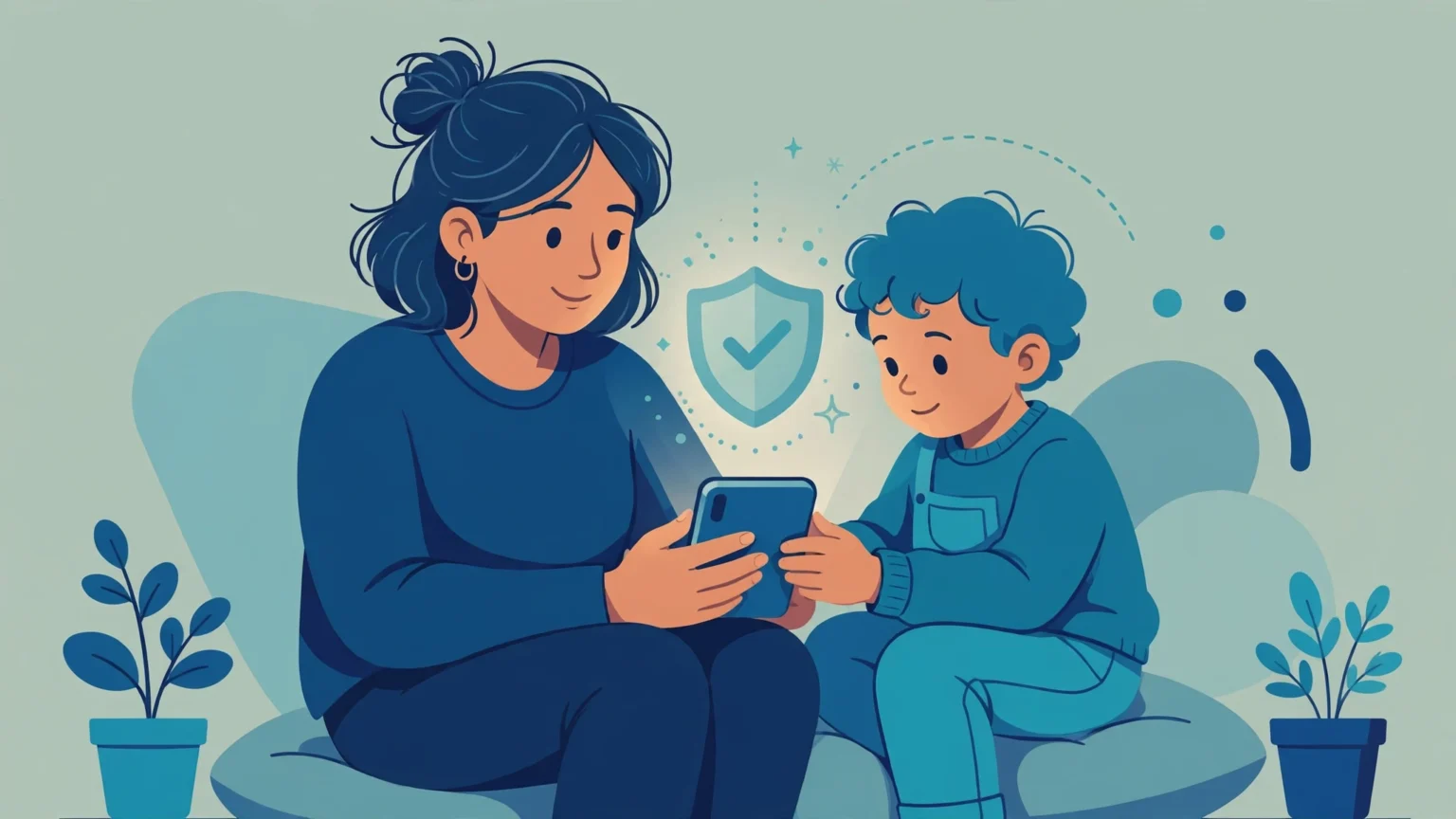
You can monitor your child’s phone safely and legally by starting with the free tools already on the device. On Android, Google Family Link lets you set screen time, approve apps, and see activity reports. On iPhone, Apple Screen Time gives you app limits, content filters, and communication controls. These built-in tools cover what most families need, and they keep you on the right side of the law because they only work on your own child’s device with proper consent.
- Why do parents monitor their child’s phone?
- Is it legal to monitor your child’s phone?
- What can parental monitoring actually do?
- How do you monitor a child’s Android phone?
- How do you monitor a child’s iPhone?
- Quick setup steps: Android vs iPhone
- What should the rules be at each age?
- How should you talk to your child about monitoring?
- What are the warning signs that monitoring is going too far?
- Do you need a paid parental control app?
- How do you handle a teen who wants more privacy?
- Safe monitoring checklist
- Frequently asked questions
Last updated: October 2026
A quick note before we start. This guide is for parents and guardians who want to keep their own minor child safe. The law generally allows parents to set controls and limits on a phone that belongs to their minor child. Monitoring another adult’s phone without consent is a different matter, and this guide does not cover it.
How we evaluate. We compare parental tools by cost, ease of setup, and the controls they offer. We verify key facts on official help pages from Google, Apple, and Microsoft. Affiliate disclosure. Some links on this page may earn us a commission at no extra cost to you.
Why do parents monitor their child’s phone?
Most parents do not monitor because they want to spy. They monitor because the phone is often the first place trouble appears. Cyberbullying, contact from strangers, and exposure to adult content usually start with a message or a link.
A phone also controls how a child spends time. Games, short videos, and social feeds are built to keep kids scrolling. Limits on screen time help kids sleep better and focus on school. Monitoring gives parents a clear picture before small habits turn into big problems.
There is also a safety reason that has nothing to do with rules. Location sharing lets you see that your child arrived at school or a friend’s house. If a child goes missing or feels unsafe, that feature can matter a lot. Parents monitor for peace of mind as much as for discipline.
Is it legal to monitor your child’s phone?
In general, parents have the legal right to supervise their minor child’s phone use. This includes setting parental controls, reviewing activity, and limiting screen time. Courts and lawmakers usually treat this as part of normal parenting. But this is general information, not legal advice. Rules can differ by state and country.
The key line is consent and ownership. You are on safe ground when the phone belongs to you or your minor child and the rules are clear. You cross the line when you monitor another adult, such as a partner or an employee, without clear consent. If you ever feel unsure, check our guide to the legality of monitoring tools and talk to a local lawyer.
Some parents ask if they need written proof of consent. For your own minor child, clear house rules are usually enough. Keep it simple and open. Tell your child what you check and why, and put the rules where everyone can see them.
What can parental monitoring actually do?
You have three levels of monitoring to choose from. Built-in tools come free with the phone and cover the basics well. Dedicated parental control apps add alerts, detailed reports, and cross-device dashboards. Heavier monitoring apps can track messages and calls, but they cost more and raise bigger privacy questions.
| Method | What it shows | Cost | Best for |
|---|---|---|---|
| Built-in tools (Family Link, Screen Time) | Screen time, app limits, content filters, location | Free | Most families |
| Parental control apps (Qustodio, Family Safety) | Alerts, detailed reports, web filtering | Free or paid | Parents who want reports |
| Monitoring apps | Calls, texts, social activity | Paid | Parents who need deep insight |
Start with the free built-in tools. They are enough for most families, and you can see how they feel before you spend money. If you need deeper reports later, our best parental control apps roundup compares the paid options.
How do you monitor a child’s Android phone?
Google Family Link is the main tool, and it is free. You install the Family Link app on your own phone and create or link a Google Account for your child. Google says the process takes about 15 minutes. Once linked, you can set daily limits, approve app downloads, and see activity reports.
You also get location sharing and bedtime schedules. The child sees that supervision is on, so nothing is hidden. For the full step-by-step walkthrough, read our Android parental controls guide.
Family Link works best when the child is under 13 with a supervised Google Account. Older kids can keep supervision on their own accounts, but Google notes that teens over 13 can choose to stop it. You will get a notice if they do, and their device locks for a short time.
How do you monitor a child’s iPhone?
Apple Screen Time is built into every iPhone and iPad, and it costs nothing extra. You set it up through Family Sharing with a Child Account for your kid. Apple recommends managing it from your own iPhone as the parent or guardian. The setup path is Settings, then Family, then your child’s name, then Screen Time.
From there you can set downtime, daily app limits, and communication limits. Content and privacy restrictions let you block adult websites and set age ratings for media. Set a Screen Time passcode that only you know, and do it from your own device. Our iPhone Screen Time guide walks through every section.
Quick setup steps: Android vs iPhone
Use this table to see the setup at a glance. Both paths take less than half an hour. You only need your own phone and your child’s device.
| Step | Android (Family Link) | iPhone (Screen Time) |
|---|---|---|
| 1. Prepare | Install Family Link on your phone | Set up Family Sharing |
| 2. Child account | Create or link your child’s Google Account | Create a Child Apple Account |
| 3. Link device | Follow the prompts to link the device | Go to Settings, then Family, then your child’s name, then Screen Time |
| 4. Set limits | Set a daily limit and a bedtime | Set Downtime and App Limits |
| 5. Lock it | Manage with your own Google account | Set a Screen Time passcode only you know |
What should the rules be at each age?
One set of rules does not fit every age. Young kids need tight filters and short screen time. Teens need more freedom, but they still need clear boundaries. The table below is a starting point. Adjust it to fit your child.
| Age | Screen time goal | Key controls | Review habit |
|---|---|---|---|
| Under 7 | 1 hour or less | Strict filters, approved apps only | Check weekly |
| 8 to 12 | 1 to 2 hours | App approvals, bedtime schedule | Check weekly |
| 13 to 15 | Agreed limits | Content filters, location sharing | Check monthly |
| 16 to 17 | Self-managed | Light filters, open talks | Talk monthly |
Keep the focus on safety, not control. As your child grows, loosen the limits and keep the talks. Trust builds when rules shrink over time.
How should you talk to your child about monitoring?
Tell your child what you are doing and why. Say the rules out loud before you turn anything on. Kids accept limits better when they understand the reason. Secret monitoring teaches them to hide things, not to stay safe.
Make it a deal, not a lecture. Write the rules down together and agree on what happens if they break. Review the rules every few months as your child grows. When kids help write the rules, they follow them more.
Use the reports as a starting point for talks. Ask about new apps and new friends with real interest. Listen more than you lecture. Our guide on how to use monitoring tools responsibly has more tips on keeping these talks healthy.
What are the warning signs that monitoring is going too far?
Monitoring should make your child safer, not smaller. If your child stops telling you things, the controls may be too tight. If they sneak devices or use secret accounts, trust is breaking. These are signs to loosen up and talk more.
Watch yourself too. Reading every message every day can become a habit that feeds worry. Check reports on a schedule instead of all the time. Give older teens more space as they show they can handle it.
Remember the goal. You are raising an adult who can make good choices alone. Controls are training wheels, not a cage. Keep privacy in balance and adjust as your child grows.
Do you need a paid parental control app?
For most families, the answer is no. Family Link and Screen Time are free and cover screen time, app approvals, and content filters. That is enough for everyday safety. Paid apps make sense only when you want more detail.
A paid app can help if you have kids on both Android and iPhone and want one dashboard. It can also help if you want alerts for risky messages or detailed weekly reports. Our best free parental control apps guide shows what you really get for free before you pay.
Never pay for a tool that promises to spy in secret. Hidden monitoring breaks trust and can break the law. Stick with tools that work in the open and that your child knows about.
How do you handle a teen who wants more privacy?
Teens will ask for more space, and that is normal. Start by giving them small wins, like fewer app checks or later bedtimes on weekends. Keep the non-negotiables, such as location sharing and content filters, but explain why they stay.
Make privacy a reward for good habits. If your teen follows the rules for a few months, loosen a limit together. If they break trust, tighten things for a while and talk about why. This turns monitoring into a path toward freedom, not a wall.
Safe monitoring checklist
Run through this list once a month to stay on track.
- Tell your child what you monitor and why
- Start with Family Link or Screen Time, both are free
- Set a bedtime schedule and daily app limits
- Approve new app downloads together
- Turn on location sharing for younger kids
- Review activity reports weekly, not every day
- Loosen one rule each time trust grows
- Keep talking more than you check
Frequently asked questions
Quick answers to the questions parents ask us most.
Is it legal to monitor my child’s phone?
In general, yes, when it is your own minor child’s phone. Parents usually have the right to set controls and review activity on a device that belongs to their child. Rules differ by place, so this is general information, not legal advice.
Can my child tell that I am monitoring their phone?
Yes. Family Link and Screen Time both show the child that supervision is on. That is a good thing. Open monitoring builds trust, while secret monitoring breaks it.
What is the best free way to monitor a child’s phone?
Use the built-in tools. Google Family Link covers Android and Apple Screen Time covers iPhone, and both are free. They handle screen time, app limits, and content filters for most families.
At what age should I stop monitoring my child?
There is no single age. Loosen the controls step by step as your child shows good judgment. Many families keep light filters and location sharing through the teen years, then hand over full control near adulthood.
Can monitoring apps read my child’s text messages?
Built-in tools like Family Link and Screen Time do not show message content. They show screen time and app use. Some paid monitoring apps claim to track messages, but they cost more and raise bigger privacy and legal questions.